Using the Sync Jobs UI
Manage sync jobs from app.truto.one. Sign in, then choose Sync Jobs in the top navigation bar.
This guide walks through each screen in the dashboard. For what sync jobs, runs, schedules, and templates mean, see the Sync Jobs overview.
List jobs
The Jobs tab lists every sync job in the selected environment.
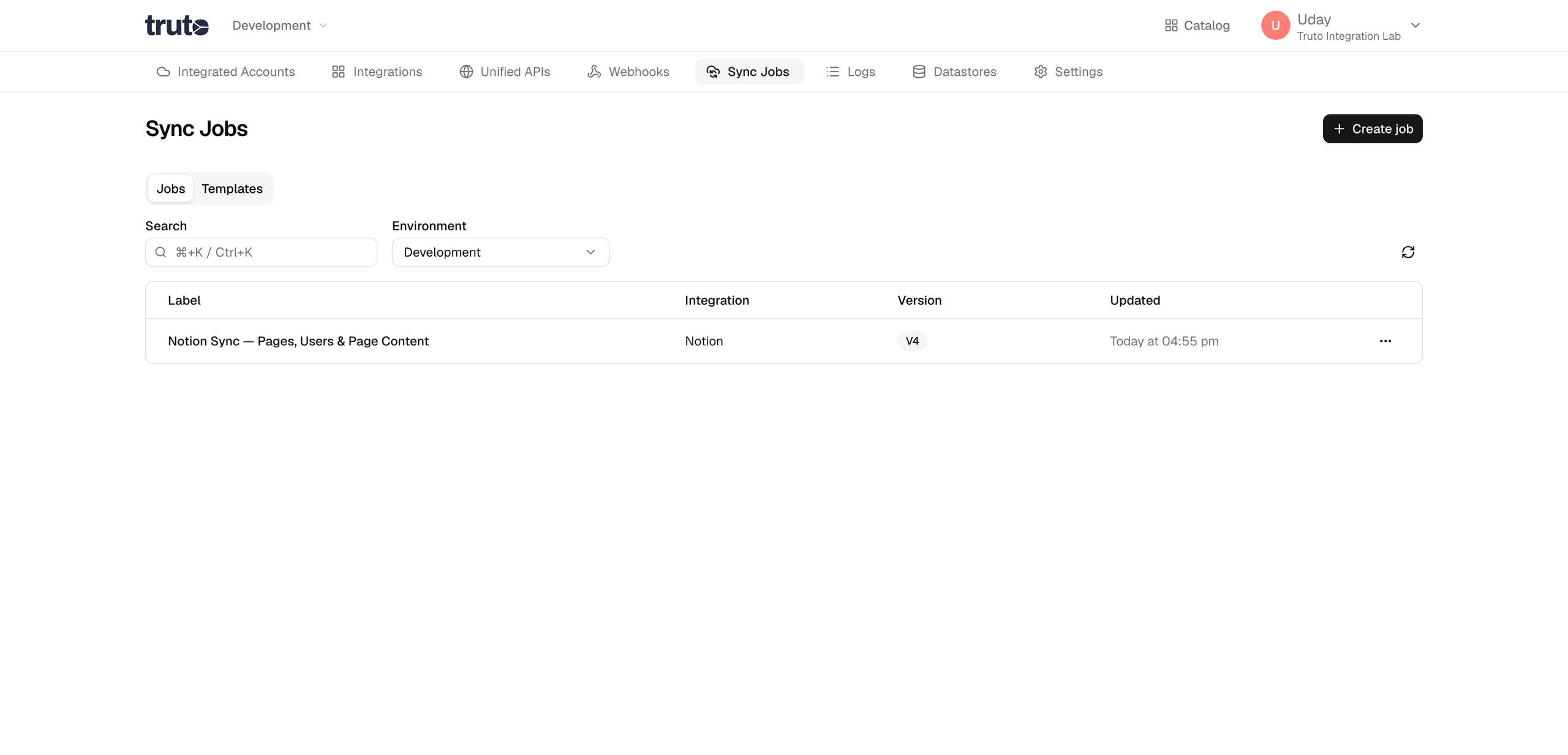
- Sync Jobs in the top navigation bar opens this page.
- Jobs and Templates switch between your job list and reusable blueprints.
- Create job opens the form for a new sync job.
- Search filters jobs by label, integration, or ID.
- The environment selector limits the list to one environment.
- Each row shows Label, Integration, Version, and Updated. Click the label to open the job.
- The row menu offers Edit, Trigger run, and Delete.
Open a job
Click a job's label to open its detail page.
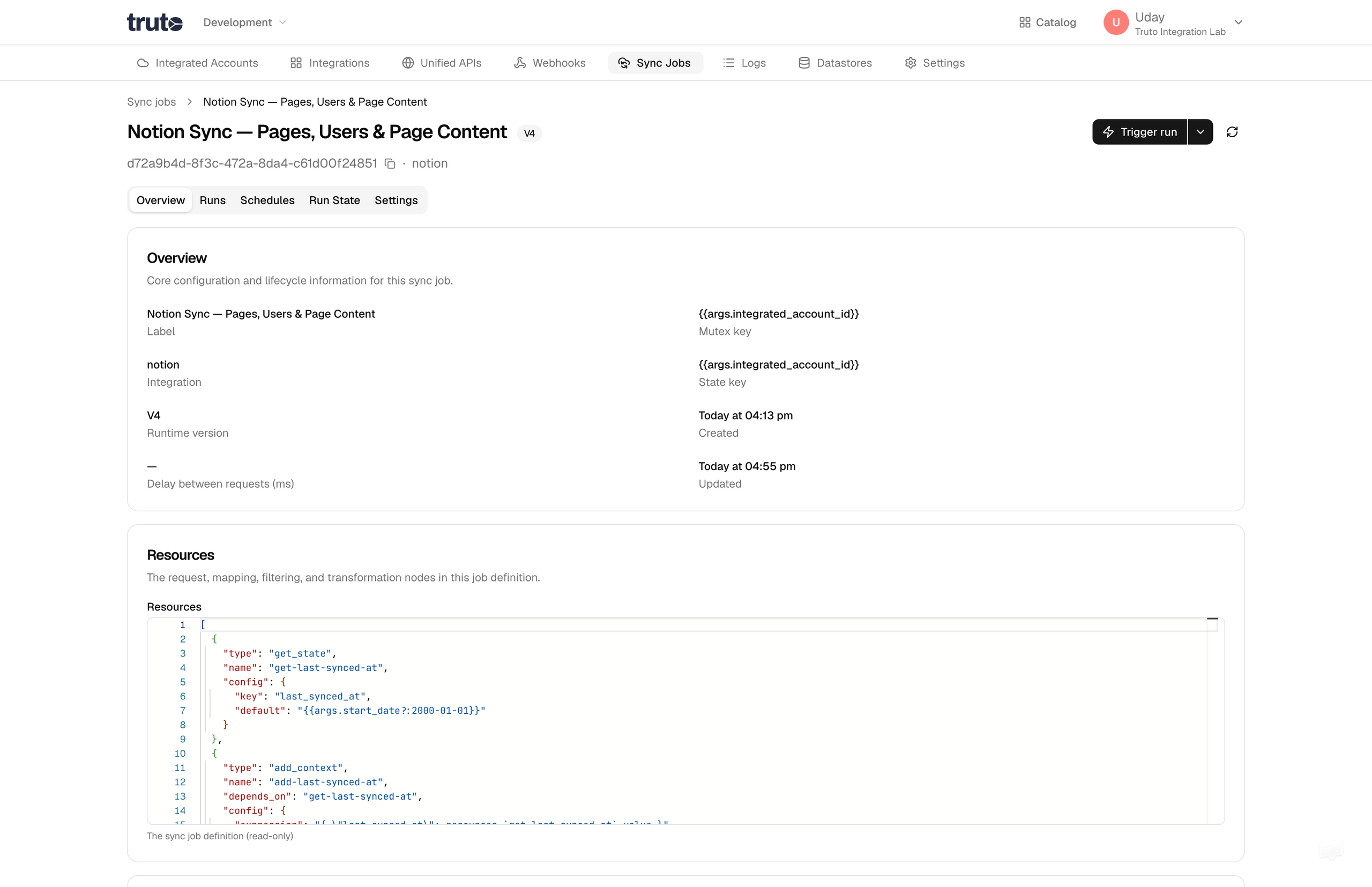
- The Sync jobs breadcrumb returns to the list.
- The job Label and runtime version tag appear at the top.
- Trigger run starts a new sync job run.
- The menu next to Trigger run offers Run with last args, View runs, Version history, Edit, and Delete.
- The job ID and integration name are shown below the title.
- Overview, Runs, Schedules, Run State, and Settings switch between detail tabs.
Overview
The Overview tab is a read-only summary of the job definition.
- Label, Integration, Runtime version, and Delay between requests (ms) describe the job at a glance.
- Mutex key and State key control concurrency and incremental sync state.
- Created and Updated show when the job last changed.
- Resources shows the pipeline definition (read-only JSON).
- Arguments schema and Arguments validation appear when the job accepts runtime arguments.
Runs
The Runs tab lists every sync job run for this job.
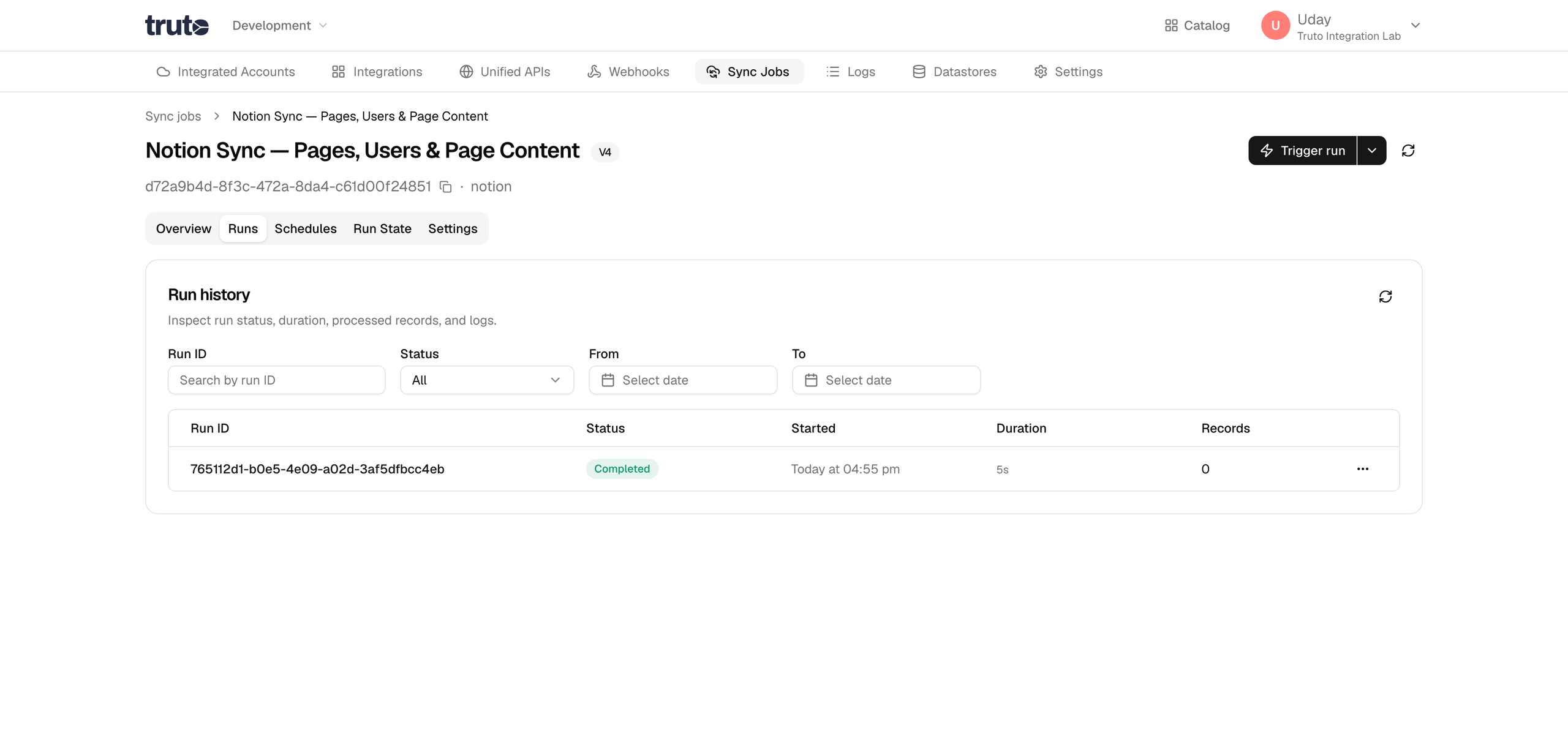
- Filter by run ID, Status, or date range.
- Each row shows Run ID, Status, Started, Duration, and Records.
- Click a run ID to open the run detail page.
- The row menu offers View logs, and Stop on active runs.
- Load more fetches additional runs when the list is paginated.
To start a run from the job header, click Trigger run. The Trigger run dialog shows the job's label and runtime version. Fill in the integrated account and destination (versions 1 to 3) and the arguments the job takes, then confirm with Trigger run.
Schedules
The Schedules tab lists cron triggers that run this job automatically.
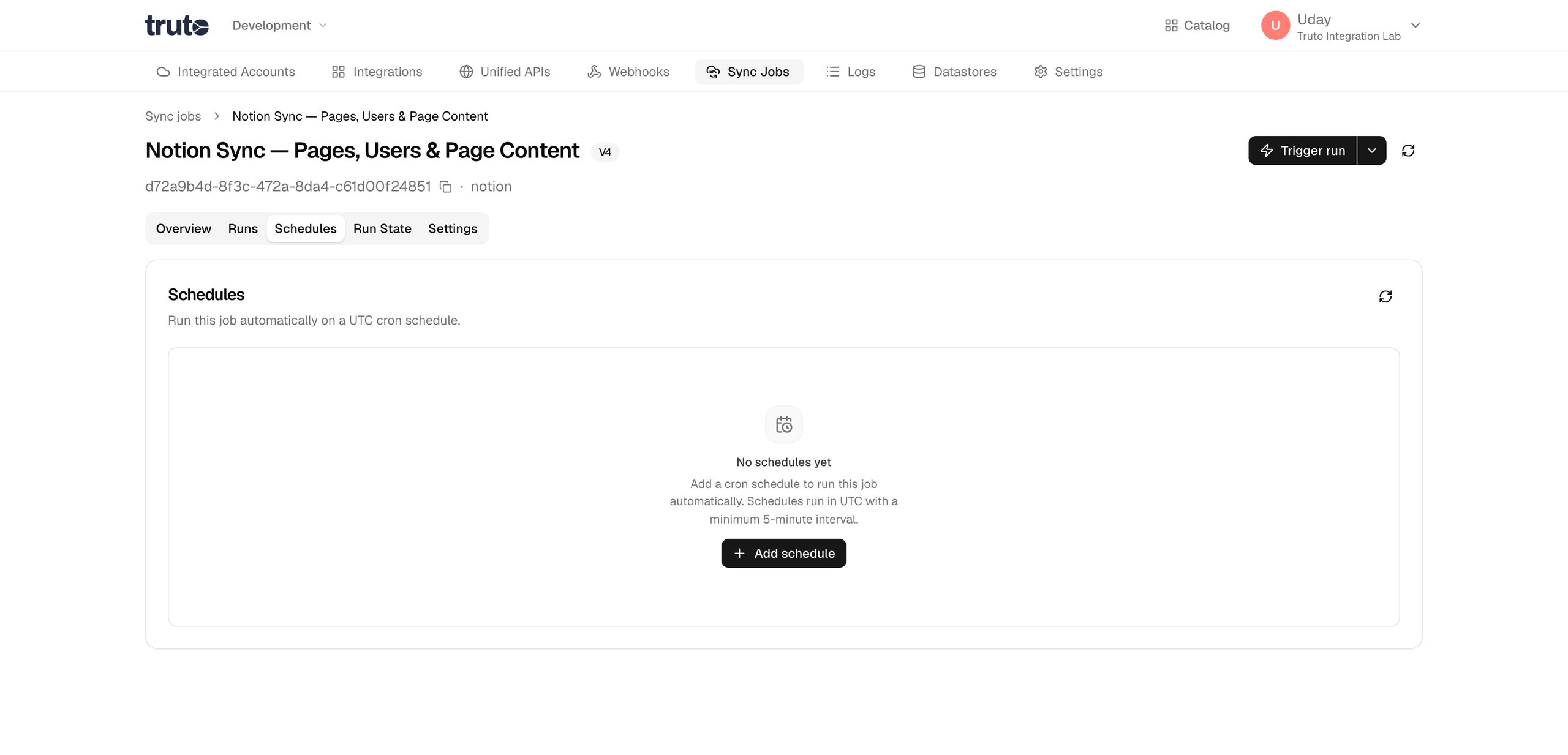
- The header notes that schedules use a UTC cron expression.
- Add schedule opens the schedule form. Pick a Frequency (every N minutes, hourly, daily, weekly or monthly) and the UTC time it runs, or turn on Advanced to type a cron expression. Its Active switch, on by default, sets whether the schedule runs.
- Each row shows Cron expression (with a UTC label), Status (Active or Inactive), Integrated account, Target (destination and arguments), and Updated.
- The row menu offers Edit and Delete. To stop a schedule for a while, open Edit and turn off Active; turn it back on to resume. An inactive schedule creates no runs.
- When no schedules exist, Add schedule is also shown in the empty state.
Schedules run in UTC with a minimum five-minute interval. Each one fires at a fixed offset inside its interval, up to an hour after the cron time. A schedule whose run is refused, for example because its webhook was deleted, stops firing while it still shows Active: fix the cause, then open Edit and click Save. See Schedules for when a schedule skips a run.
Run State
The Run State tab shows the values that a job's get_state and update_state nodes keep between runs, and lets you reset them.
- A job with no State key shows "This job doesn't use run state".
- State key namespace lists the resolved state keys of the job's recent runs. Pick one to see its entries.
- Each entry shows Key, Value, Last run (the run that last wrote it), and Updated.
- The row menu's Delete removes the entry, so the next run starts from that key's
get_statedefault.
The entries belong to the resolved state key in your environment, not to the job: another job whose state key resolves to the same value reads and writes the same entries. The API calls are GET /sync-job-run-state?state_key=<resolved state key> and DELETE /sync-job-run-state/{key}?state_key=<resolved state key>.
Settings
The Settings tab is where you edit or delete a job.
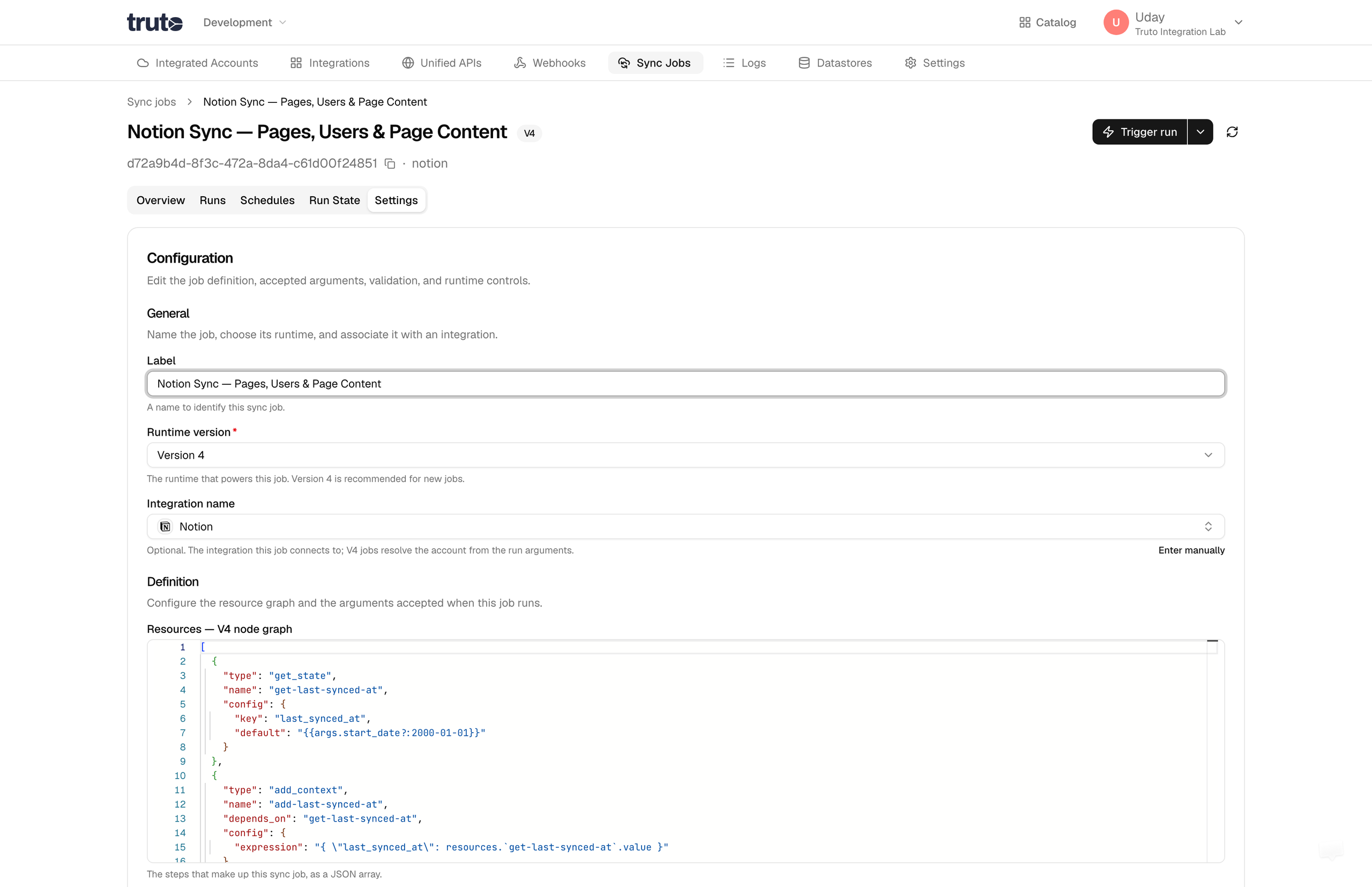
- Label — a name to identify this sync job.
- Runtime version — the runtime that powers this job. Version 4 is recommended for new jobs.
- Integration name — the integration the job is for. Required on versions 1 to 3.
- Resources — the pipeline definition as JSON.
- Arguments schema and Validate run arguments (JSONata) — optional runtime arguments and the expression that validates them.
- Advanced options → Mutex key and State key — optional keys for concurrency and persistent state (runtime version 4 only).
- Advanced options → Delay between requests (ms) — optional throttle between API calls (runtime version 4 only).
- Save changes applies your edits. A Change note (optional) you add there shows in version history.
- Delete sync job permanently removes the job and its run history.
Version history
Version history, in the menu next to Trigger run, lists every saved version of the job with who saved it, when, and any note saved with it.
- Pick a version to see what changed from the version before it. Compare with diffs it against another version instead, such as the current one.
- Restore saves the picked version as a new version. Nothing in the history is removed, so you can go back again.
- Version history is off while the Settings tab has unsaved edits. Save or discard them first.
A template's row menu on the Templates tab has Version history too. For the API, see List sync job versions, Get sync job version and Restore sync job version.
Run detail
Click a run ID on the Runs tab to inspect a single sync job run.
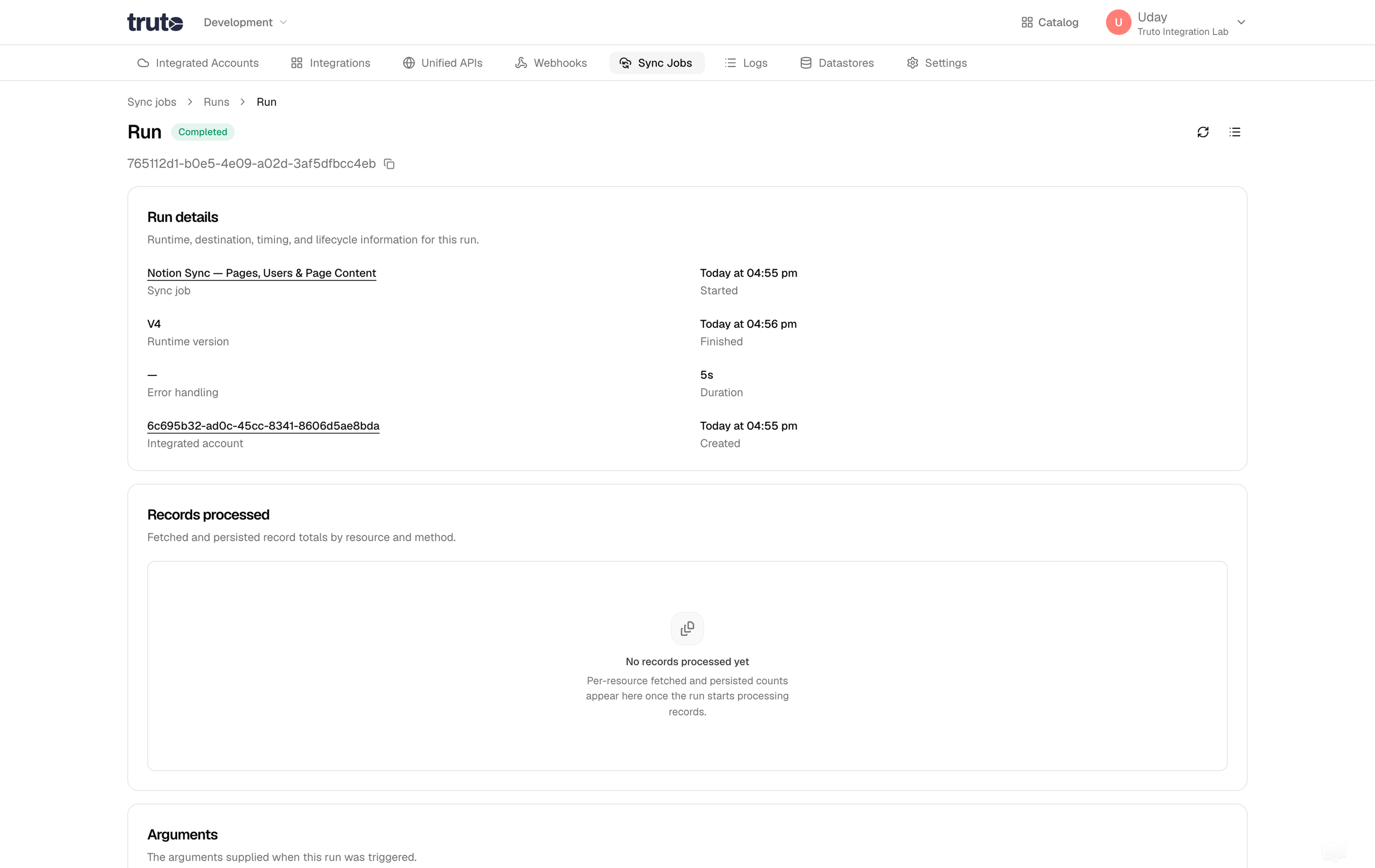
- The Runs breadcrumb returns to this job's runs.
- The run Status tag reflects the current state (for example Running, Completed, or Failed).
- View logs opens the log viewer for this run.
- Stop run appears while the run is still active.
- Sync job links back to the parent job.
- Runtime version, Error handling, and destination fields (such as Integrated account, Webhook, or Datastore) show how this run was configured.
- Started, Finished, Duration, and Created summarize timing.
- Records processed shows how many records each resource and method fetched and persisted.
- Arguments shows the JSON args passed when the run was triggered.
Templates
Switch to the Templates tab to browse reusable sync job blueprints.
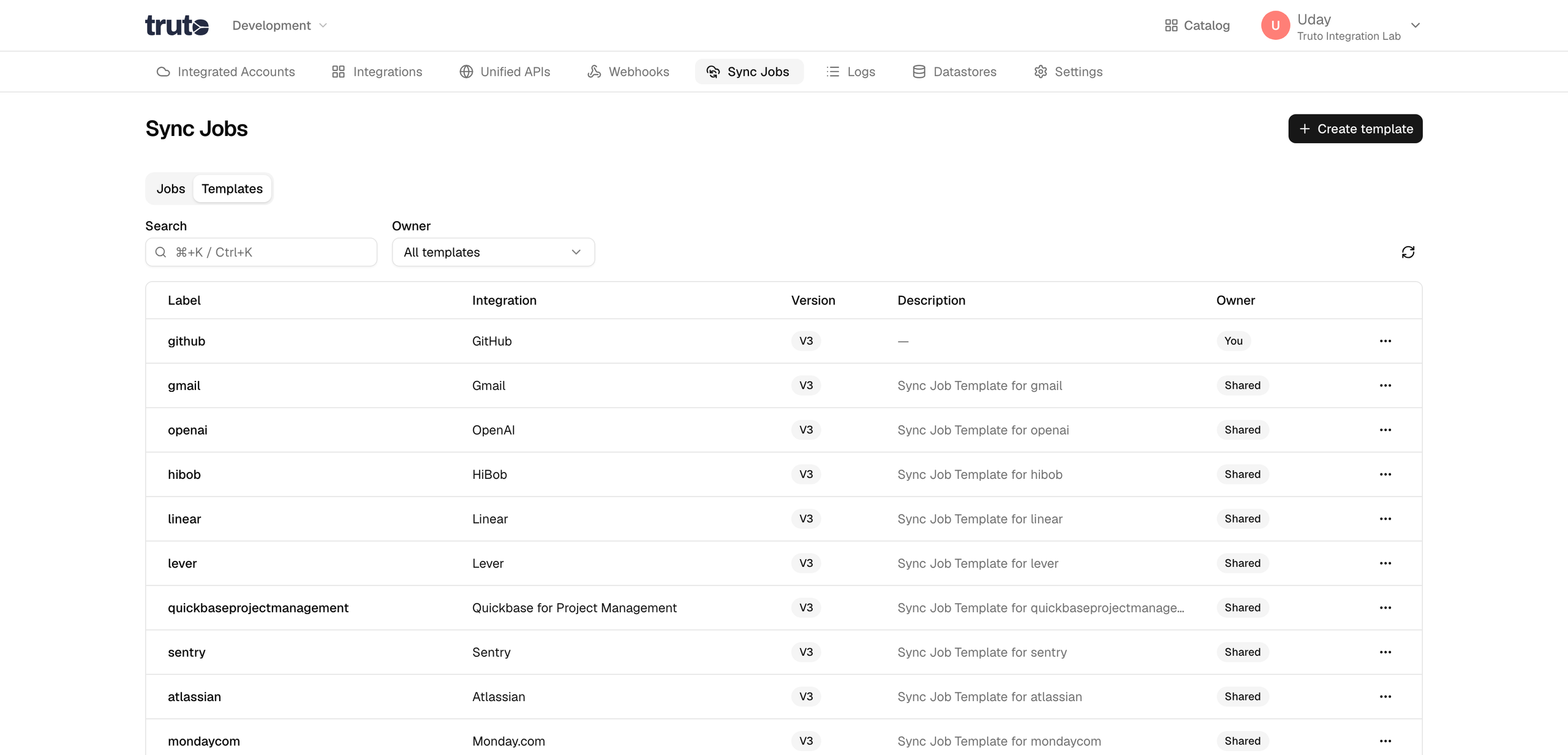
- Create template opens the template form.
- Search filters templates by label, integration, description, or ID. Owner narrows the list to templates created by you or shared with you.
- Each row shows Label, Integration, Version, Description, and Owner (You or Shared).
- The row menu offers Create job from template, Edit, Version history, and Delete. The last three work only on templates your team owns.
- Create job from template opens the job form pre-filled from the template so you can save it as a new sync job in your environment.