Make API calls
Call an integrated account three ways: the Unified API (one shape across integrations), the Proxy API (a resource defined on the integration, returned as the vendor sends it) and the Custom API (any vendor path, with the account's credentials).
Skip the reading — fast path for coding agents
truto unified crm contacts -a <integrated_account_id>/skill truto
Call an account from your code
Every data call names the account with ?integrated_account_id=<id>. The examples below read the contacts of a HubSpot account each way:
# Unified API: CRM contacts in the unified shape
curl 'https://api.truto.one/unified/crm/contacts?integrated_account_id=<integrated_account_id>' \
  -H "Authorization: Bearer $TRUTO_API_TOKEN"

# Proxy API: the integration's contacts resource, as HubSpot returns it
curl 'https://api.truto.one/proxy/contacts?integrated_account_id=<integrated_account_id>' \
  -H "Authorization: Bearer $TRUTO_API_TOKEN"

# Custom API: a HubSpot path after the integration's base URL
curl 'https://api.truto.one/custom/crm/v3/objects/contacts?integrated_account_id=<integrated_account_id>' \
  -H "Authorization: Bearer $TRUTO_API_TOKEN"
# Unified API
truto unified crm contacts -a <integrated_account_id>
# Proxy API
truto proxy contacts -a <integrated_account_id>
# Custom API
truto custom /crm/v3/objects/contacts -a <integrated_account_id>import TrutoApi from '@truto/truto-ts-sdk'
const trutoApi = new TrutoApi({ token: process.env.TRUTO_API_TOKEN })
const integrated_account_id = '<integrated_account_id>'
// Unified API
for await (const contact of trutoApi.unifiedApi.list({
unified_model: 'crm',
resource: 'contacts',
integrated_account_id,
})) {
console.log(contact)
}
// Proxy API
for await (const contact of trutoApi.proxyApi.list({
resource: 'contacts',
integrated_account_id,
})) {
console.log(contact)
}
// Custom API (customApi doesn't reach the API in 2.1.x; call it directly)
const response = await trutoApi.apiClient.request(
`/custom/crm/v3/objects/contacts?integrated_account_id=${integrated_account_id}`,
{ method: 'GET' },
)import asyncio
import os
from truto_python_sdk import TrutoApi
async def main():
truto_api = TrutoApi(token=os.environ["TRUTO_API_TOKEN"])
account = {"integrated_account_id": "<integrated_account_id>"}
# Unified API
async for contact in truto_api.unified_api.list("crm", "contacts", account):
print(contact)
# Proxy API
async for contact in truto_api.proxy_api.list("contacts", account):
print(contact)
# Custom API
response = await truto_api.custom_api.get("crm/v3/objects/contacts", **account)
print(response)
asyncio.run(main())Unified API
The Unified API transforms the data into a common format, making it easier to work with if you're using multiple different integrations.
Proxy API
The Proxy API gives you the data exactly as it comes from the original source, without any transformations. It's more of a direct line to the underlying API.
Custom API
Use the Custom API when the integration has no resource for the endpoint you need. /custom/{path} sends your request to {path} after the integration's base URL, with the account's credentials. Every HTTP method works the same way: the method you call is the method Truto sends. Query parameters other than integrated_account_id are passed on, the request body is sent as you gave it, and a JSON response comes back wrapped in result.
Check a connection
status is the last result Truto saw. Apart from refreshing OAuth tokens, Truto doesn't check the account on its own. To check it now:
- Make a cheap read call. If it fails with
401, Truto moves the account toneeds_reauth; other errors leavestatusunchanged, so read the error. - Run the integration's validation steps with
POST /integrated-account/{id}/validate. A failing run sets the account tovalidation_error. The call returns404when the integration has no validation steps. - List what the account supports with
GET /integrated-account/{id}/capabilities: its Unified and Proxy API resources and methods. Proxy methods without a description are left out unless you passhas_description=false.
# A cheap read call
curl 'https://api.truto.one/unified/crm/contacts?integrated_account_id=<integrated_account_id>&limit=1' \
  -H "Authorization: Bearer $TRUTO_API_TOKEN"

# Run the integration's validation steps
curl -X POST https://api.truto.one/integrated-account/<integrated_account_id>/validate \
  -H "Authorization: Bearer $TRUTO_API_TOKEN"

# What the account supports
curl https://api.truto.one/integrated-account/<integrated_account_id>/capabilities \
  -H "Authorization: Bearer $TRUTO_API_TOKEN"
# A cheap read call
truto unified crm contacts -a <integrated_account_id> -q limit=1
# Run the integration's validation steps
truto accounts validate <integrated_account_id>
# What the account supports
truto capabilities <integrated_account_id>Make API calls from the dashboard
- Open Integrated Accounts.
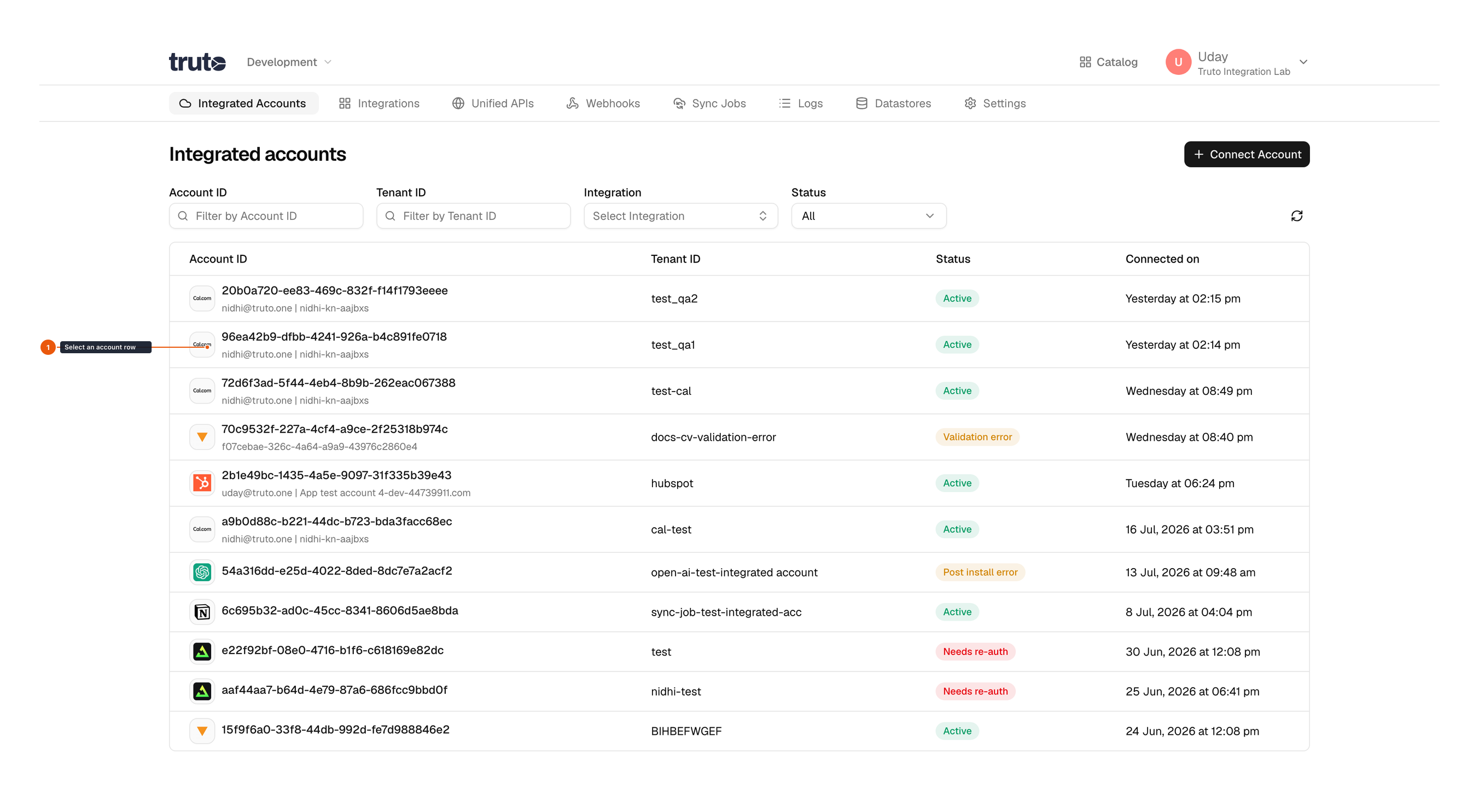
- Select an Integrated Account. The detail page has Details, Unified API, Proxy API and MCP Servers tabs.
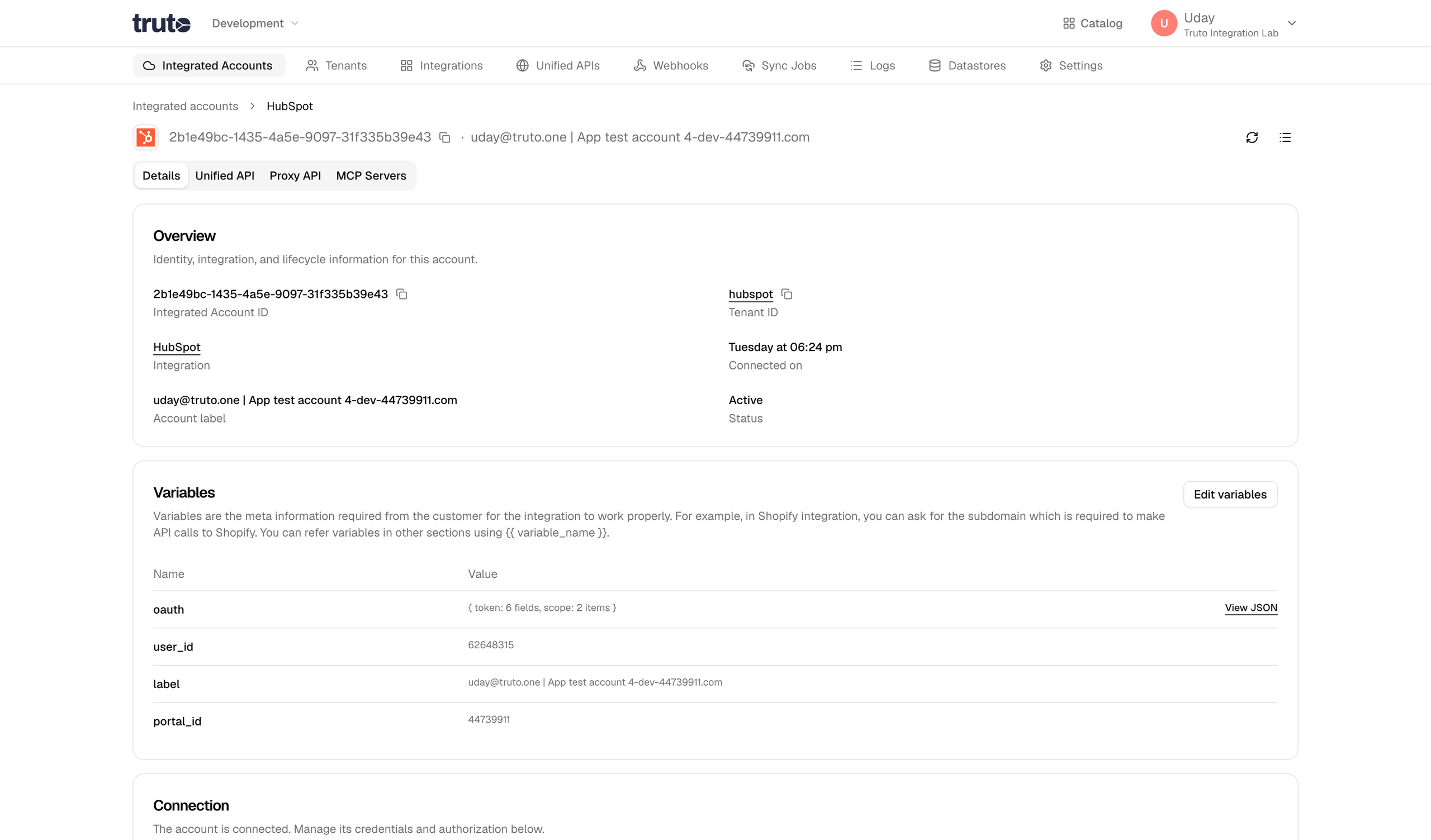
- Select either Unified API or Proxy API based on your requirements.
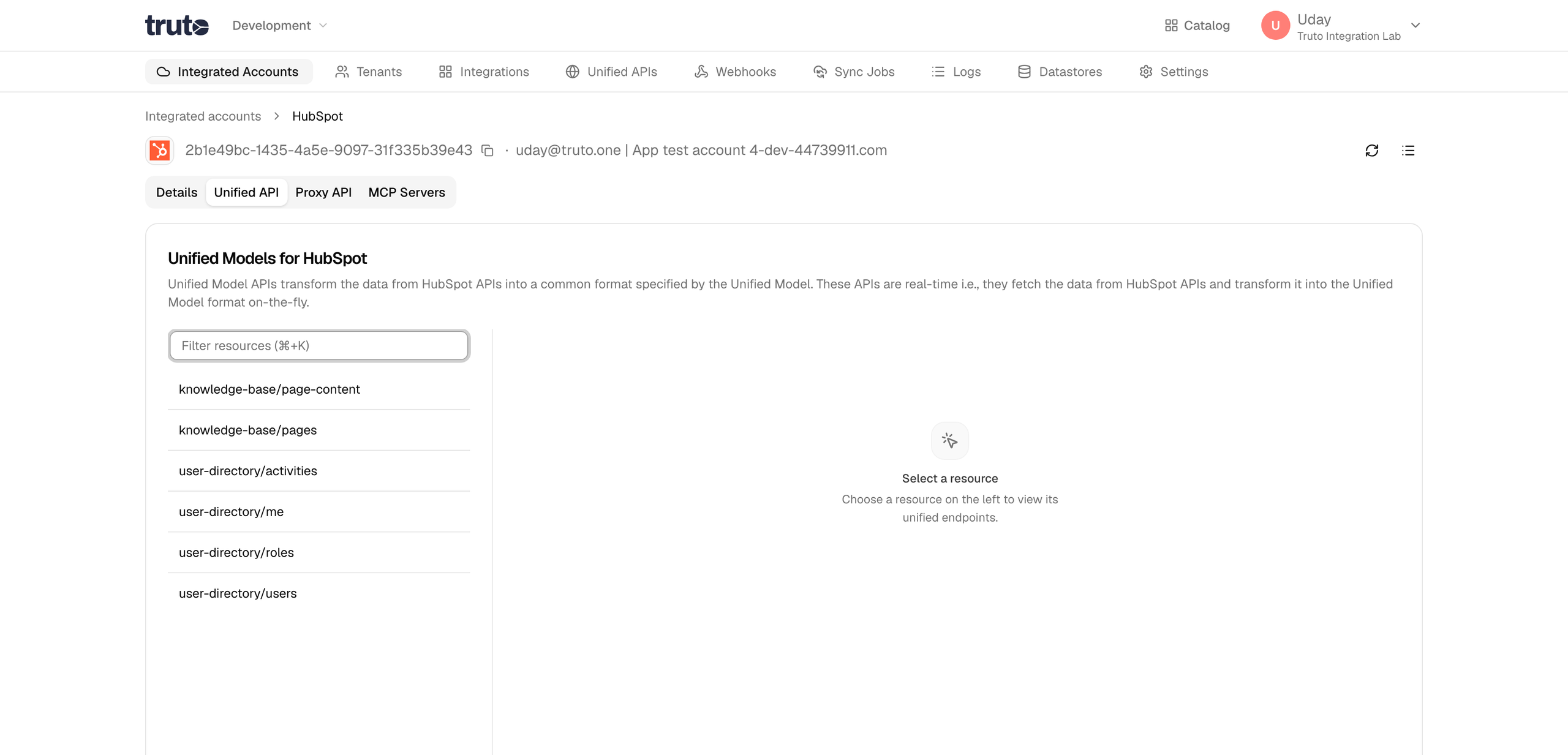
- Select a Resource to call from that API, then click the method you want to call (for example
list). A dialog opens with the request.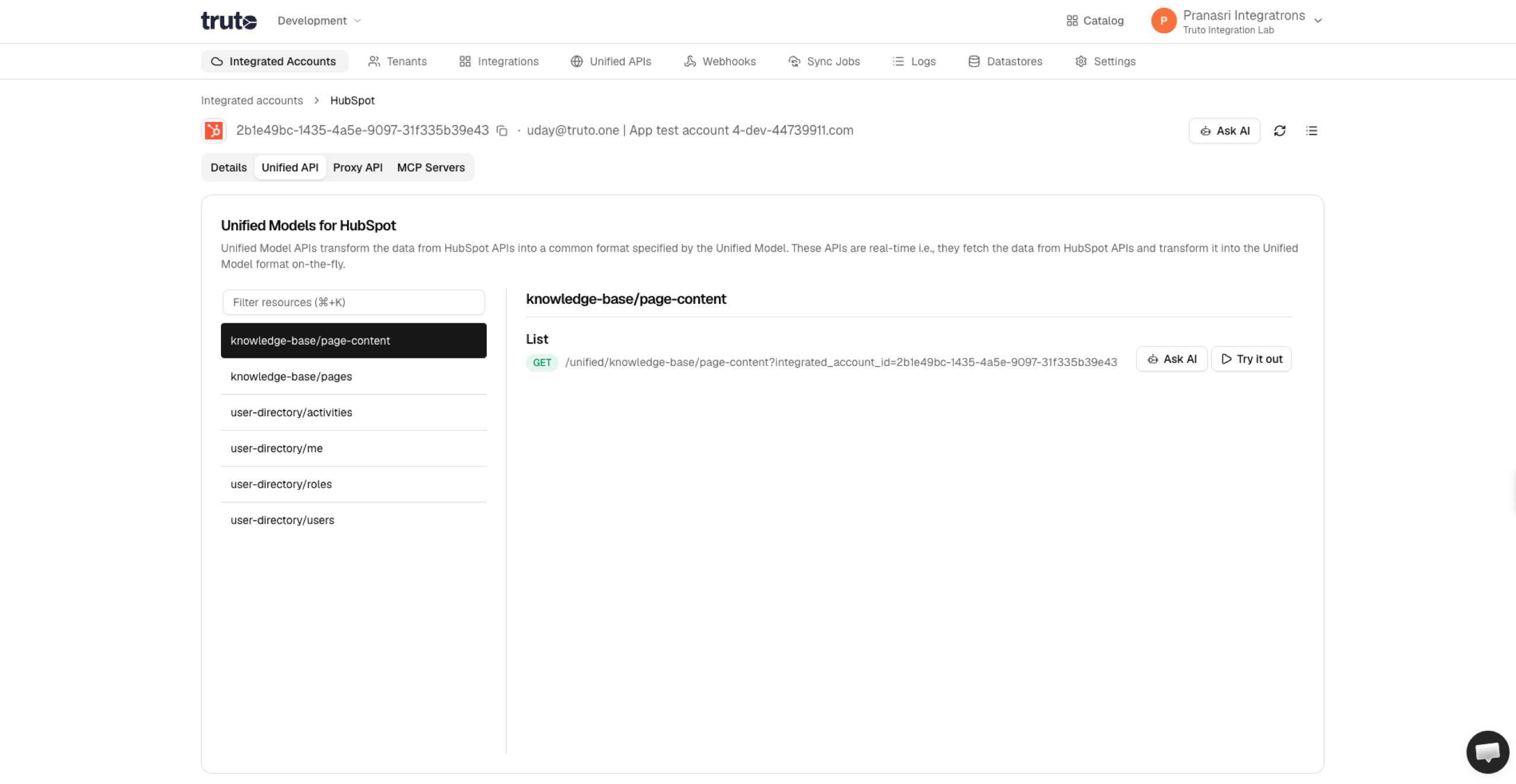
- Click on
Call API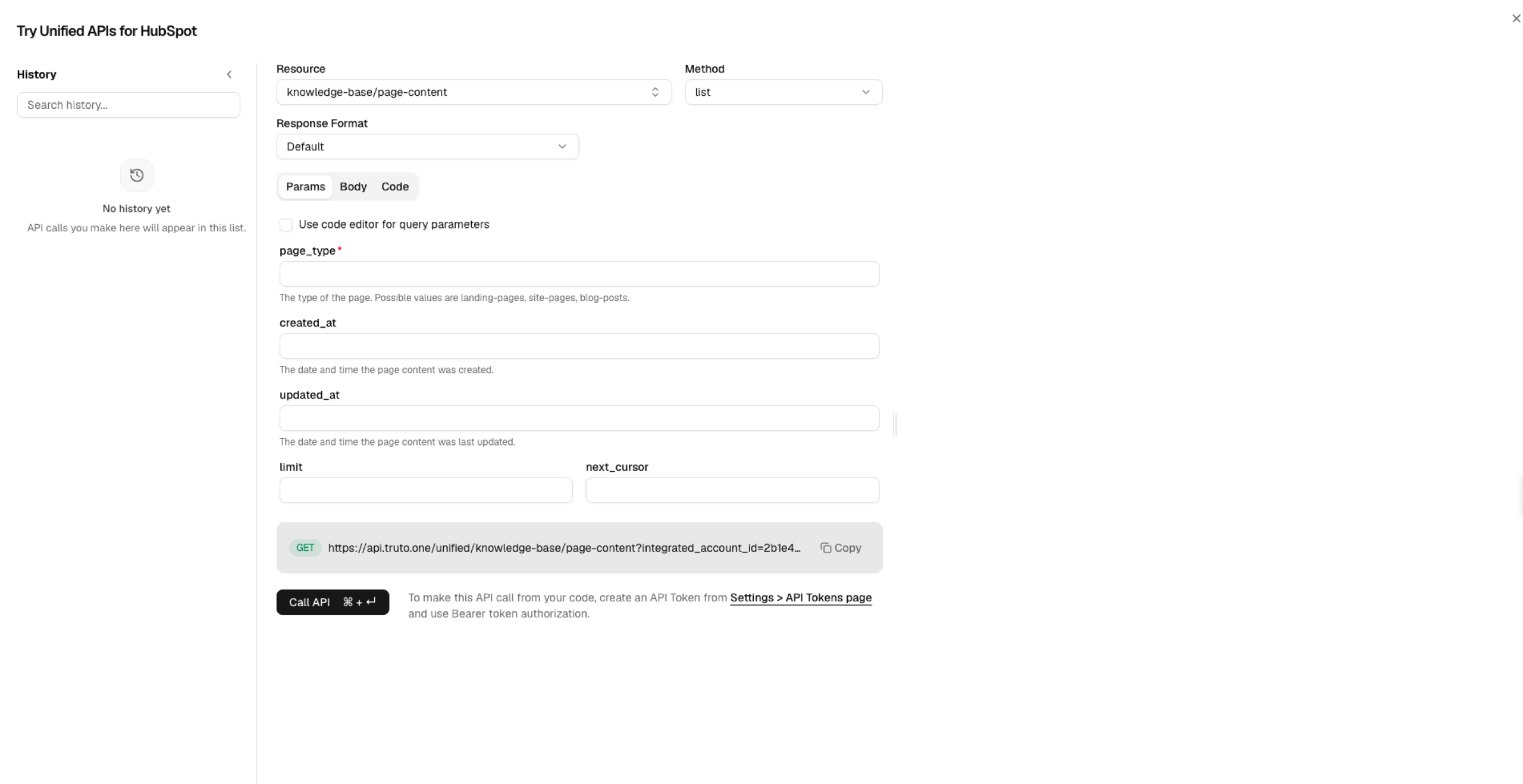
Querying Data
Both APIs allow you to limit the number of results you get in one go by using the limit parameter. You can also use the next_cursor parameter to navigate through pages of results.
In some cases, you might need to use specific query parameters like id to retrieve specific data.
In the Unified API, you'll find an option called Show remote_data. If this is enabled, you'll see both the transformed data and the original data from the underlying API. If it's disabled, you'll only see the transformed data.
Writing Data using Unified APIs
Writing data back into the integrations using Unified APIs is inherently a hard problem to solve. The remote APIs usually have their own set of required fields while creating or updating data. And certain fields which are required for writing data don't get sent in the responses.
Truto tries to solve this by
- Using the same fields you receive in the response of Unified APIs as the fields of the request body while writing data.
- Providing a
/metaAPI for each Unified API resource to help you generate the requests programmatically.
Structure of request body in the Unified API
Let's take an example of creating a CRM Contact using the Unified API.
A CRM Contact object has the following Unified fields,
- first_name
- last_name
- email_addresses
- and many more
We'll use the same set of Unified fields to create a CRM Contact irrespective of the underlying API integration.
So with these things in mind, a request body to create or update a Contact in HubSpot with the Unified API would look like,
// POST https://api.truto.one/unified/crm/contacts?integrated_account_id=<integrated_account_id>

// example of a HubSpot Contact create request
{
  // set of Unified API fields,
  "first_name": "John",
  "last_name": "Doe",

  // an object which gets passed as is to the underlying API.
  "remote_data": {
    "properties": {
      "hs_some_hubspot_specific_property": "from_truto"
    }
  }
}
In the example above, the first_name and last_name Unified API fields get transformed according to the HubSpot API rules and the object in the remote_data gets merged into the transformed object.
This is how the final request object would look like after all the transformations are applied by Truto,
{
  // notice how first_name and last_name get added to the properties object.
  "properties": {
    "firstname": "John",
    "lastname": "Doe",
    "hs_some_hubspot_specific_property": "from_truto"
  }
}
first_name becomes properties.firstname and last_name becomes properties.lastname. The way HubSpot expects the request body to be.
/meta route to get request body schema
In the HubSpot example above, we had to refer to the HubSpot documentation to figure out the required fields to create a Contact. But we don't want to do that for every single CRM, so Truto provides a solution where you can query the fields required to create or update an entity using Unified API resource by calling the /meta route.
Taking the HubSpot example from above, you can call the following route to fetch the fields required to create a Contact in HubSpot,
# Swap `create` for `update`, `list` or `get` to see that method's fields
curl 'https://api.truto.one/unified/crm/contacts/meta/create?integrated_account_id=<a_hubspot_integrated_account_id>' \
  -H "Authorization: Bearer $TRUTO_API_TOKEN"
Note the segment order: meta always comes before the method name. A path like
/unified/crm/contacts/create/meta does not exist and returns a plaintext 404.
Two forms of the route are supported:
GET /unified/{model}/{resource}/{integration}/meta/{method}— the integration is named in the path, and the environment is taken from your API token. Nointegrated_account_idneeded. For example,GET /unified/crm/contacts/hubspot/meta/list.GET /unified/{model}/{resource}/meta/{method}?integrated_account_id=…— the integration and the environment are both derived from the integrated account. When you authenticate with an integrated account token, theintegrated_account_idquery parameter is optional.
It should return a response with request_body_schema attribute which contains the fields required to make the request.
{
    "method": "create",
    "schema": {
        // JSON schema of the response
    },
    "query_schema": {
      // JSON schema of the query parameters you need to pass
    },
    // The request body fields
    "request_body_schema": {
        "first_name": {
            "type": "string",
            "description": "The contact's first name",
            "required": true,
            "mapping": "first_name"
        },
        "last_name": {
            "type": "string",
            "description": "The contact's last name",
            "mapping": "last_name"
        },
        "addresses": {
            "type": "array",
            "items": {
                "type": "object",
                "properties": {
                    "street_1": {
                        "type": "string",
                        "description": "Line 1 of the street address"
                    },
                    "street_2": {
                        "type": "string",
                        "description": "Line 2 of the street address"
                    },
                    "city": {
                        "type": "string",
                        "description": "The city"
                    },
                    "state": {
                        "type": "string",
                        "description": "The state"
                    },
                    "postal_code": {
                        "type": "string",
                        "description": "The postal code"
                    },
                    "country": {
                        "type": "string",
                        "description": "The country"
                    },
                    "type": {
                        "type": "string",
                        "description": "The address type"
                    }
                }
            },
            "mapping": "addresses"
        },
        "email_addresses": {
            "type": "array",
            "items": {
                "type": "object",
                "properties": {
                    "email": {
                        "type": "string",
                        "description": "The email address"
                    },
                    "type": {
                        "type": "string",
                        "description": "The email address type"
                    }
                }
            },
            "required": true,
            "mapping": "email_addresses"
        },
        "phone_numbers": {
            "type": "array",
            "items": {
                "type": "object",
                "properties": {
                    "number": {
                        "type": "string",
                        "description": "The phone number"
                    },
                    "type": {
                        "type": "string",
                        "description": "The phone number type"
                    }
                }
            },
            "mapping": "phone_numbers"
        },
        "custom_fields": {
            "type": "object",
            "description": "Custom fields to be set on the contact",
            "mapping": "custom_fields"
        }
    },
    "default_query": {}
}
Both forms return method, schema, documentation_link, default_query and default_body
(default_body only when the mapping sets one). The integrated_account_id form adds
response_mapping. The {integration} form adds response_schema instead and nests the query
and request-body schemas under properties:
{
  "query_schema": {
    "type": "object",
    "properties": {
      // JSON schema of the query parameters you need to pass
    }
  },
  "request_body_schema": {
    "type": "object",
    "properties": {
      // The request body fields
    }
  }
}
Large files
Truto streams file downloads and other non-JSON responses as they arrive. When a JSON or XML response is too large to process, add truto_response_format=stream to get the integration's response body unparsed. To upload a large file through the Proxy API, add truto_body_passthrough=true: Truto sends the request body to the integration as is, without parsing it.
# Download: stream a large response as the integration sends it
curl "https://api.truto.one/proxy/<resource>/<id>?integrated_account_id=<integrated_account_id>&truto_response_format=stream" \
  -H "Authorization: Bearer $TRUTO_API_TOKEN" \
  -o response.json

# Upload: send the file body to the integration as is
curl -X POST "https://api.truto.one/proxy/<resource>?integrated_account_id=<integrated_account_id>&truto_body_passthrough=true" \
  -H "Authorization: Bearer $TRUTO_API_TOKEN" \
  -H "Content-Type: application/octet-stream" \
  --data-binary @report.pdf
Next
Each unified model's API reference, such as CRM contacts, lists its resources, fields and query parameters. To let an AI agent call the account's Proxy APIs as tools, create an MCP server for it.