Transform Expressions
Change or add to the end user's answers with a JSONata expression before RapidForm saves them to the integrated account, for example to give the account a name from the selected workspace. Add the form's fields first.
Skip the reading — fast path for coding agents
/skill truto-jsonata
Setting Up Transform Expressions
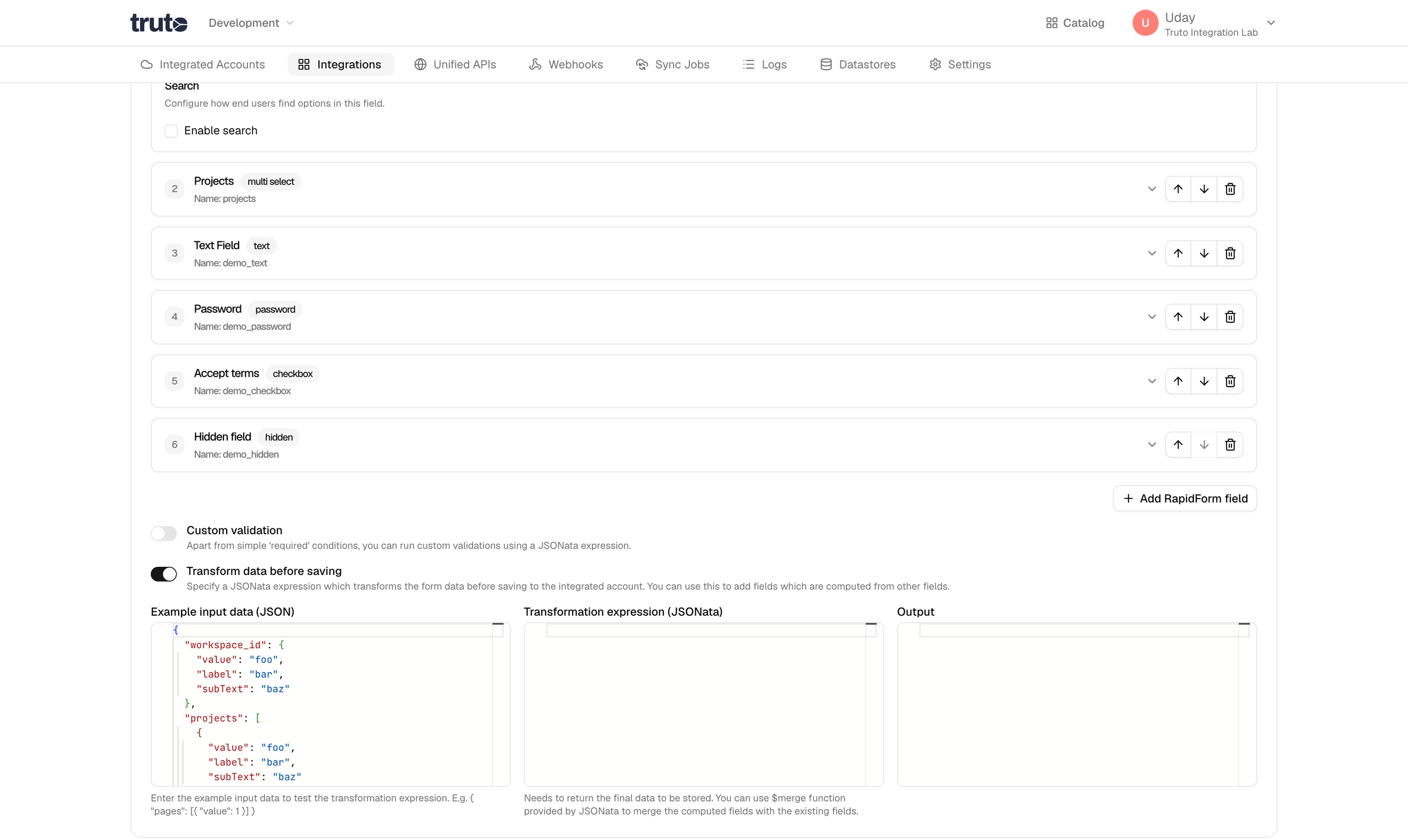
Transform expressions are configured to preprocess form data before it is stored. This feature is useful for scenarios where fields need to be computed dynamically or existing fields require adjustments. Turn on Transform data before saving below the RapidForm fields.
How it runs
- The expression gets the form values keyed by field name, plus
truto_integrated_account_contextwith the account's currentcontext. - It runs when the end user clicks Save, after the Required checks and custom validation pass.
- Truto drops
truto_integrated_account_contextfrom what you return and merges the rest into the account'scontext: keys you return replace the stored ones, and keys you leave out keep their stored value. Nothing is deleted. - Through the API, set it as
config.transform_expressionon the form step. See Creating a RapidForm through API.
Configuration Options
1. Example input data (JSON)
- Provide sample JSON data to simulate and test your transformation logic.
- Example:
{
  "workspace_id": {
    "value": "1201234567890",
    "label": "Acme Engineering",
    "subText": "1201234567890"
  }
}
2. Transformation expression (JSONata)
- Write a JSONata expression to transform the input data.
- Expected Output:
- A single JSON object representing the transformed data.
- You can use the
$mergefunction to merge computed fields with the original input.
- Example Expression:
$merge([$, { "label": workspace_id.label }]) - Explanation:
$mergecombines the original data ($) with computed fields, so the form's own values are still saved."label"is set to the name of the selected workspace.labelis the name the dashboard and the Connections widget show for the account.
3. Output
-
Displays the result of applying the transformation expression to the example input data.
-
For the Above Example:
Output:
{
  "workspace_id": {
    "value": "1201234567890",
    "label": "Acme Engineering",
    "subText": "1201234567890"
  },
  "label": "Acme Engineering"
}
Next
To check the end user's answers before this runs, add Custom Validation. To set the expression through the API, see Creating a RapidForm through API.