Set up connection validation
Make Truto test an account's credentials with a real API call while your customer is connecting it.
Skip the reading — fast path for coding agents
truto accounts validate <integrated_account_id>/skill truto
The Connection Validation feature in Truto ensures that API connections are configured correctly with valid credentials and required permissions. It is set up on the installed integration's Configuration tab. You can define specific API calls for validation by configuring relevant fields under the Connection Validation section.
The Connection Validation steps run as described in the Connection flow for an Integrated account during the connection of an integrated account to check that the connection is valid by making an API call after the customer or user is entering their API credentials.
Getting Started
Without validation, an account connects even when its credentials are wrong or lack permissions, and the problem shows up on the first real call. Validation makes that call while the customer is connecting: the Connect UI shows the error, and the account is left in validation_error instead of active.
This guide will walk you through enabling Connection Validation for an integration and selecting the necessary fields — using a GuestPoint integration as an example.
Enable Connection Validation
To begin using Connection Validation, enable it on the integration’s Configuration tab.
- Navigate to Integration Configuration: Open the installed integration and go to the Configuration tab. Its fields are editable in place.
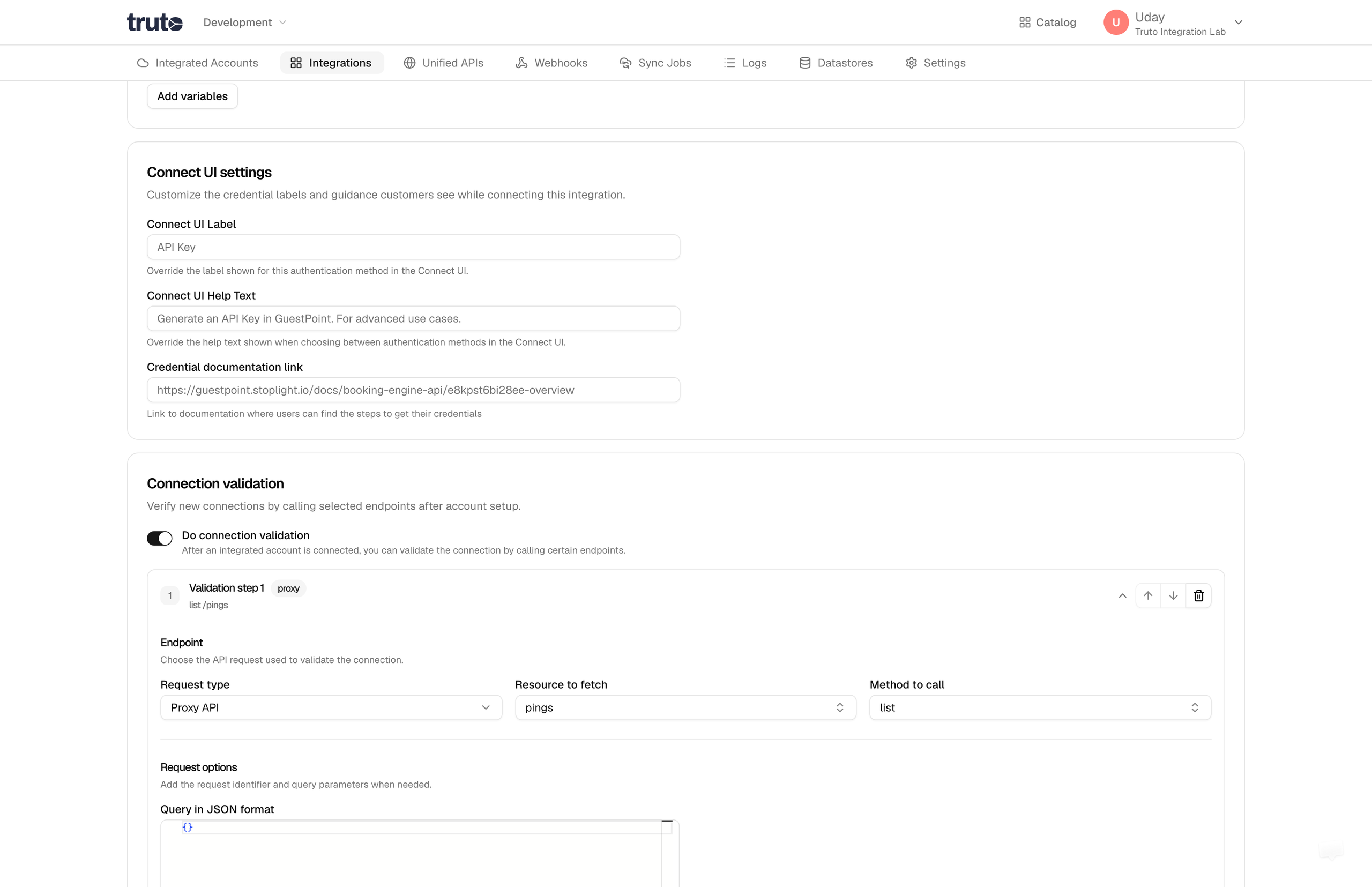
- Enable Connection Validation: In the Connection validation section, turn on Do connection validation, then click Add request to add a validation step. Add more steps the same way; they run in order.
Select Fields in Connection Validation
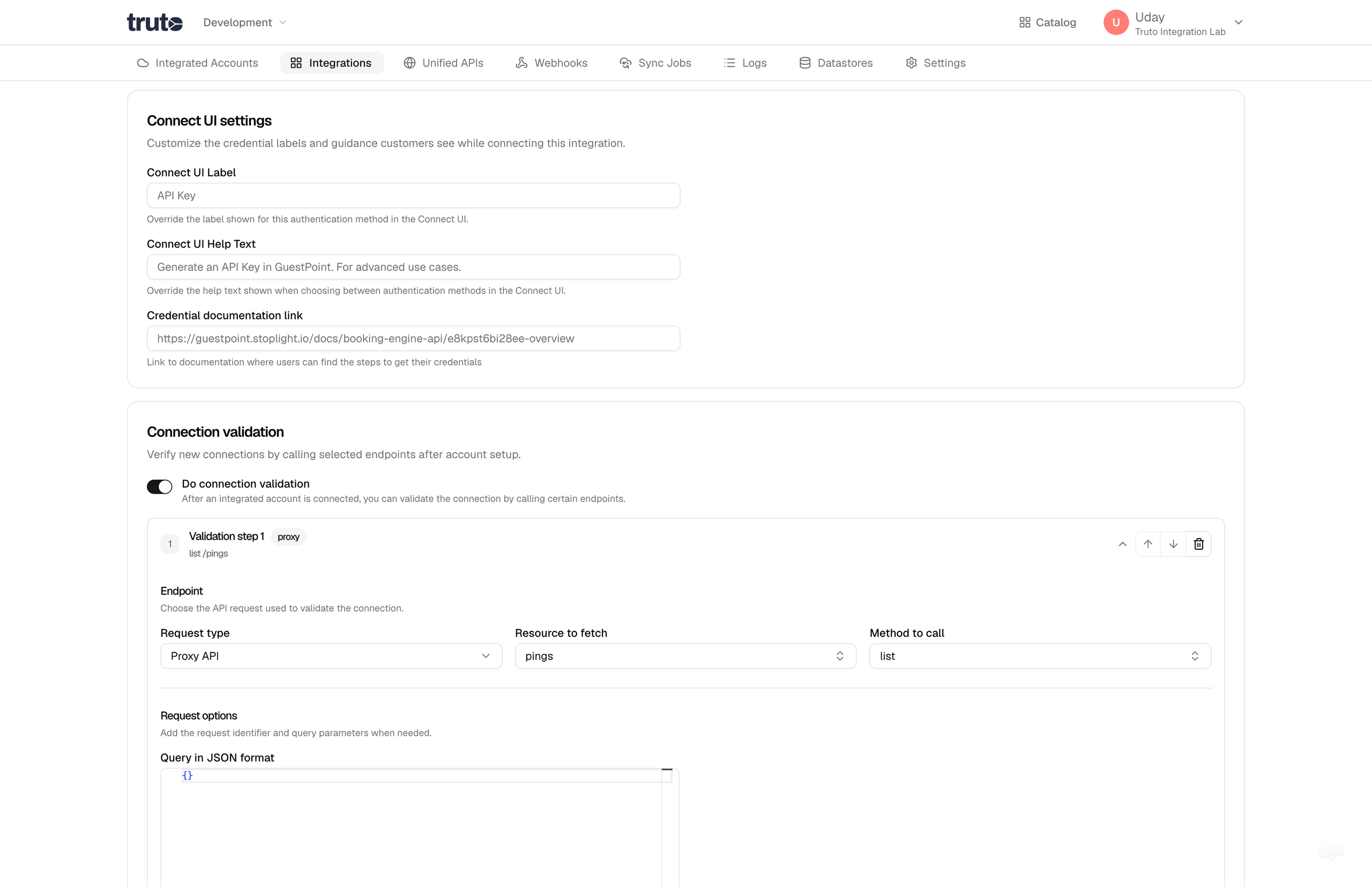
After Connection Validation is enabled, you will need to select a few key fields to validate the connection. This example shows the fields to select to set up connection validation for GuestPoint. Steps:
- Set Data Source:
- Request type: Choose Unified API or Proxy API based on your data fetching method.
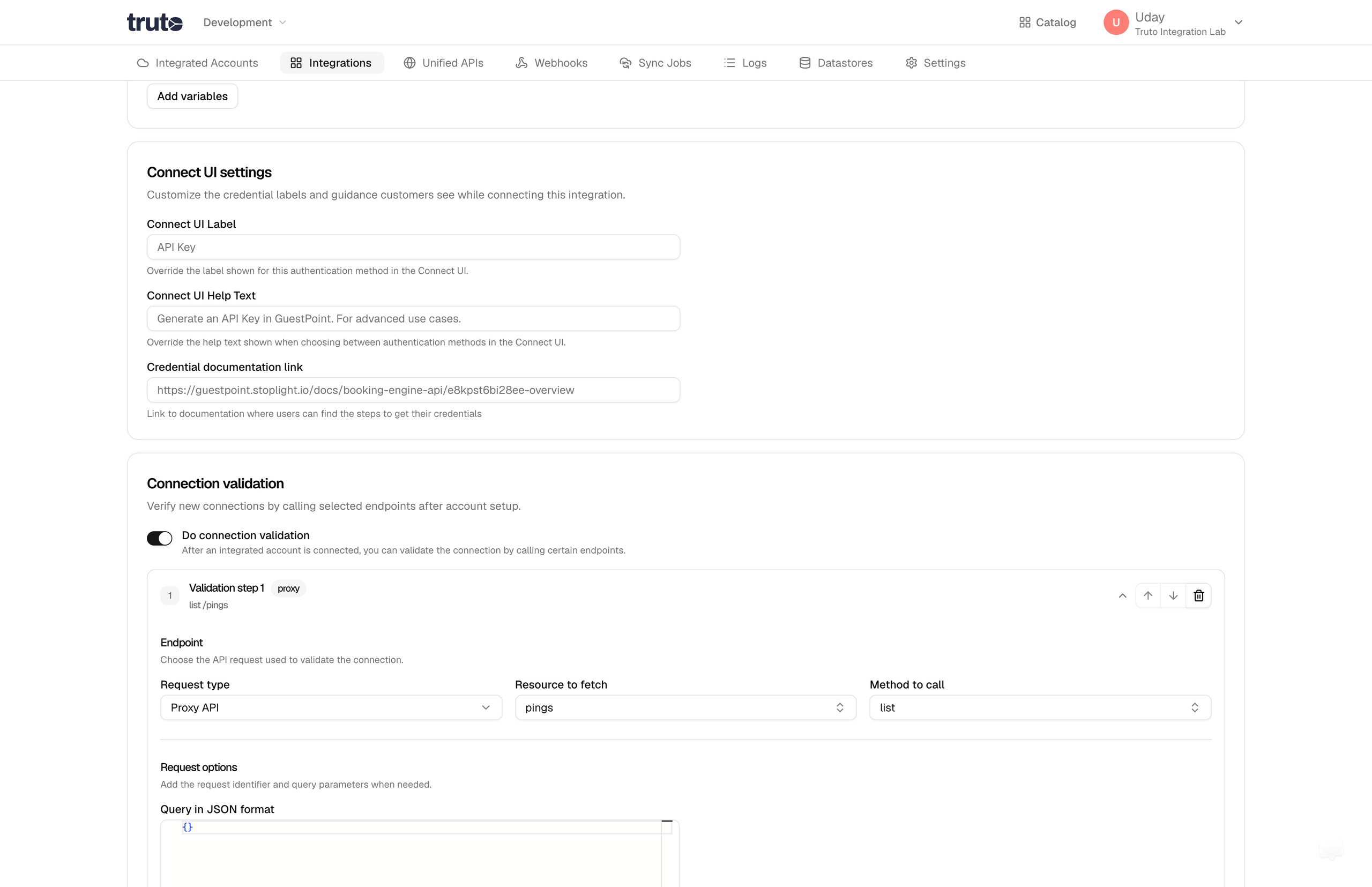
- Resource to fetch: Specify the endpoint to fetch data from (e.g.,
pingsfor Proxy APIs).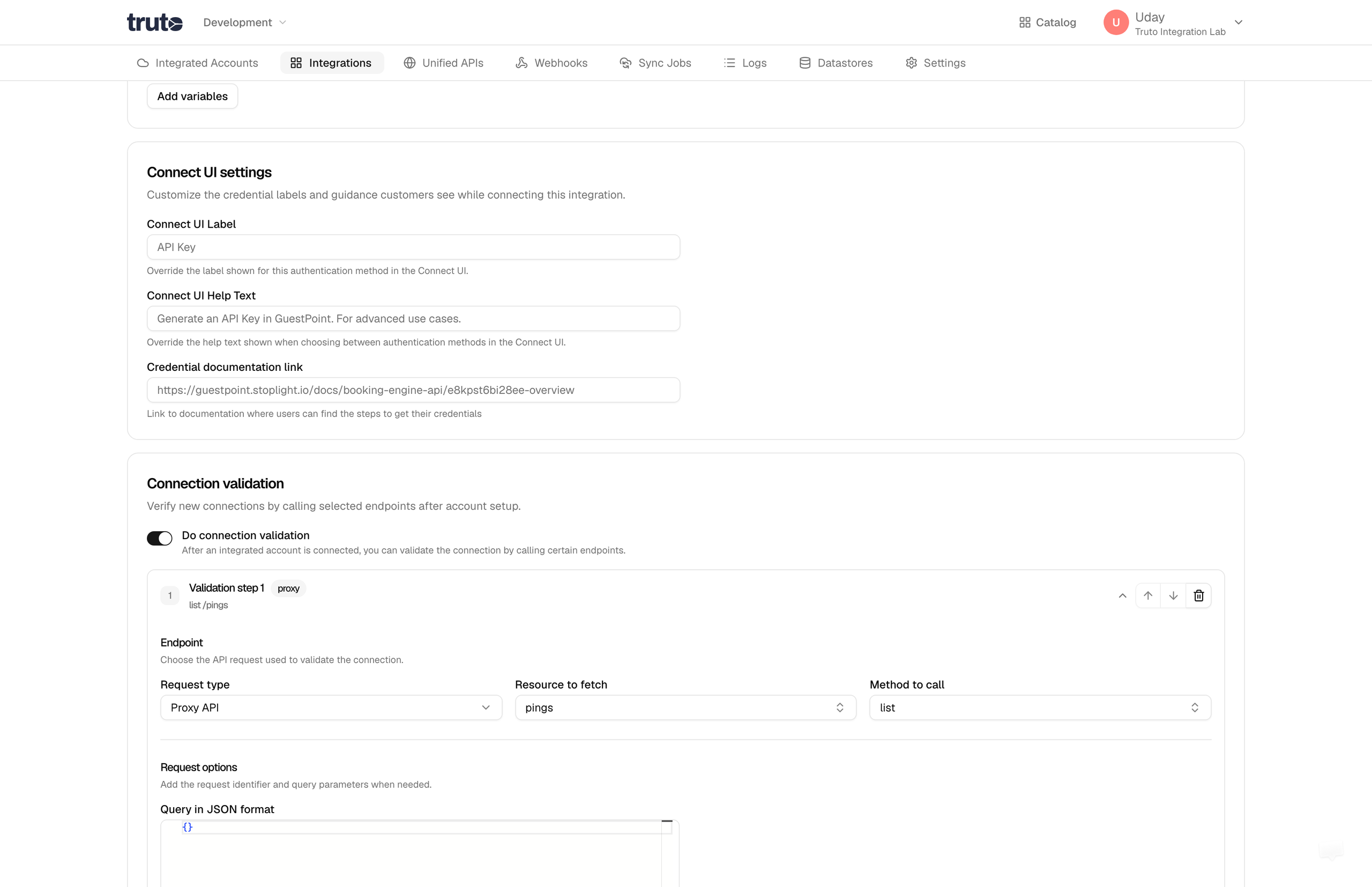
- Method to call: Select list to retrieve the list of items. Any method defined on the selected resource can be used.
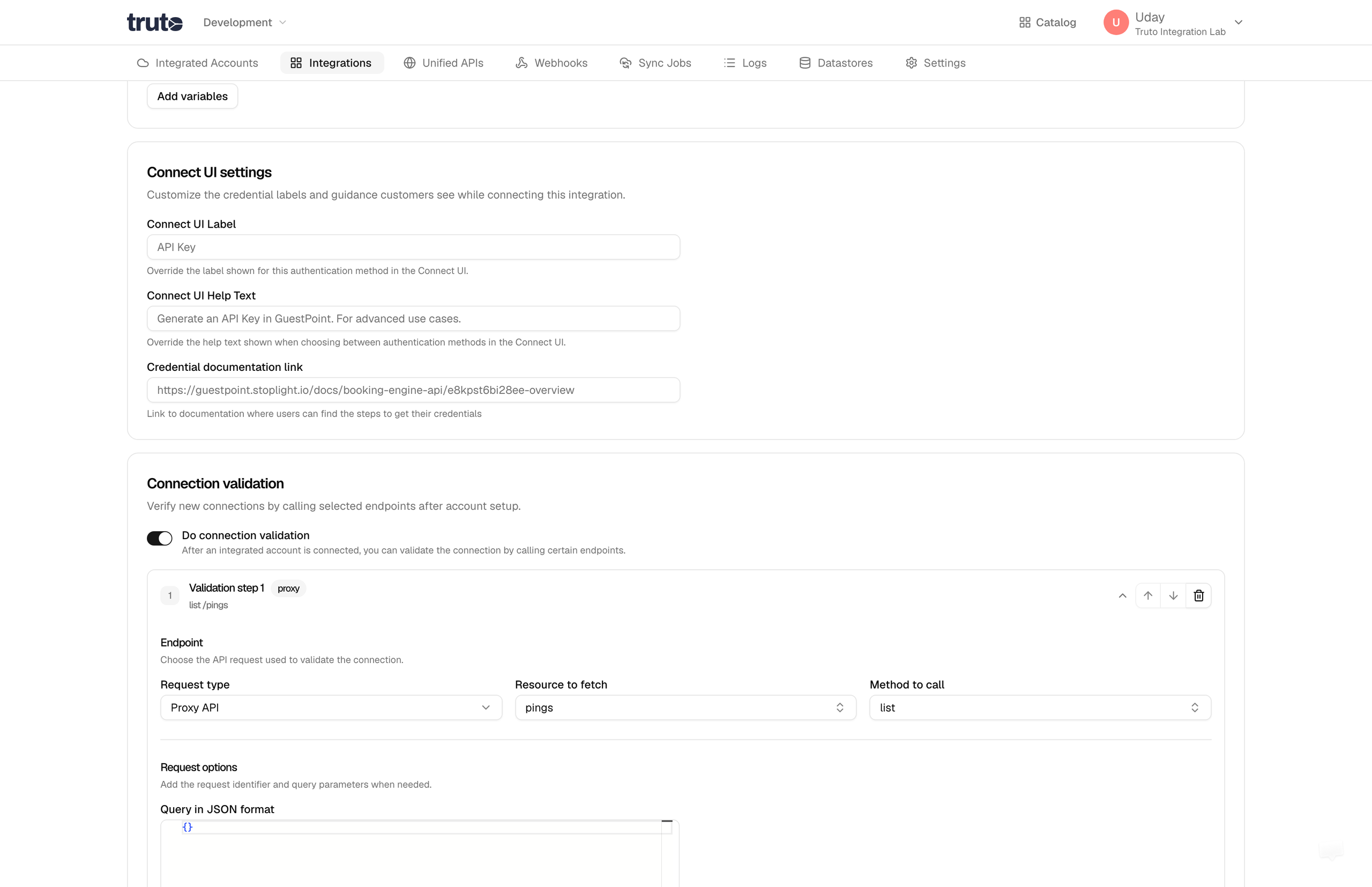
- Query in JSON format: Allows to filter the data retrieved from the selected API response. By specifying a query, you can fetch only the relevant data you need instead of retrieving the entire response. This is an optional field in this case.
- Request type: Choose Unified API or Proxy API based on your data fetching method.
- Click on Save in the page header:
Connection Validation has now been configured.
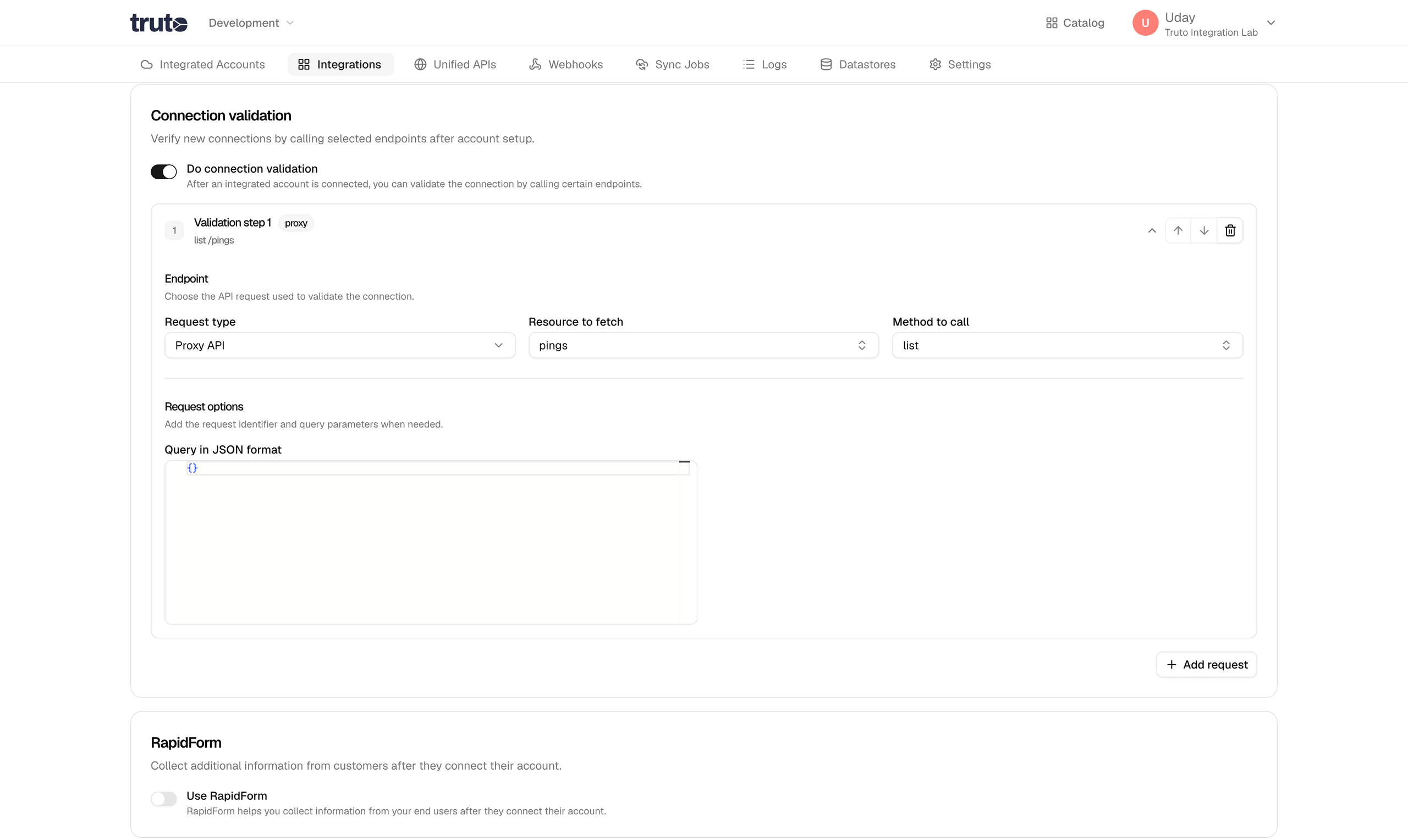
- After Connection Validation is configured, the selected API call is made when connecting an integrated account.
Check accounts that are already connected
Validation runs when an account connects or reconnects. To check accounts that connected before you turned it on, run truto accounts validate <id> (POST /integrated-account/{id}/validate). A failing run moves the account to validation_error and sends integrated_account:validation_error.
curl -X POST https://api.truto.one/integrated-account/<integrated_account_id>/validate \
  -H "Authorization: Bearer $TRUTO_API_TOKEN"
truto accounts validate <integrated_account_id>Next
What happens when connection validation runs shows what your customer and your dashboard see when a validation step passes or fails.