Connect an account
An integrated account is one of your customer's connections to one app: their Salesforce, their BambooHR. Truto creates one when a customer connects an app (a reconnect updates the same account), stores its credentials, and you call the app through it.
Skip the reading — fast path for coding agents
truto link-tokens create --tenant-id <tenant_id>/skill truto
Connect an account through the API
Create a link token for your customer's tenant on your backend, authenticated with your API token. See the Create Link Token API reference for every field.
curl -X POST https://api.truto.one/link-token \
  -H "Authorization: Bearer $TRUTO_API_TOKEN" \
  -H "Content-Type: application/json" \
  -d '{"tenant_id": "acme-1"}'
truto link-tokens create --tenant-id acme-1Response:
{
    "link_token": "e73c7b9b-2e4d-47d1-b5d2-83441fd24e4c"
}
The connection link opens the Connect UI with that link token:
https://app.truto.one/connect-account?link_token=<link_token>A link token works for 7 days, or until an account is created or reconnected with it. If the attempt fails before that — your customer cancels on the consent screen, for example — they can retry with the same link. If the account is saved but post install or validation then fails, the link is used up; create a new one, or reconnect the account. Add &integration=<integration name> to skip the integration list. To send your customer back to your app when they finish, set redirect_uri on the link token; Return to your app with redirect_uri lists the query parameters Truto adds.
context on a link token is saved on the integrated account when the connection completes, and its keys replace values the user entered with the same name. It doesn't fill in or skip fields on the Connect UI: fields the integration needs before sign-in, such as a Salesforce subdomain, are still asked for.
Integrations that are not ready yet
A token minted with tenant_id is never refused for an integration's sake. If an installed integration's only sign-in methods are bring-your-own-app ones — OAuth 2.0 or AWS STS — and you have not yet added your own app credentials for it, the Connect UI simply leaves that integration out until you do. A deep link to it shows the end user that the integration is not ready yet and names your team.
Embed the Connect UI in your app
Use the Link SDK to open the Connect UI inside your own page instead of sending your customer the connection link.
Connect an account from the dashboard
-
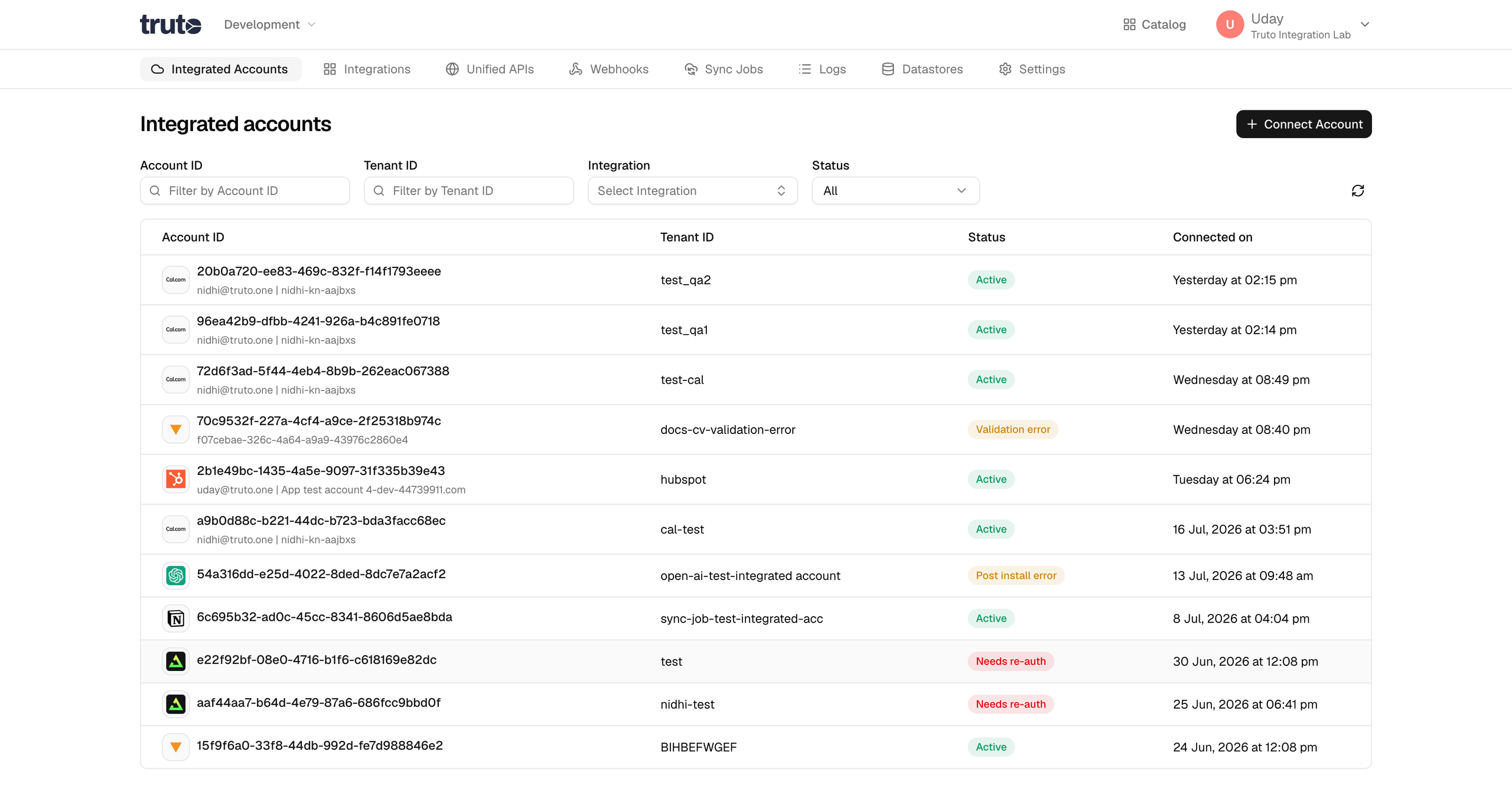
Open Integrated Accounts in the dashboard.
-
Click Connect Account.
-
Pick an existing tenant, or type a new Tenant ID. A Tenant ID can be any ID of your choosing (up to 255 characters, with no control characters, no leading or trailing whitespace, and not
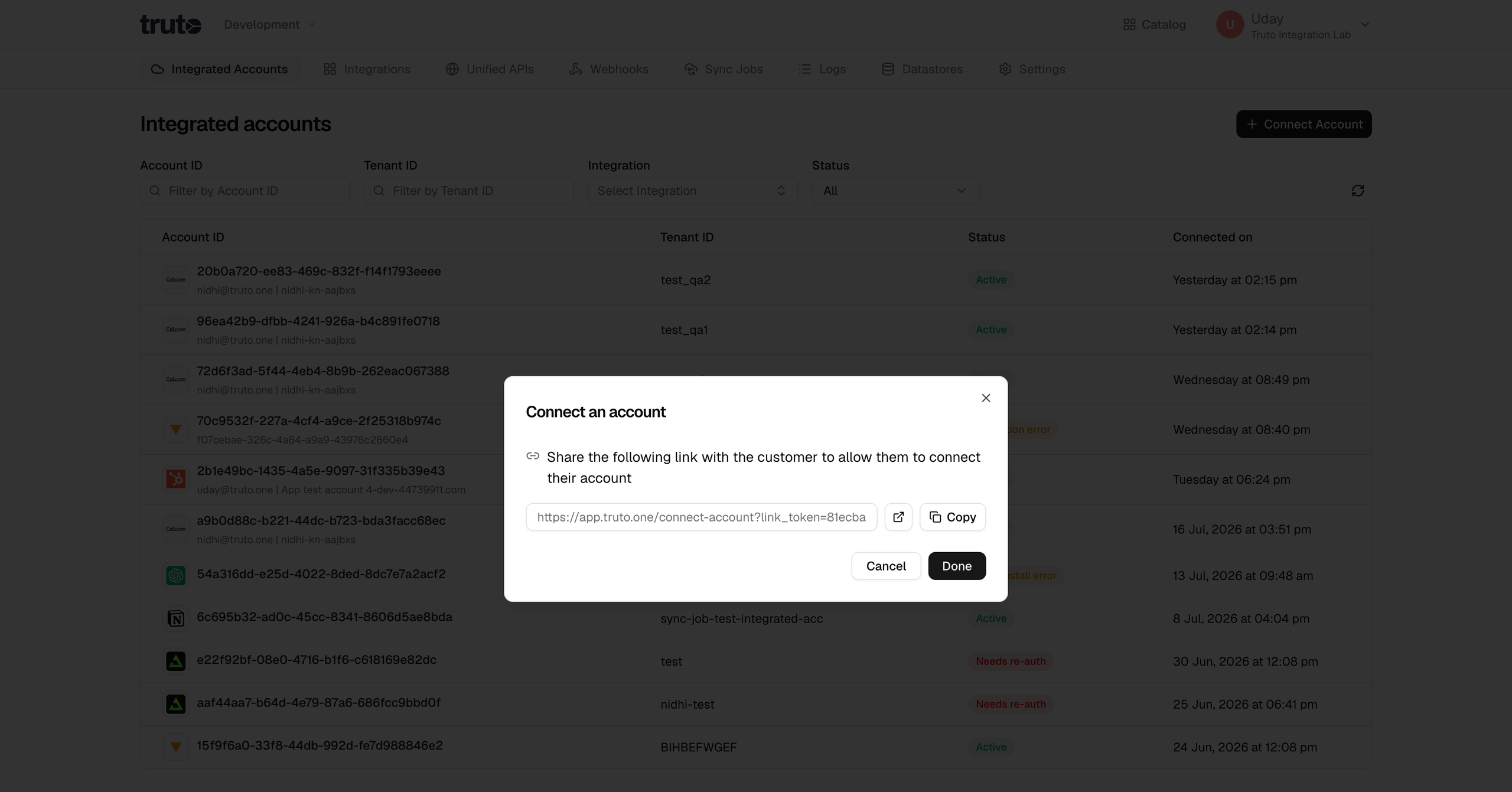
.or..); if a tenant with that ID doesn't exist yet, Truto creates one when the account connects. Check Environment and Region. Region is where Truto places the account: Western North America (wnam, the default), Eastern North America (enam), European Union (eu) or Asia Pacific (apac). From your backend, passregiononPOST /link-token; it applies only when the link creates a new account. Under Advanced settings you can open the link on one Integration, ask for a Unified model's OAuth scopes, set a Redirect URL, or route the account through a Static gate (offered when the environment has one). Click Get connection link.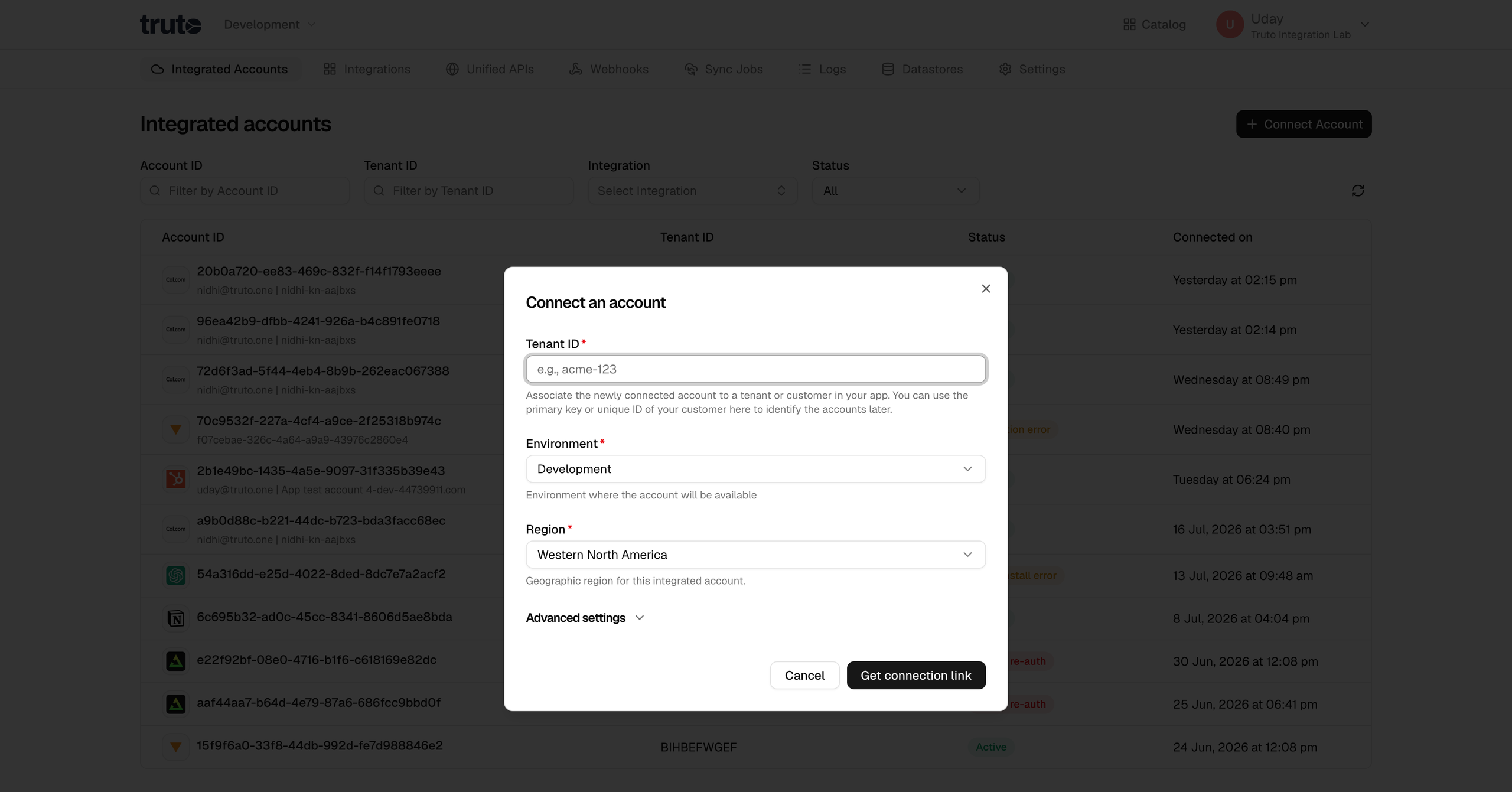
-
Copy the link with Copy, or open it with the open-in-new-tab button. You can send the link to your customer instead, so they connect their own account; it works for 7 days, or until an account connects with it.
-
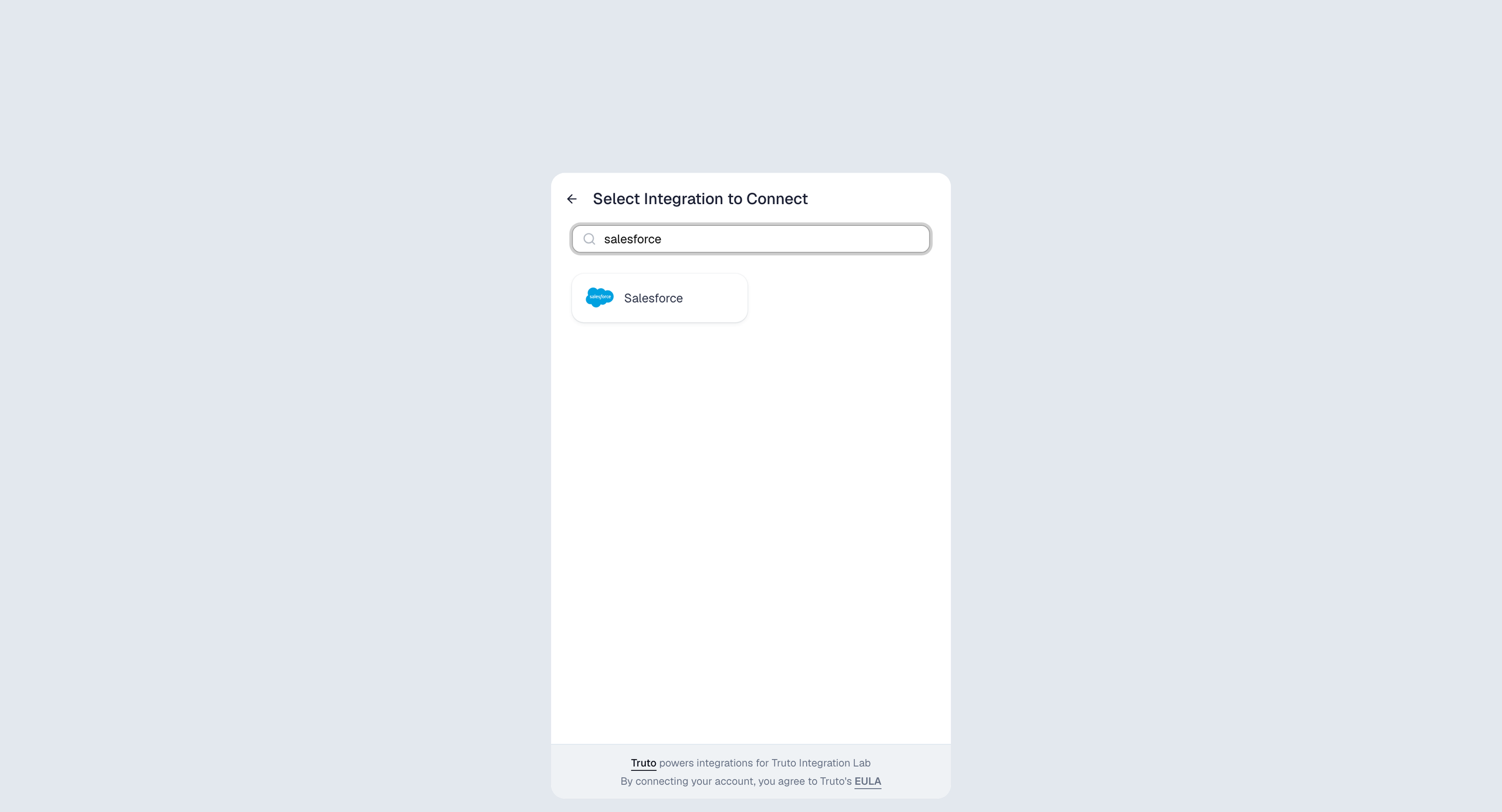
Select the integration to connect.
-
You'll now be asked to log in to your account and allow access to Truto. Go through the authentication steps.
-
The Connect UI shows Connection successful. Close the tab.
-
The new account appears under Integrated Accounts. Click its Account ID to see its details and call its APIs.
Some OAuth providers, such as Google, let the user untick individual scopes, and the connection still succeeds. To catch a partial grant, read the account with GET /integrated-account/{id} after it connects and compare context.oauth.token.scope with the scopes you need. See Google Drive.
The integrated accounts list
Open Integrated Accounts to see the integrated accounts in the selected environment. Each one shows:
- Account ID: A unique identifier for the account.
- Tenant ID: The tenant that owns this account. One tenant can own many accounts across different integrations.
- Integration: The specific API or application that the account is connected to.
- Status: Active, Connecting, Needs re-auth, Validation error, or Post install error (
active,connecting,needs_reauth,validation_error,post_install_errorin the API). A stale account also shows a Stale badge. When a provider refuses a call with a 403, the account's page shows a Permission error alert and Truto sendsintegrated_account:forbidden_error. The status doesn't change, and the alert clears after the next successful call. Account statuses lists what each status means and what to do. - Connected on: The date and time when the account was connected.
Click an account to see its details, call its Unified and Proxy APIs, and check its API logs.
Next
Connection flow lists the webhook events Truto sends while an account connects, and Reauthorizing connections covers reconnecting one later.