Customizing Integrations on Truto
Change an installed integration for one environment (its OAuth app, resources, pagination or anything else) without touching the catalog copy.
Skip the reading — fast path for coding agents
truto environment-integrations show-override <id>/skill truto-cli
An installed integration keeps your changes for this environment in its override. Truto merges the override over the catalog config: objects key by key, lists (scopes, variables, steps) as a whole. An integrated account's own integration_override merges on top in the same way. The Configuration reference lists every key.
Open the installed integration from Integrations in the top navigation bar:
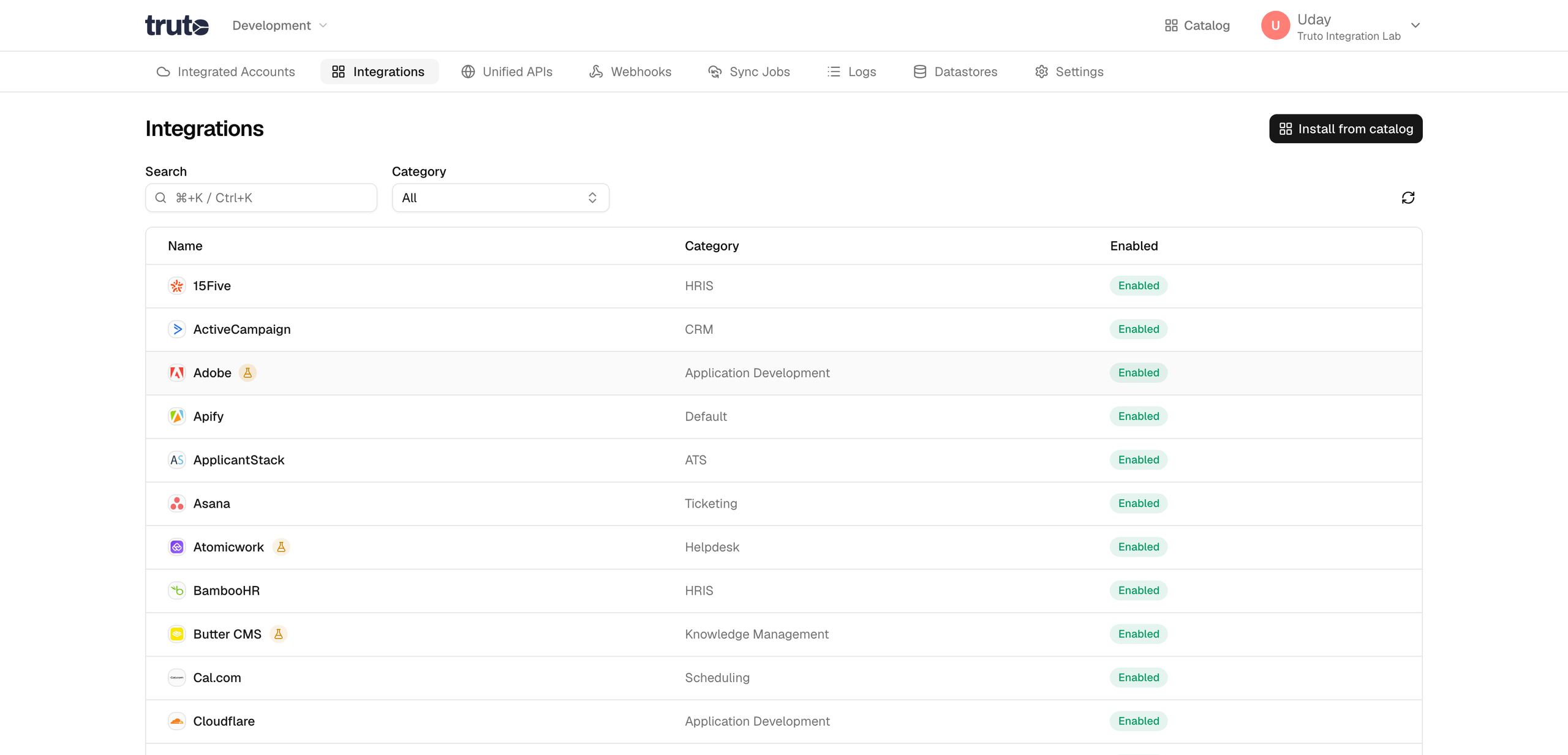
The Configuration tab
The Configuration tab holds the settings that exist only on an installed integration:
| Card | What it sets |
|---|---|
| General | Enabled, Show in Connect UI, Description and Tags. See Enabling and disabling integrations. |
| Connections widget | Which of your tenants see the integration in the connections widget, its Group, and the Connect button and Configure button labels. See Set the layout and grouping. |
| Environment variables | Values for this environment. See Store per-environment values. |
| Authentication | Your own OAuth app, client credentials or signing key. See Overriding OAuth credentials. |
| Connect UI settings | Per sign-in method: the label, help text and credential documentation link your end users see in the Connect UI. |
| Connection validation | Endpoints Truto calls after an account connects, to check that it works. |
| RapidForm | A form that collects more details after an account connects. See the RapidForm guide. |
Click Save, add an optional note for version history, and click Save again. The change applies to this environment only.
Change other parts of the configuration
The other tabs (Authentication, Request behavior, Resources, Actions) show the integration's configuration. Choose Edit from the page menu to change any of it for this environment: variables, authorization, base URL and headers, query params, pagination, rate limiting, error expression, resources, actions or webhooks.
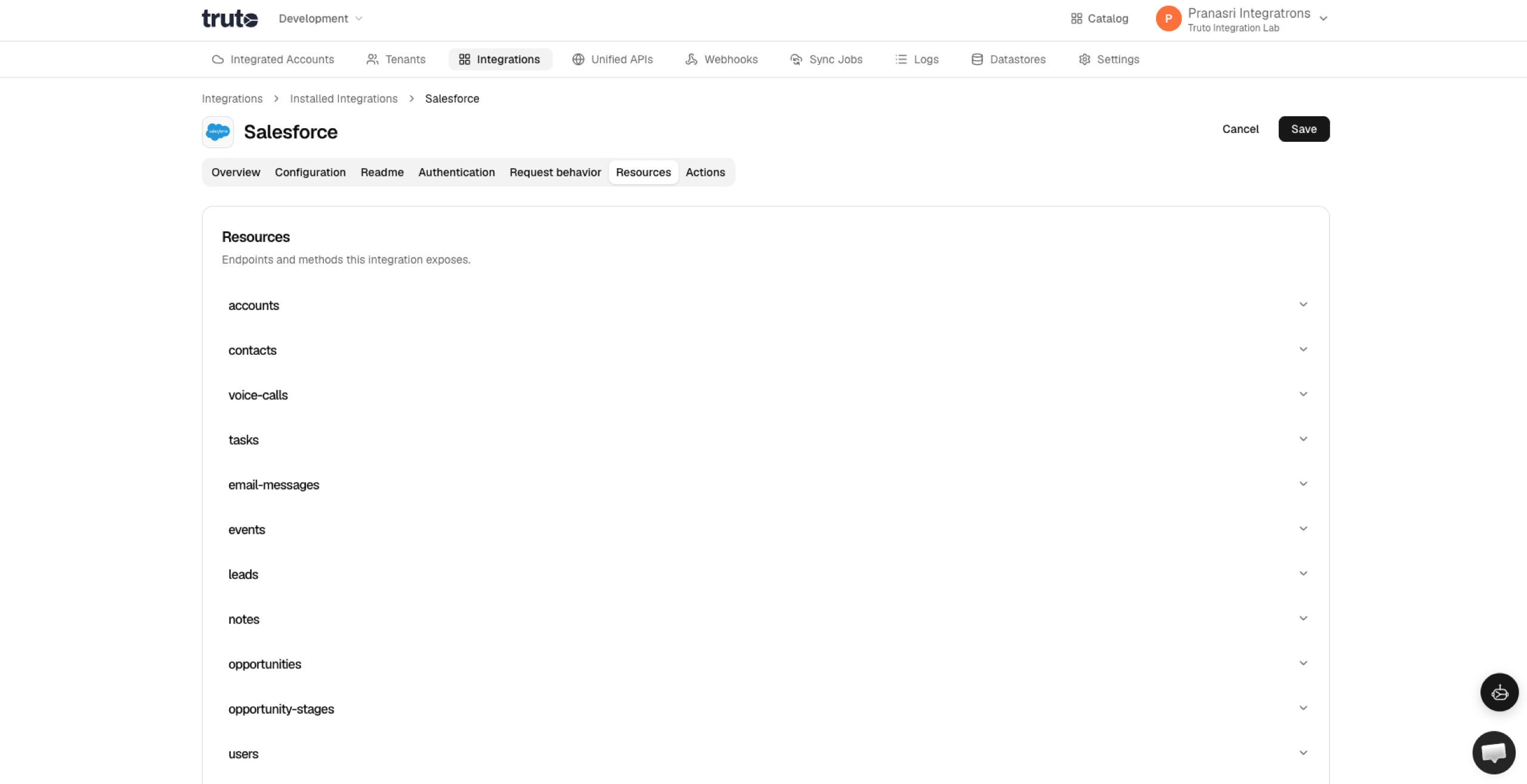
For example, to add a Resource to Salesforce:
-
Open the installed integration, go to the Resources tab, and choose Edit from the page menu.
-
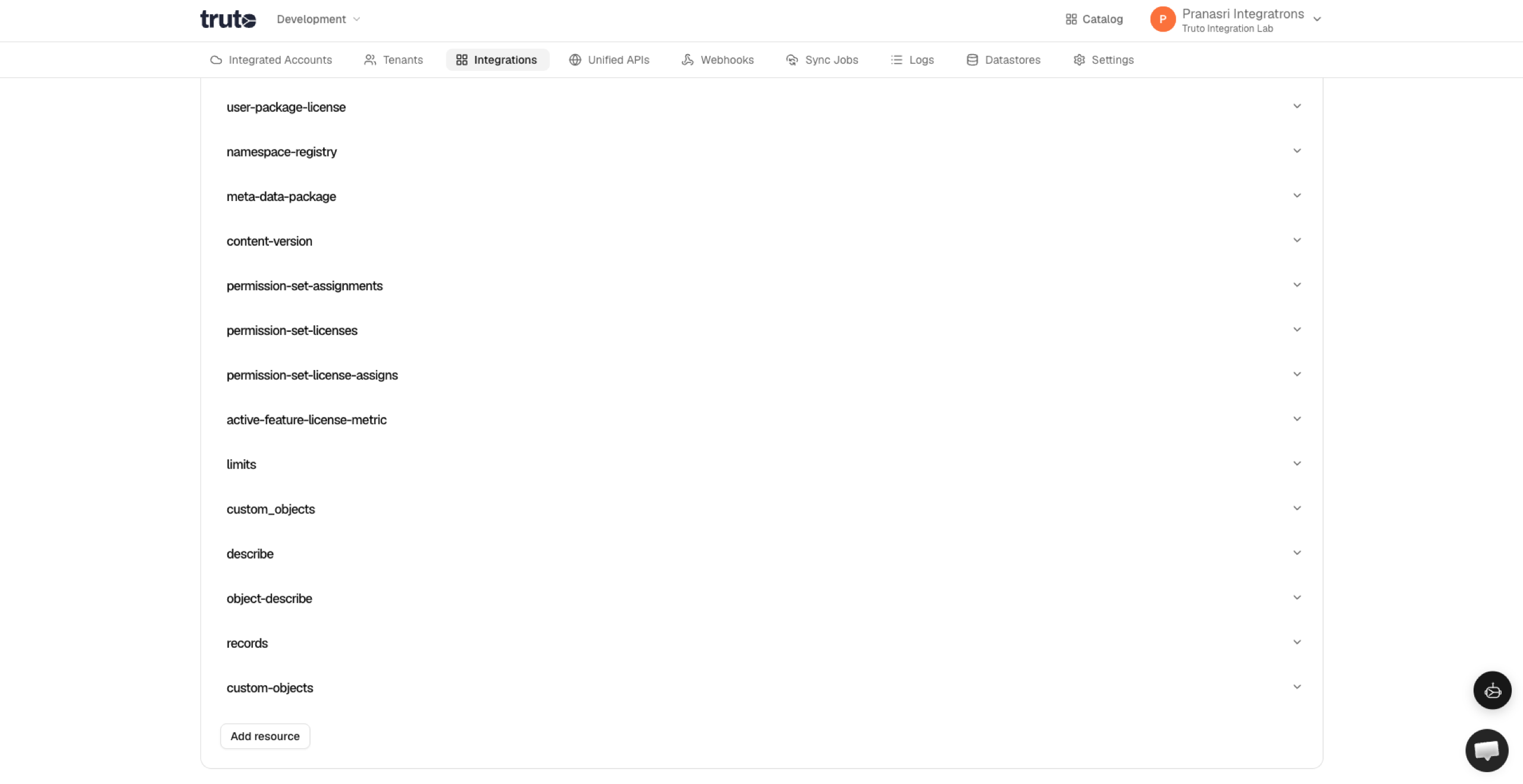
Scroll down and click Add resource.
-
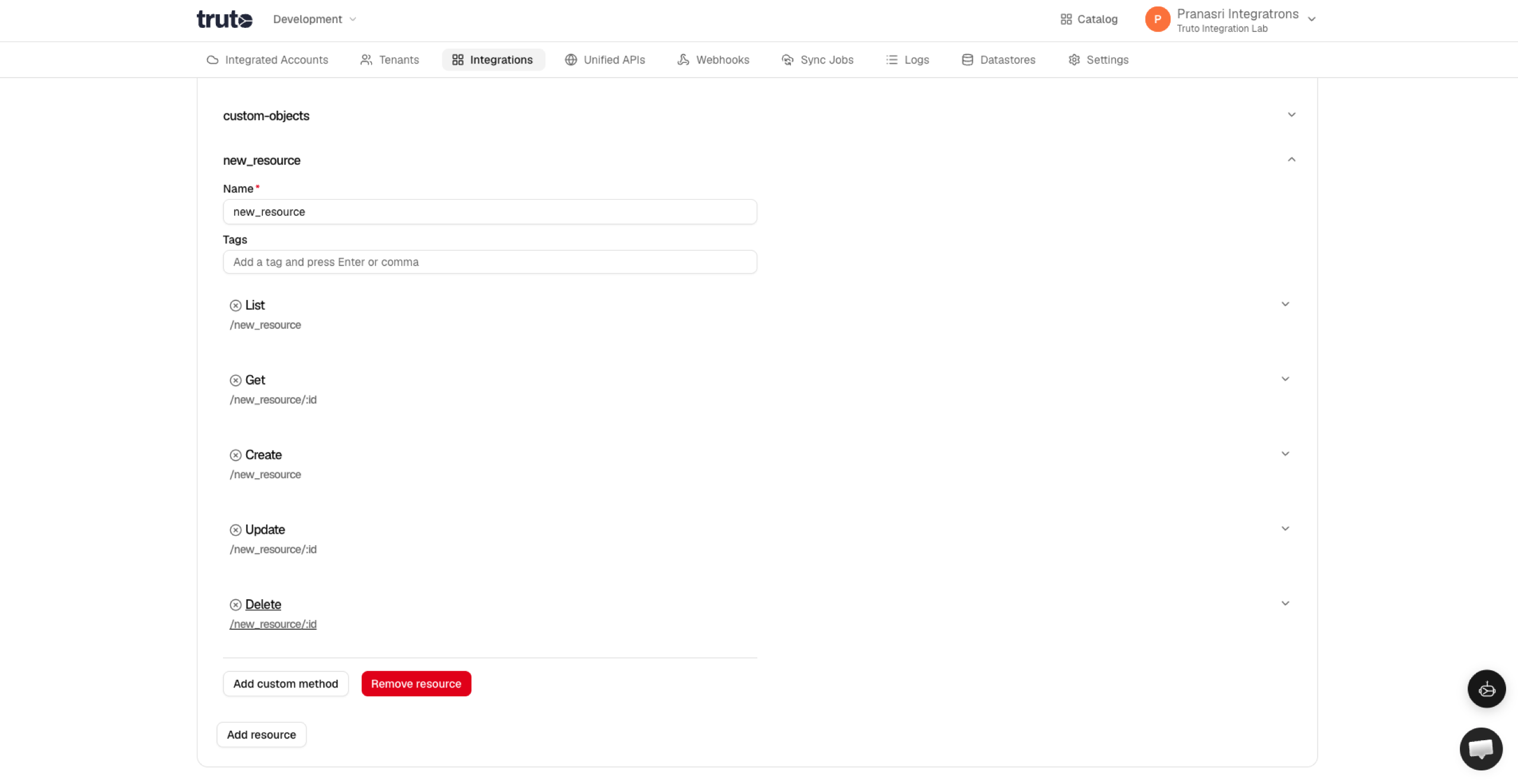
Fill in the details for the new resource:
- Name your resource.
- Select the required endpoints.
- Provide the necessary configuration details.
-
Click Save, add an optional note for version history, and click Save again. The change applies to this environment only.
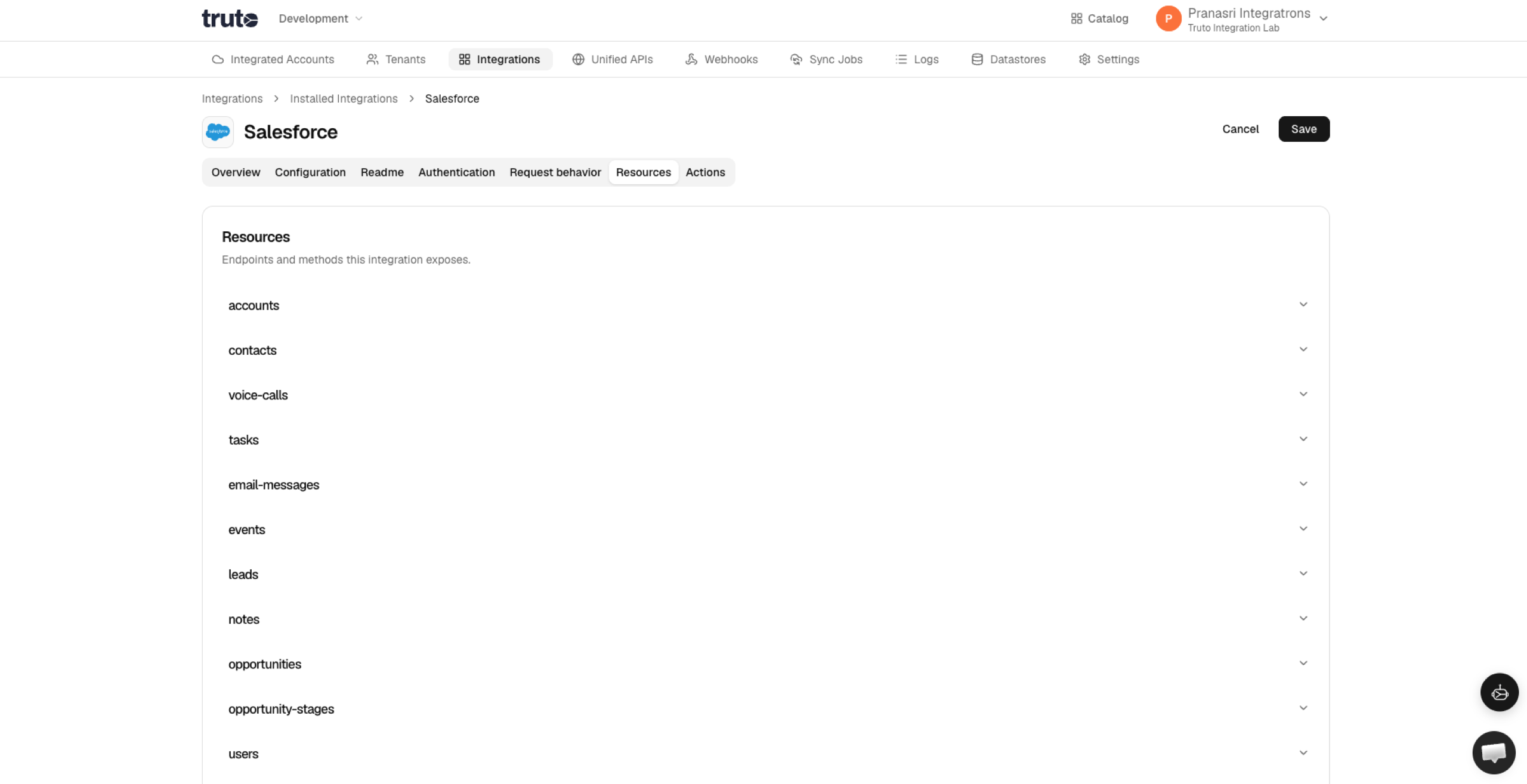
The new resource is now part of the integration in this environment.
Enable or disable a method in one environment
- Open the installed integration, go to the Resources tab, and choose Edit from the page menu.
- Open the method and turn its Enable switch off. The method shows Disabled in this environment.
- Click Save, add an optional note for version history, and click Save again.
Calls to a disabled method return 404. In the override, the method is stored as null:
{ "override": { "resources": { "contacts": { "delete": null } } } }Change it through the API
PATCH /environment-integration/{id} replaces the whole override, so get the current override first and send the complete object back:
- Secrets you leave out are kept.
- Changing a Client ID or an AWS access key ID clears the matching secret, so send the new secret with it.
- Moving a token URL to another site while keeping the catalog's secret is refused with
400. oauth_app_headersandbrowser_file_picker_requires_access_tokencan't be overridden.
Save the current override to a file, edit it, and send the whole file back:
# The current override is the "override" field of the response
curl "https://api.truto.one/environment-integration/<id>" \
  -H "Authorization: Bearer <API token>"

curl -X PATCH "https://api.truto.one/environment-integration/<id>" \
  -H "Authorization: Bearer <API token>" \
  -H "Content-Type: application/json" \
  -d "{\"override\": $(cat override.json)}"
truto environment-integrations show-override <id> > override.json
# edit override.json, then:
truto environment-integrations update <id> -b "{\"override\": $(cat override.json)}"Store per-environment values
Each installed integration has an Environment variables card on its Configuration tab: a flat key/value map for this environment. A key ending in _secret is encrypted at rest and comes back masked as ********; sending the mask back keeps the stored value. Templates read the values as {{environment_variables.KEY}}, and JSONata expressions as context.environment_variables.KEY. That includes the authorization expression, a webhook payload_transform and credential fields such as client.secret. One integration config can then use a different key or host in each environment.
Through the API, they are environment_variables in the override. For example, these keys in the override send requests to a regional host:
{
  "base_url": "https://{{environment_variables.region}}.api.example.com",
  "environment_variables": { "region": "eu", "app_secret": "s3cr3t" }
}
See and restore earlier versions
Every save of an installed integration records a version: who saved it, when, and the optional note.
- Open the installed integration and choose Version history from the ⋯ menu.
- Pick a version, and use Compare with to see what changed.
- Click Restore vN, add a note if you like, and confirm.
A restore saves the old version as a new one, so history is never rewound, and it goes through the same save as any other change, so webhooks fire. Three rules:
- A restore never turns the integration on or off: versions don't hold Enabled.
- Versions hold no secrets. A restore keeps today's secrets, and a version with a different Client ID is refused.
- Restoring a version identical to the live one returns
400.
Integrations your team created have the same history: catalog page ⋯ → Version history, or GET /integration/{id}/versions.
curl "https://api.truto.one/environment-integration/<id>/versions" \
  -H "Authorization: Bearer <API token>"

curl -X POST "https://api.truto.one/environment-integration/<id>/versions/<n>/restore" \
  -H "Authorization: Bearer <API token>" \
  -H "Content-Type: application/json" \
  -d '{"change_message": "Roll back the scope change"}'
Next
To use your own OAuth app, see Overriding OAuth credentials. For every key you can set, see the Configuration reference.