Zoom
Zoom connects with OAuth 2.0 through Truto's Zoom app: a Zoom admin signs in and allows access. You can use your own Zoom app instead.
Install the Zoom integration
Install Zoom from Available integrations in each environment you connect accounts from.
Use your own Zoom OAuth app (optional)
Truto connects Zoom accounts through its own app, so this section is optional. Build your own app only to show it on the consent screen instead.
To build a Zoom app you must be the Zoom account owner or an account admin, or have the Zoom for developers role.
-
Sign in to the Zoom App Marketplace, click Developer, then Develop → Build an app. Choose General app and click Create.


-
On Basic Info, copy the app's Client ID and Client Secret. Under OAuth Information, set the OAuth redirect URL to the URL below and add the same URL to the OAuth allow list.
https://api.truto.one/connect/zoom/callback

-
On Scopes, click Add Scopes and add the granular scopes that cover the data you need: users, roles, and the reports behind activities, utilization and billing in the Unified User Directory API. Newly created Zoom apps use granular scopes; apps created before them keep classic scopes such as
user:read:admin,user:write:admin,role:read:admin,report:read:adminandreport:master. -
Enter the app's Client ID and Client Secret on the installed Zoom integration. See Overriding OAuth credentials.
Publish your app
Only needed if Zoom accounts outside your own should install your app.
- Add the details Zoom asks for, such as descriptions, company name, contact name and email, and the technical design.
- Go to Submit. Zoom lists anything that is missing; add it.
- Click Submit. After Zoom publishes the app, any Zoom account can install it.
Connect a Zoom account
The person who connects must be a Zoom account owner or admin.
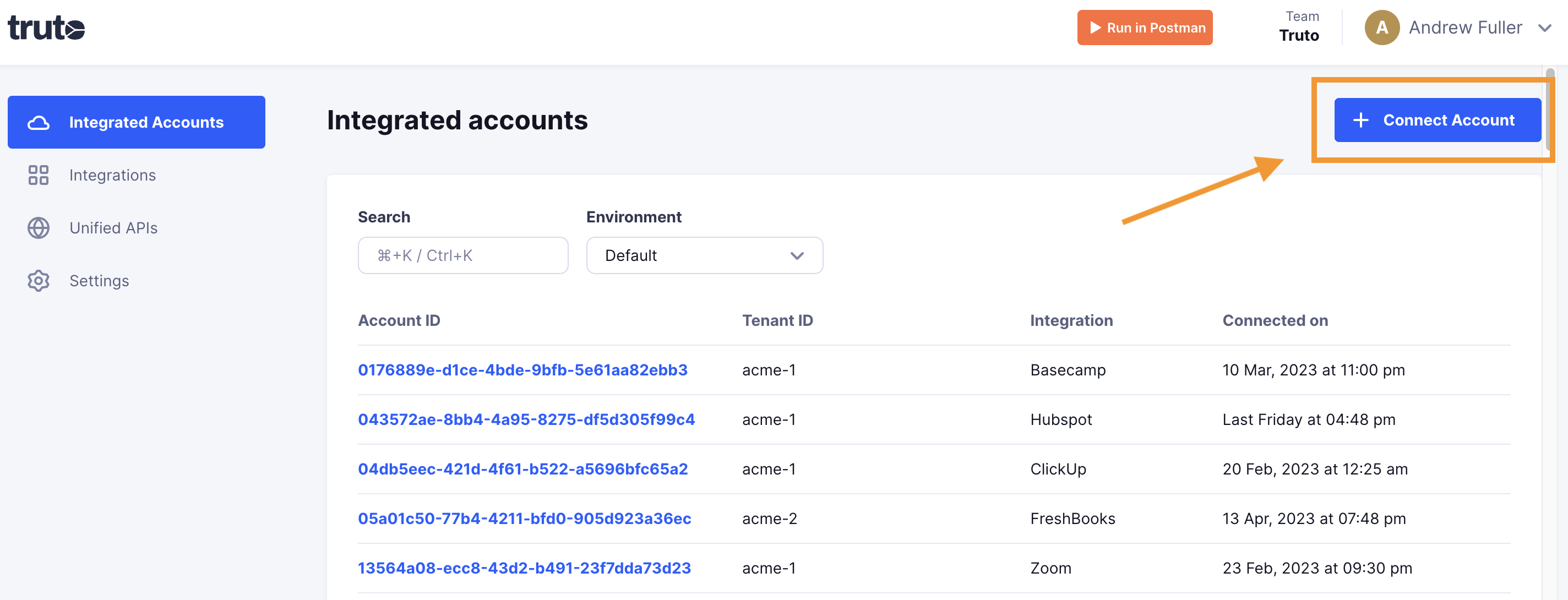
- In Integrated Accounts, click Connect Account.
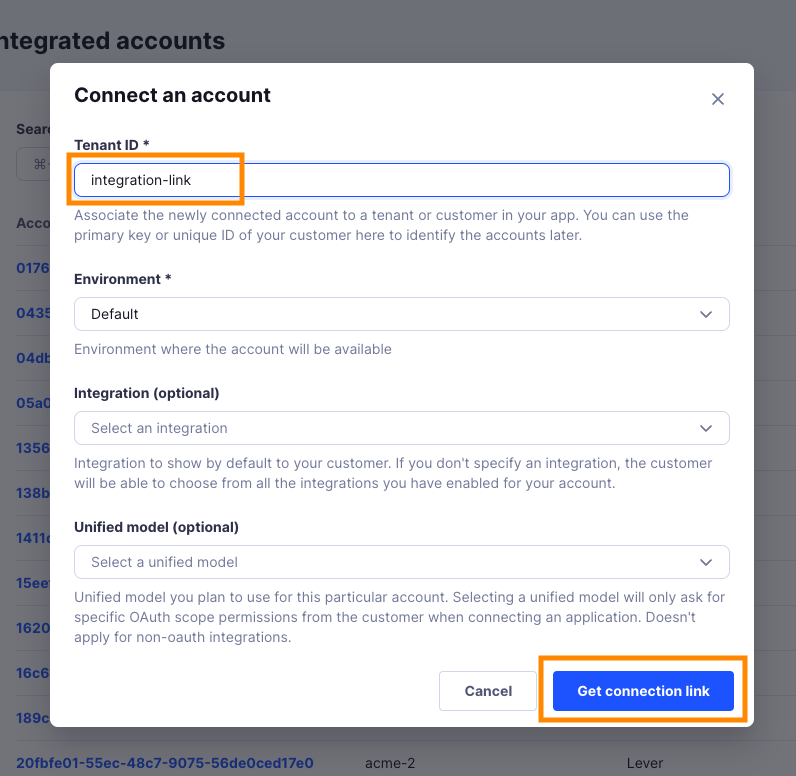
- Enter a Tenant ID (your customer's ID; Truto creates the tenant if it is new), or pick one under Existing tenant (optional). Check the Environment and the Region (where Truto places the account; Western North America by default). To open the link straight on Zoom, pick it under Advanced settings → Integration (optional). Click Get connection link.
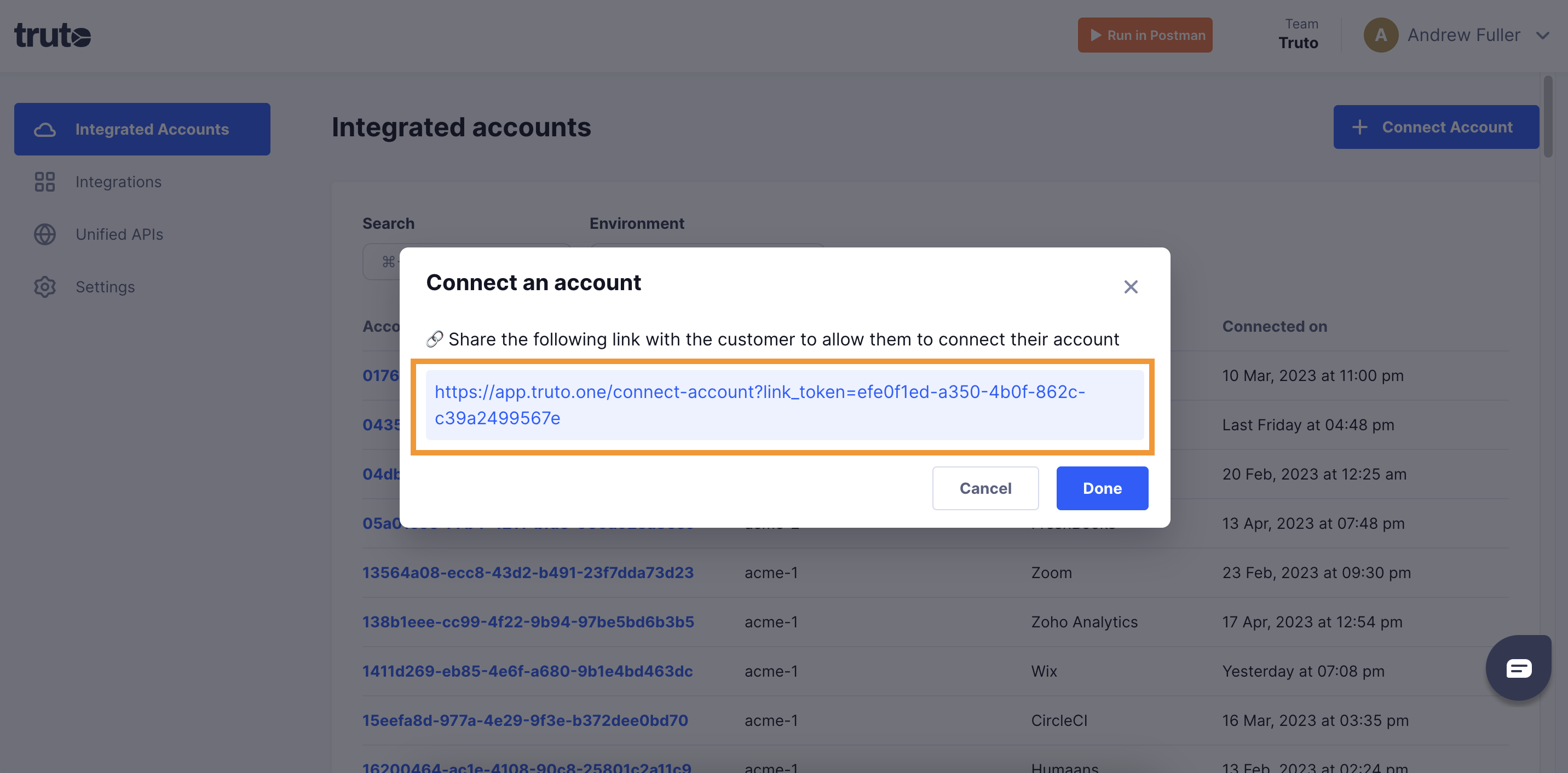
- Click the open-in-new-tab button, or click Copy and send the link to your customer so they connect their own Zoom account. The link works for 7 days, until an account is connected with it.
- Click Get Started if it shows, then select Zoom.

- Sign in to Zoom and allow access.
- Close the tab when you see Connection successful. The new account appears under Integrated Accounts. Click its Account ID to see its details and make API calls.
Make your first request
Select the Zoom integrated account from the Integrated Accounts tab.
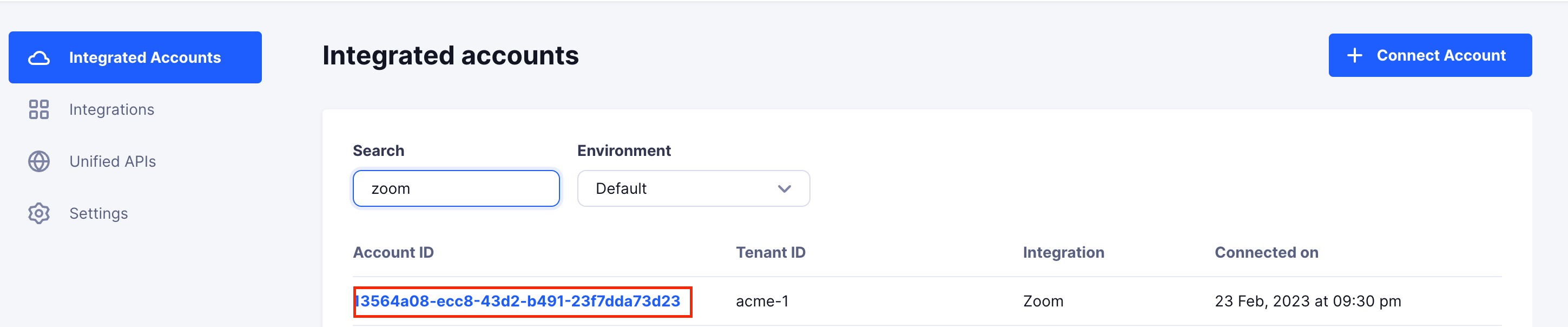
Open the Proxy API tab.
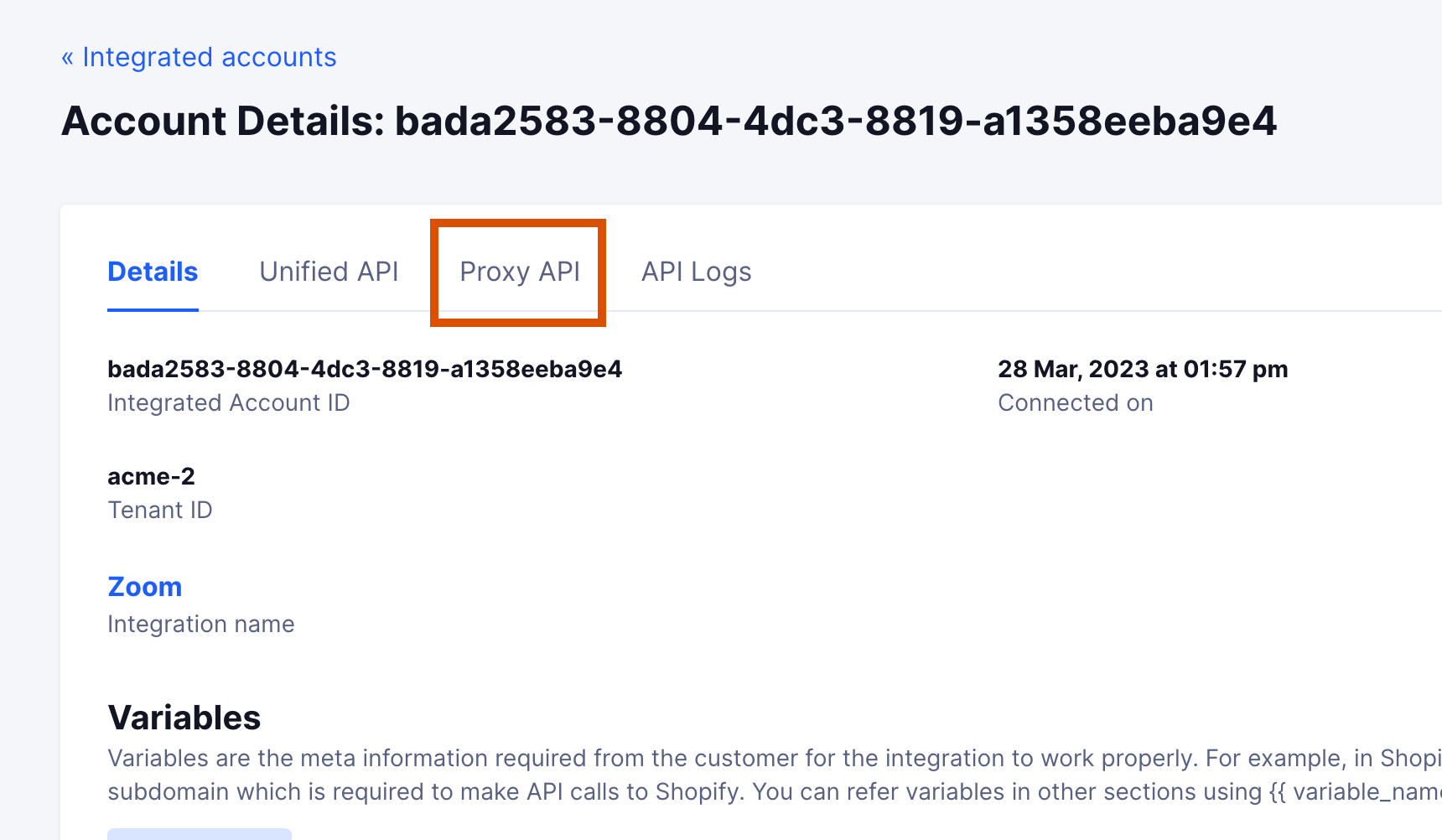
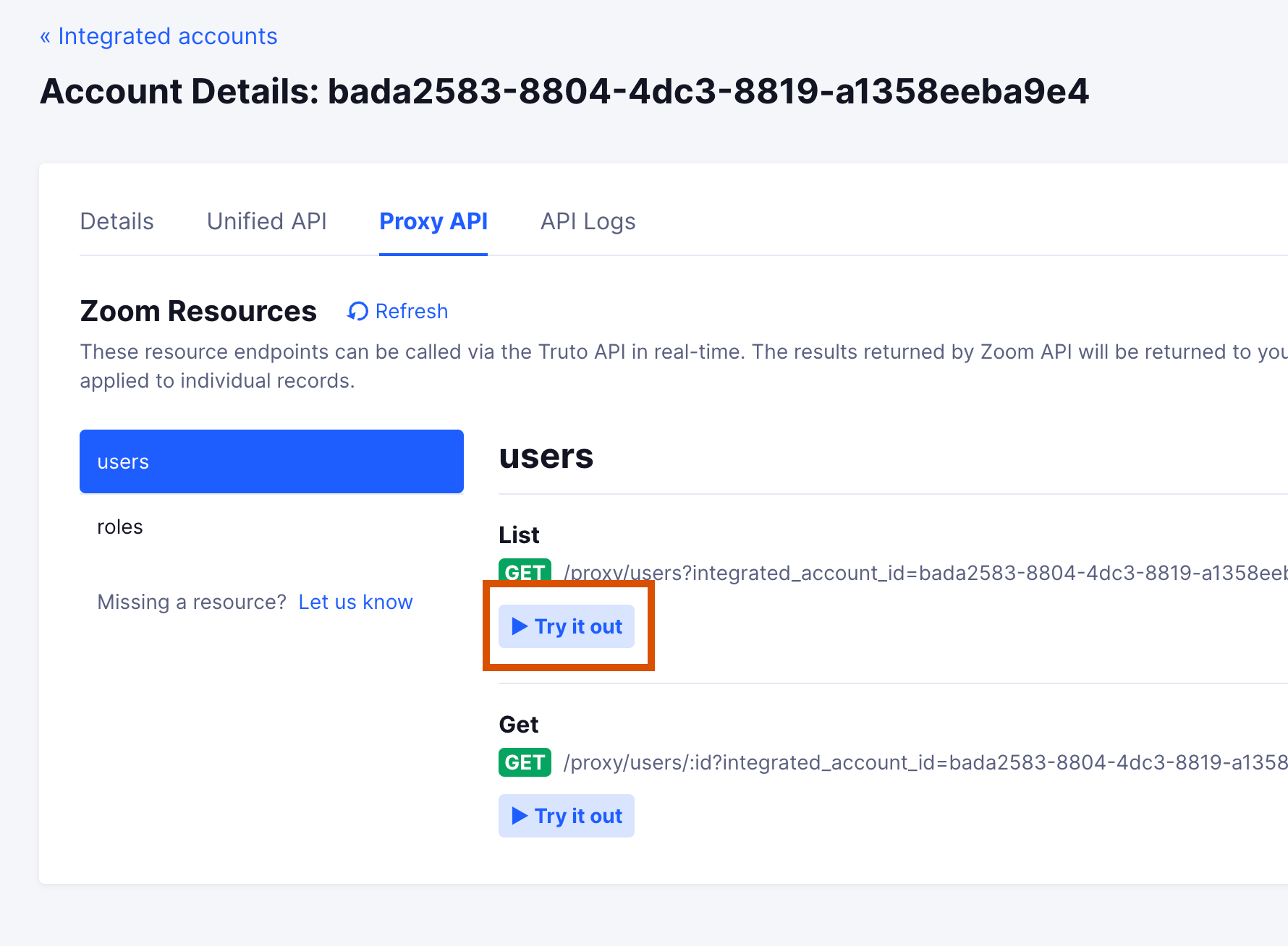
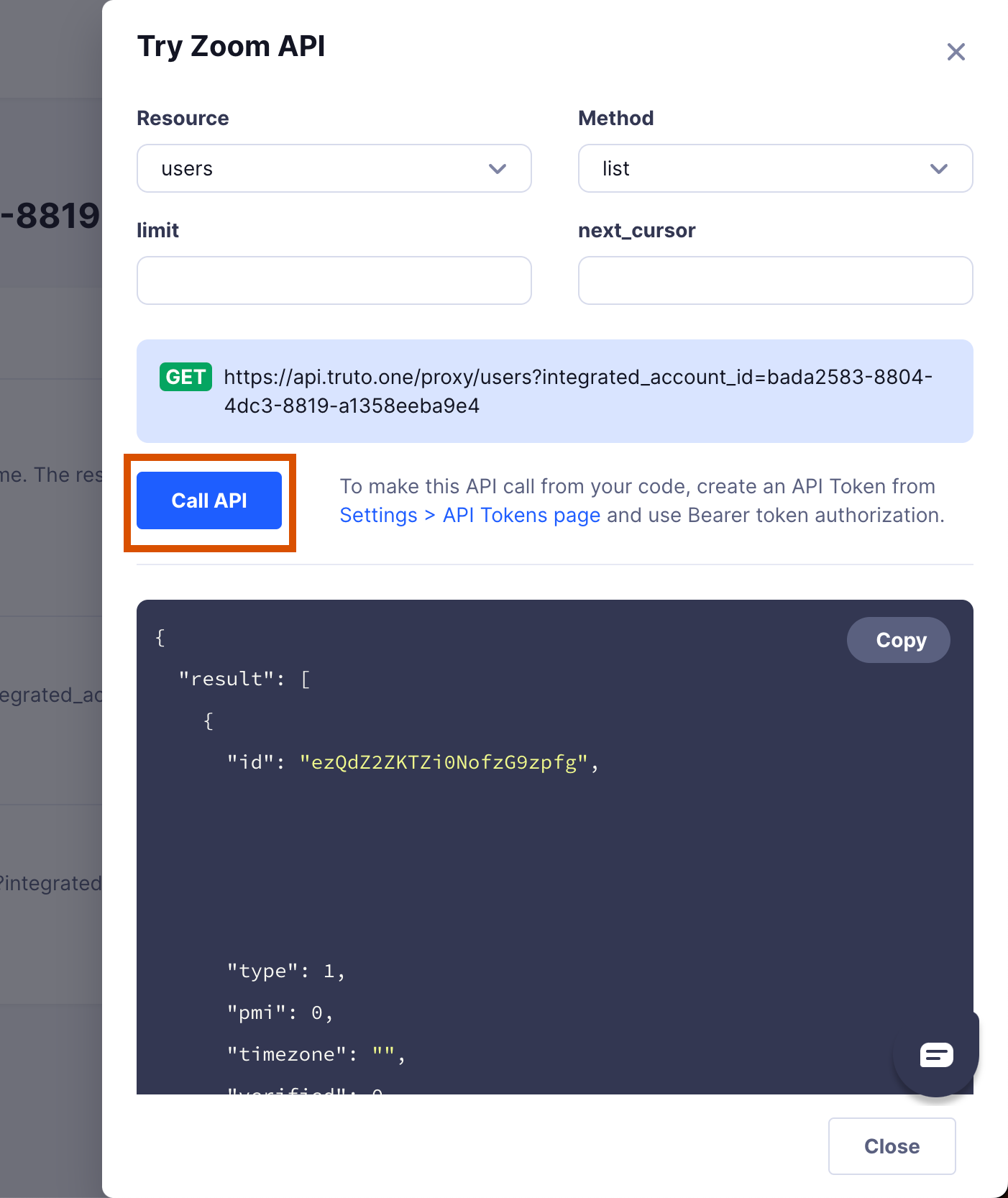
You can then try out any of the APIs that Truto currently supports for Zoom.
Uninstall the Zoom integration
To remove Zoom, see Uninstalling an integration. Uninstalling deletes every Zoom integrated account in that environment, and Truto revokes the access tokens of connected Zoom accounts.
Support
If you face any issues using the Zoom integration provided by Truto, please mail to support@truto.one
Working hours
Monday - Friday, 2:30AM - 4:30PM EDT
First Response SLA
24 - 48 hours