Ashby
Ashby connects with an API key. The key's module permissions decide which endpoints Truto can call.
Install the Ashby integration
Install Ashby from Available integrations in each environment you connect accounts from.
Create an API key
- In Ashby, go to Admin → Integrations → API Keys and click New.
- Enter a name for the key.
- Give the key read or write access to each module you need. Hover over the info icon next to a module to see the endpoints it covers.
- Click Save and Continue and copy the key. Ashby doesn't show it again; if you lose it, create a new one.
A call to an endpoint the key has no permission for returns 403 with missing_endpoint_permission. See Ashby's Authentication reference for which endpoints each module covers.
Connect an Ashby account
-
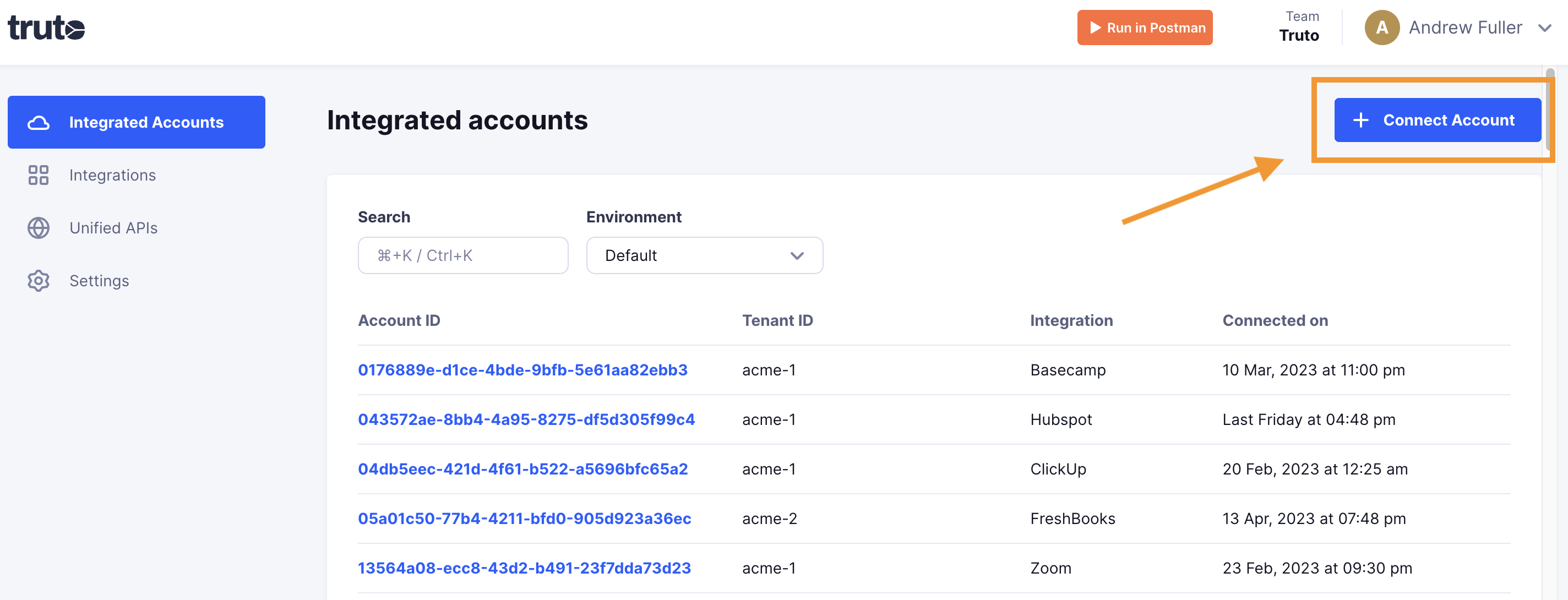
In Integrated Accounts, click Connect Account.
-
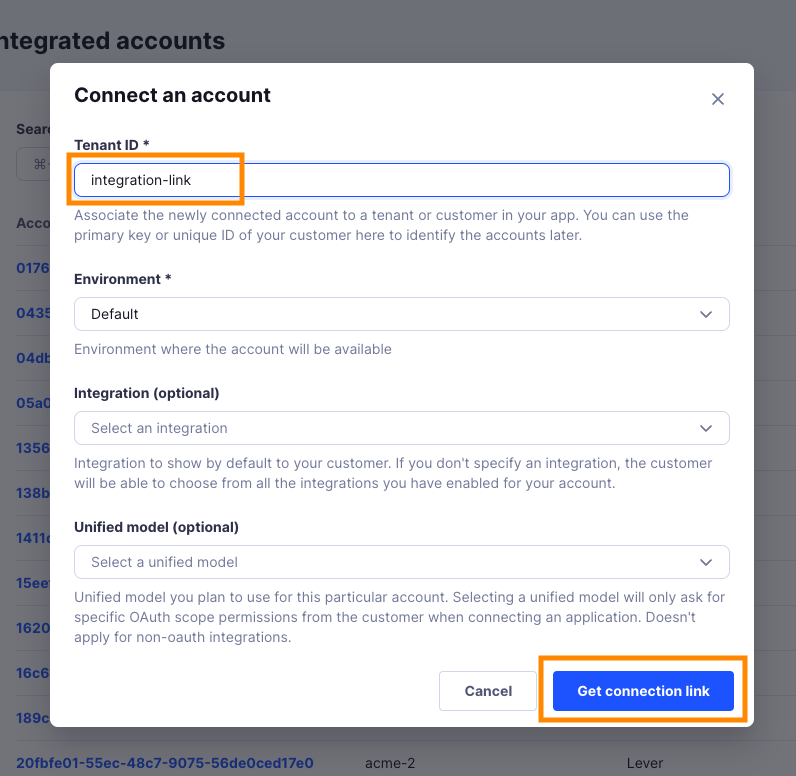
Enter a Tenant ID (your customer's ID; Truto creates the tenant if it is new), or pick one under Existing tenant (optional). Check the Environment and the Region (where Truto places the account; Western North America by default). To open the link straight on Ashby, pick it under Advanced settings → Integration (optional). Click Get connection link.
-
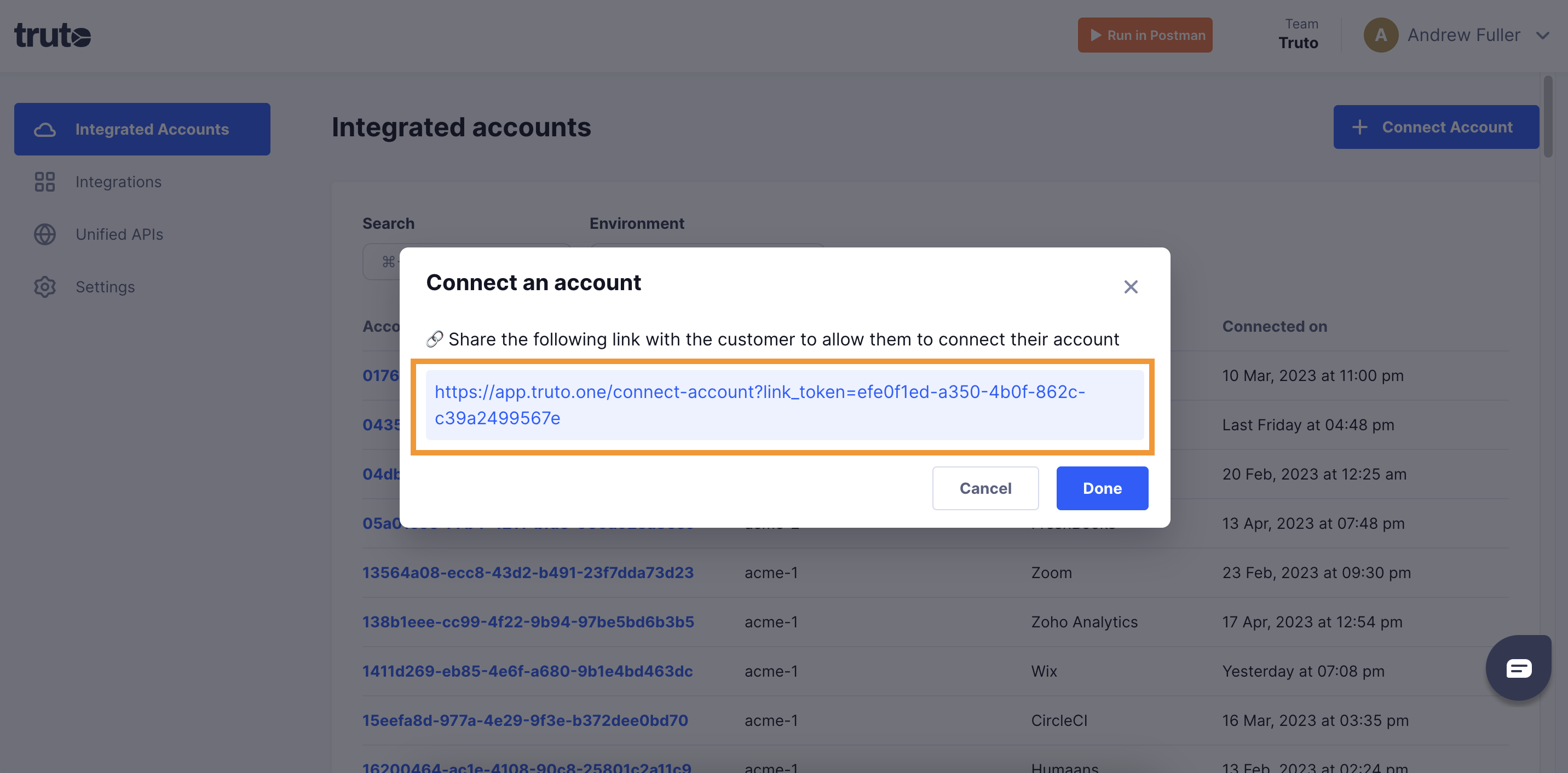
Click the open-in-new-tab button, or click Copy and send the link to your customer so they connect their own Ashby account. The link works for 7 days, until an account is connected with it.
-
Click Get Started if it shows, then select Ashby.
-
Fill in the form and click Connect:
Field Required What to enter API Key Yes Your Ashby API key. See Create an API key. -
Close the tab when you see Connection successful. The new account appears under Integrated Accounts. Click its Account ID to see its details and make API calls.
Receive webhooks
Ashby can send candidate, application and job changes to Truto, which passes them on as unified record:* events.
- Install the ATS Unified API in the environment. Truto turns Ashby events into
record:*events only through it; without it, events are dropped. - Subscribe a Truto webhook to
record:createdandrecord:updated, orall. See Creating a webhook. - In Ashby, go to Admin → Integrations → Webhooks and click New. Pick the event type, set the URL to
https://api.truto.one/integrated-account-webhook/<integrated_account_id>, and enter a secret token. Add one webhook for each event type below. You can also create them through the Proxy API resourcewebhooks. - Save the same secret token as a
webhook_secretvariable on the integrated account: Integrated Accounts → the account → Details → Variables → Edit variables (Add variables when it has none). Truto checks every event'sAshby-Signatureagainst it and rejects events that don't match.
| Ashby event | Truto event |
|---|---|
applicationSubmit |
record:created on ats/applications |
applicationUpdate |
record:updated on ats/applications |
candidateHire, candidateStageChange |
record:updated on ats/candidates |
jobCreate |
record:created on ats/jobs |
jobUpdate, jobPostingUpdate |
record:updated on ats/jobs |