Monday.com
Monday.com connects with OAuth 2.0 through a monday.com app you build in the Developer Center, or with a personal access token. The same app can send its webhooks to Truto.
Install the Monday.com integration
Install Monday.com from Available integrations in each environment you connect accounts from.
Set up your Monday.com OAuth app
Truto doesn't ship a Monday.com OAuth app of its own. Before your end users can connect with OAuth, bring yours:
- Sign in to your Monday.com account and click Developers in the top-right menu.

- In the Monday Developer Center, choose Build App and configure your app. Under OAuth, add
https://api.truto.one/connect/mondaycom/callbackas a redirect URL. If you use a redirect URL on your own domain, add that URL instead.
- Copy the app's Client ID and Client Secret, and enter them on the installed Monday.com integration. See Overriding OAuth credentials.

When you click Install, the second step shows the Redirect URL to add to your app and asks for its Client ID and Client Secret. If you skip it, add them later on the Configuration tab.
Until you add them, the Connect UI offers Monday.com only through the API Key method.
Connect a Monday.com account
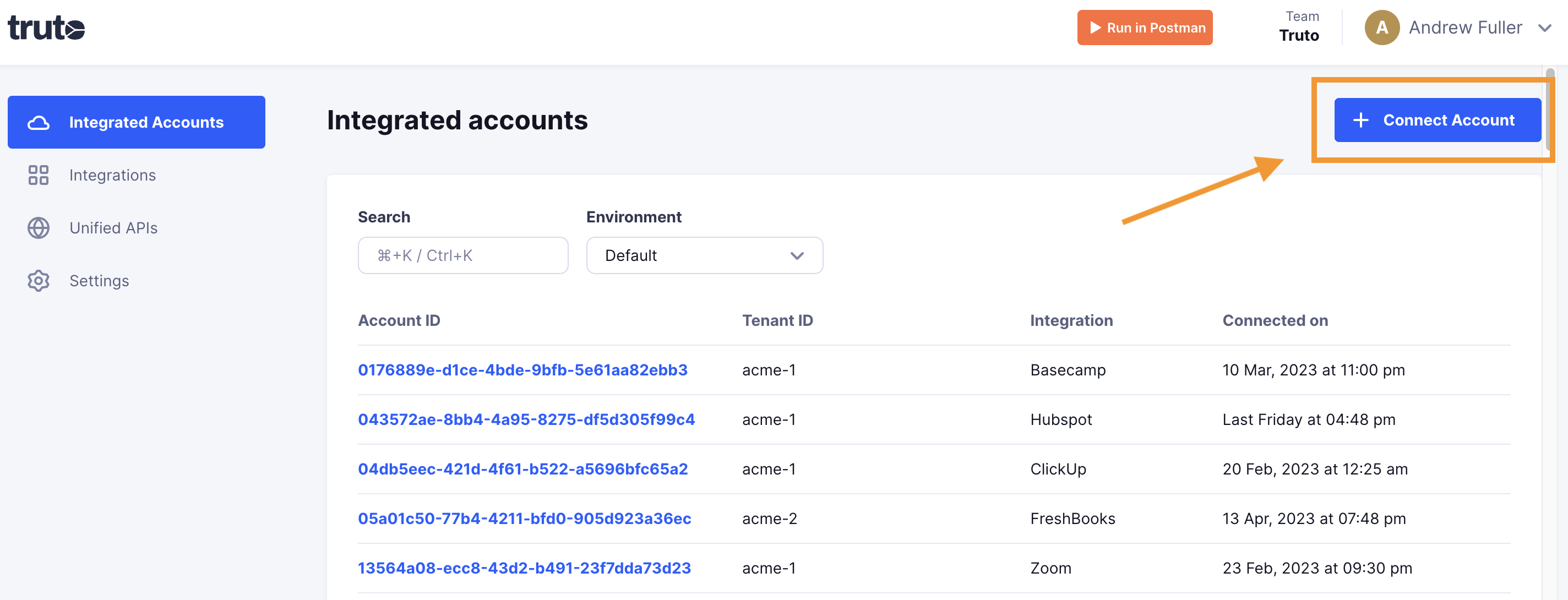
- In Integrated Accounts, click Connect Account.
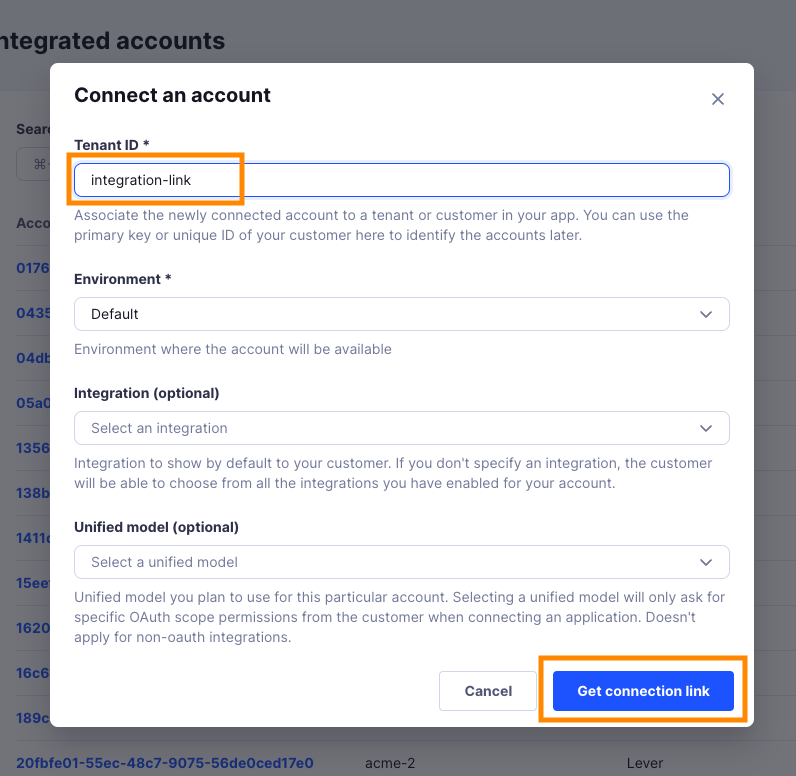
- Enter a Tenant ID (your customer's ID; Truto creates the tenant if it is new), or pick one under Existing tenant (optional). Check the Environment and the Region (where Truto places the account; Western North America by default). To open the link straight on Monday.com, pick it under Advanced settings → Integration (optional). Click Get connection link.
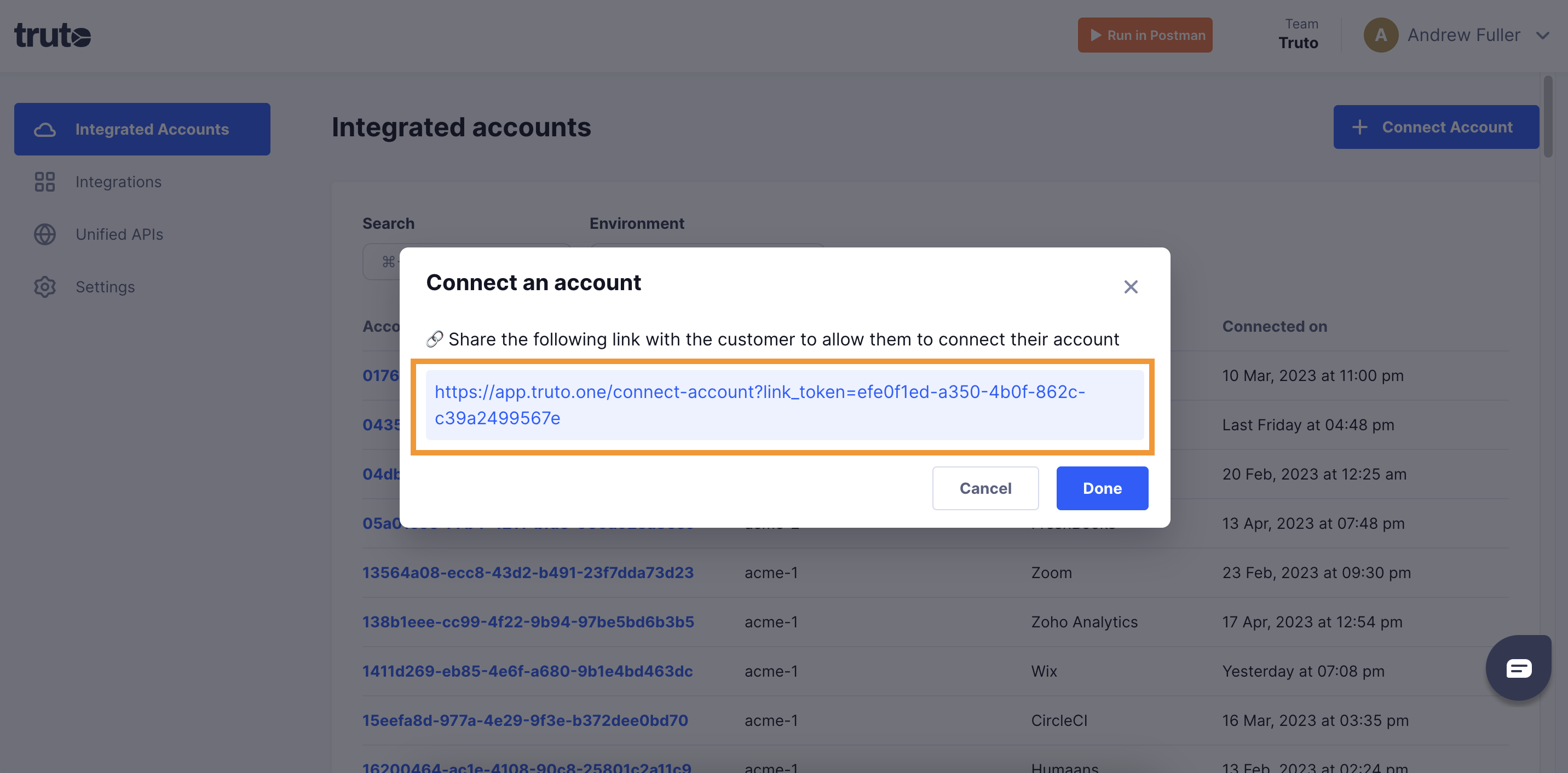
- Click the open-in-new-tab button, or click Copy and send the link to your customer so they connect their own Monday.com account. The link works for 7 days, until an account is connected with it.
- Click Get Started if it shows, then select Monday.com.

- Pick an authentication method: OAuth 2.0 (offered once you add your Monday.com app), API Key. Each one is described below.
OAuth 2.0
Click Connect.
Sign in to monday.com and allow access.
API Key
Fill in the form and click Connect:
| Field | Required | What to enter |
|---|---|---|
| Access Token | Yes | A monday.com personal access token. In monday.com, click your profile picture, select Developers, and copy the token under My access tokens. |
Close the tab when you see Connection successful. The new account appears under Integrated Accounts. Click its Account ID to see its details and make API calls.
Uninstall the Monday.com integration
To remove Monday.com, see Uninstalling an integration. Uninstalling deletes every Monday.com integrated account in that environment.
Set up unified webhooks for Monday.com
The steps below send your monday.com app's app lifecycle events, such as installs and subscription changes, to one Truto URL, and Truto passes them on as record:meta events. Board item events that reach the same URL become record:created, record:updated and record:deleted events for tickets.
-
Install the Unified API that maps the events in the same environment: Ticketing for board item events, User Directory for app lifecycle events. Truto turns monday.com events into unified events only through an installed Unified API; without it, events are dropped. See Receiving vendor webhooks.
-
Create a Truto webhook for your endpoint. Subscribe it to
record:metato get only the app lifecycle events (addrecord:created,record:updatedandrecord:deletedfor board item events), or toall. Store the signing secret it shows once: you need it to verifyX-Truto-Signature.
-
Open Integrations, click Monday.com, and copy ID on the Overview tab. This is the
environment_integration_id.
-
In monday.com, click Developers in the profile menu, open your app in the Monday Developer Center, and click the Webhooks tab under Manage.

-
Enter this target URL, save, and publish the app to Live:
https://api.truto.one/environment-integration-webhook/<environment_integration_id>
Truto checks each request's signature with the Client Secret set on the installed integration. If none is set, add an environment variable monday_signing_secret with your app's signing secret: on the installed integration's Configuration tab, under Environment variables.