ActiveCampaign
ActiveCampaign connects with your account's API URL and API key.
Install the ActiveCampaign integration
Install ActiveCampaign from Available integrations in each environment you connect accounts from.
Find your API URL and API key
- Sign in to ActiveCampaign and go to Settings → Developer.
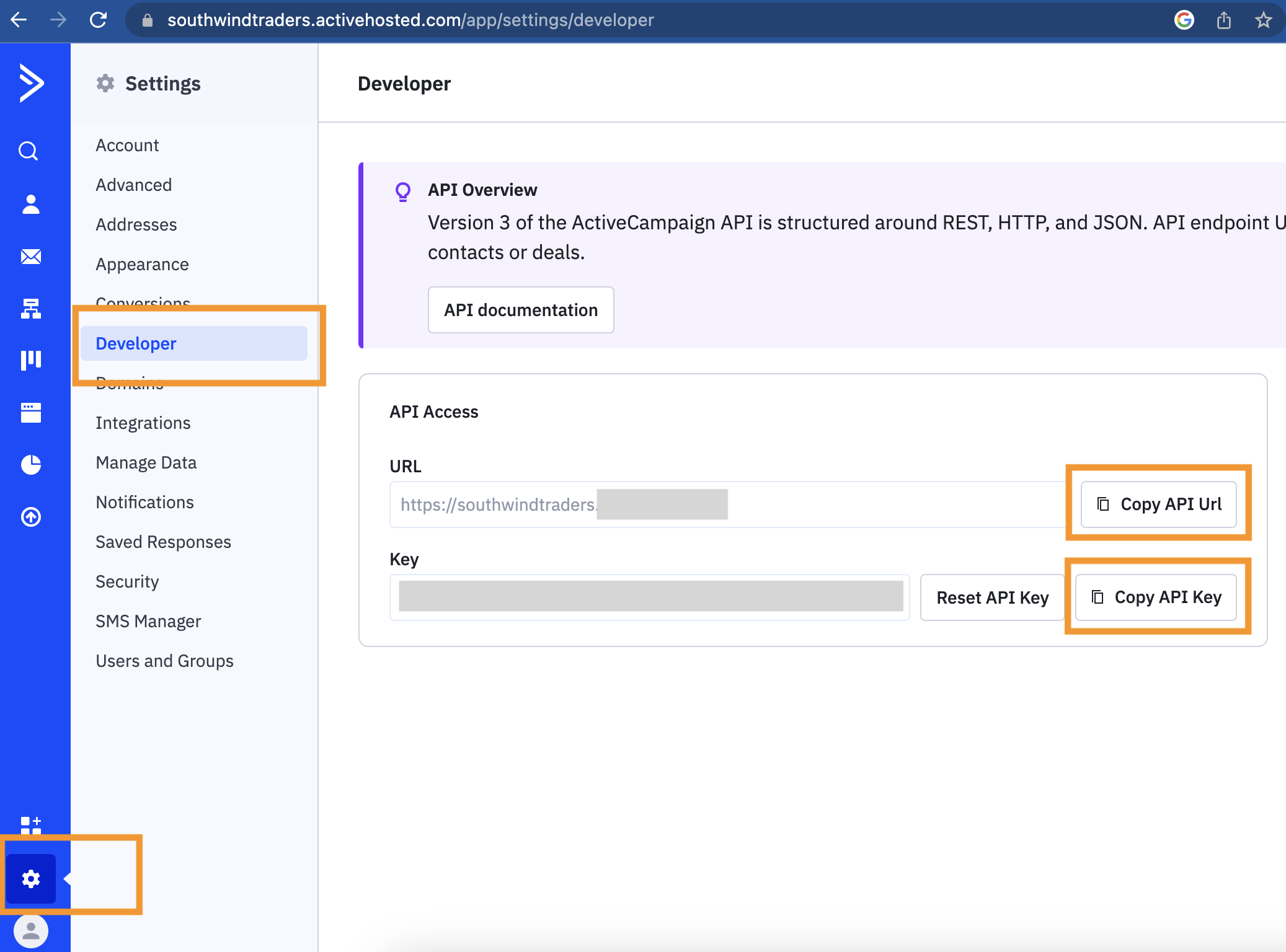
- Copy the API Url and the API Key.
Connect an ActiveCampaign account
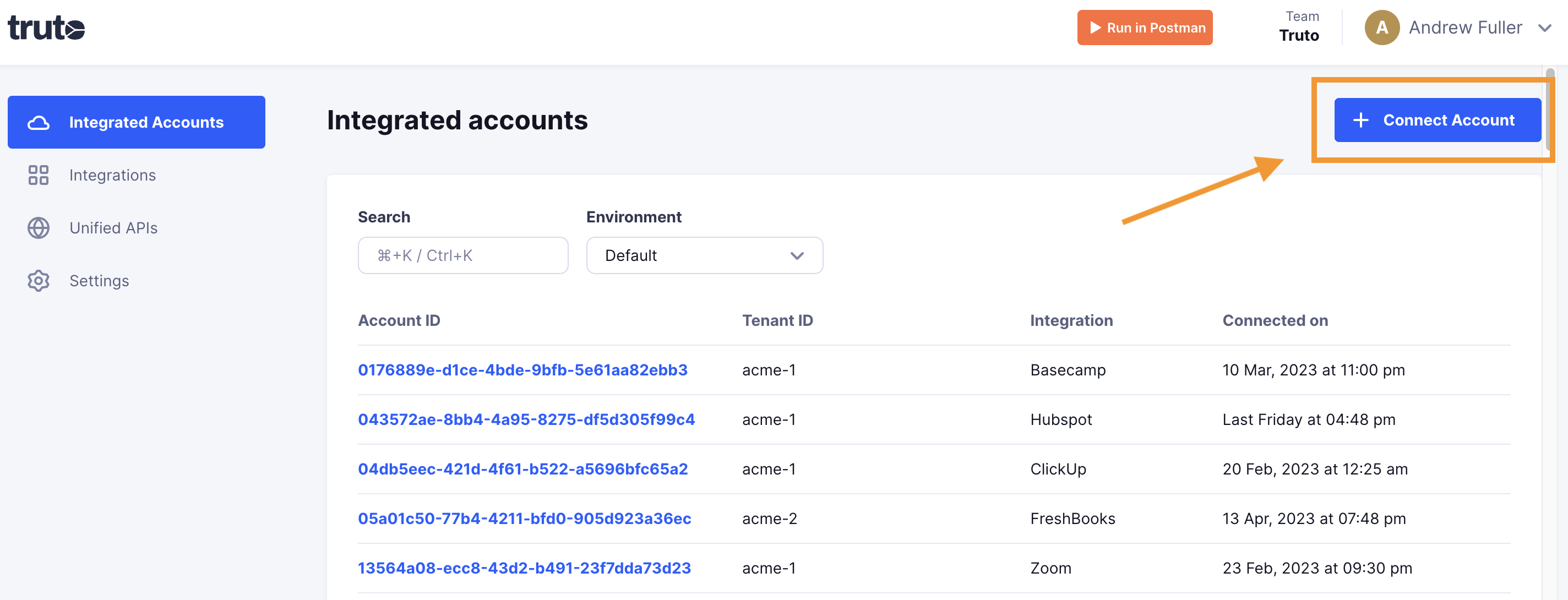
- In Integrated Accounts, click Connect Account.
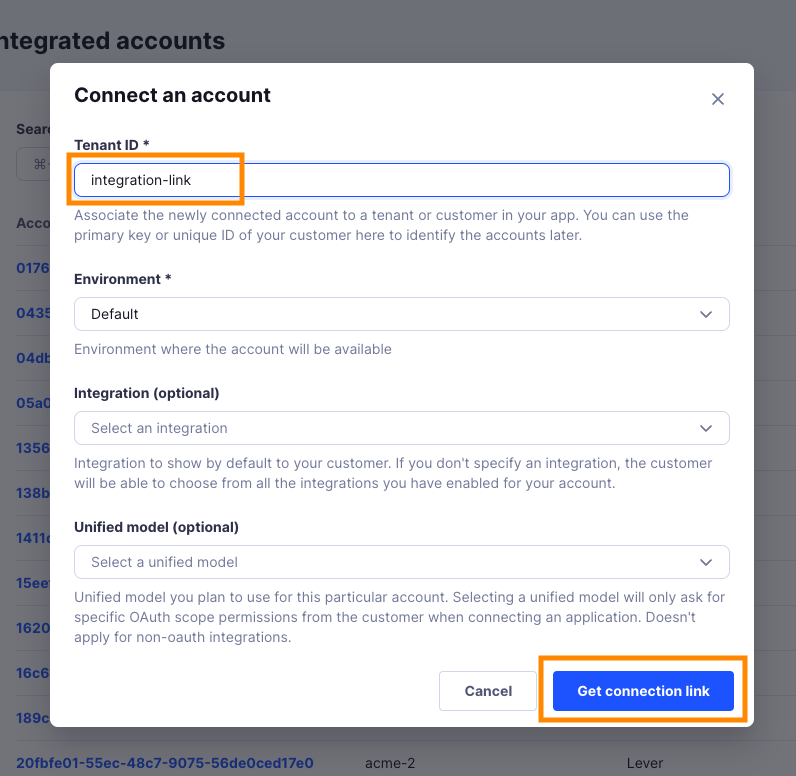
- Enter a Tenant ID (your customer's ID; Truto creates the tenant if it is new), or pick one under Existing tenant (optional). Check the Environment and the Region (where Truto places the account; Western North America by default). To open the link straight on ActiveCampaign, pick it under Advanced settings → Integration (optional). Click Get connection link.
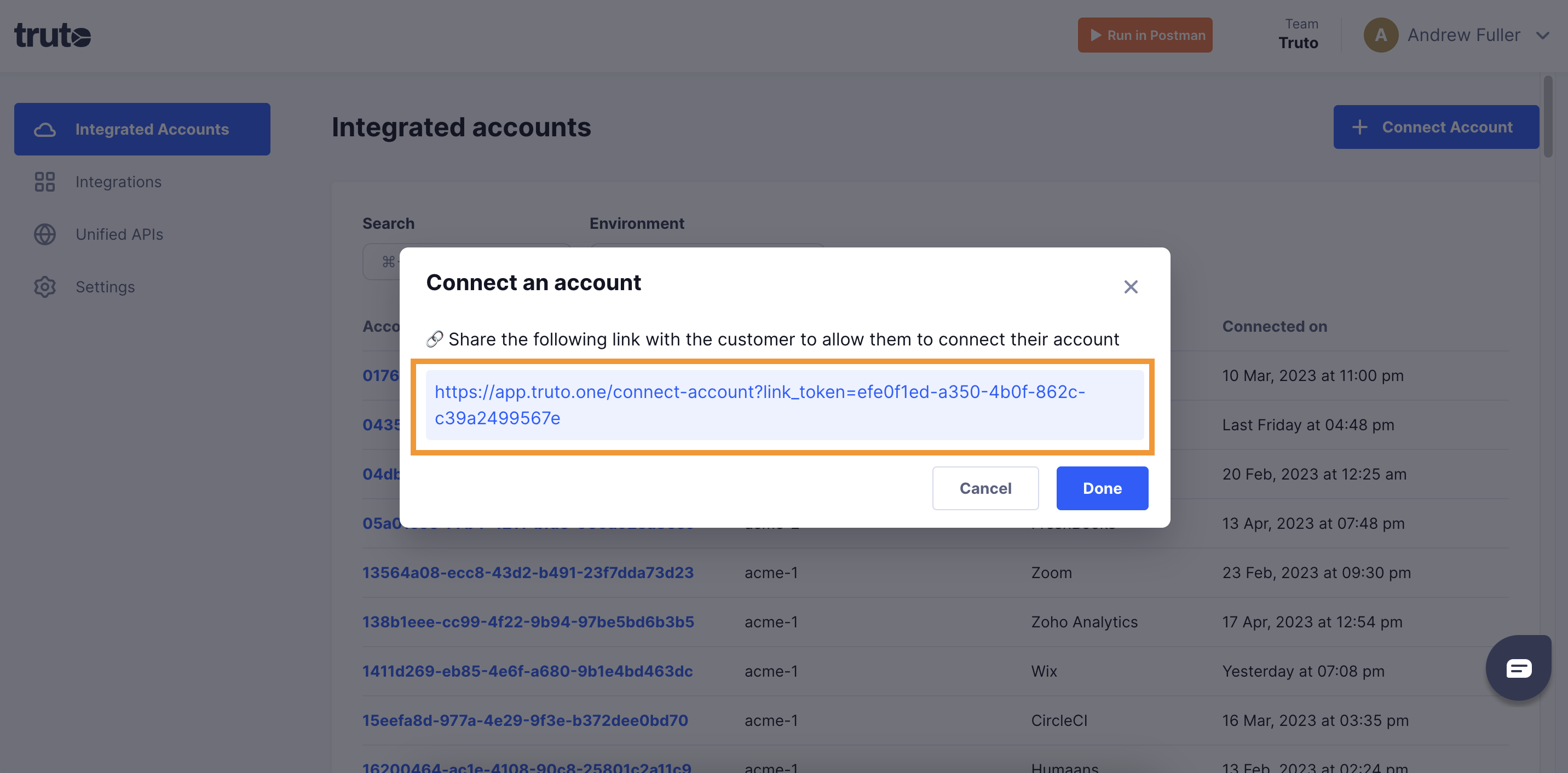
- Click the open-in-new-tab button, or click Copy and send the link to your customer so they connect their own ActiveCampaign account. The link works for 7 days, until an account is connected with it.
- Click Get Started if it shows, then select ActiveCampaign.

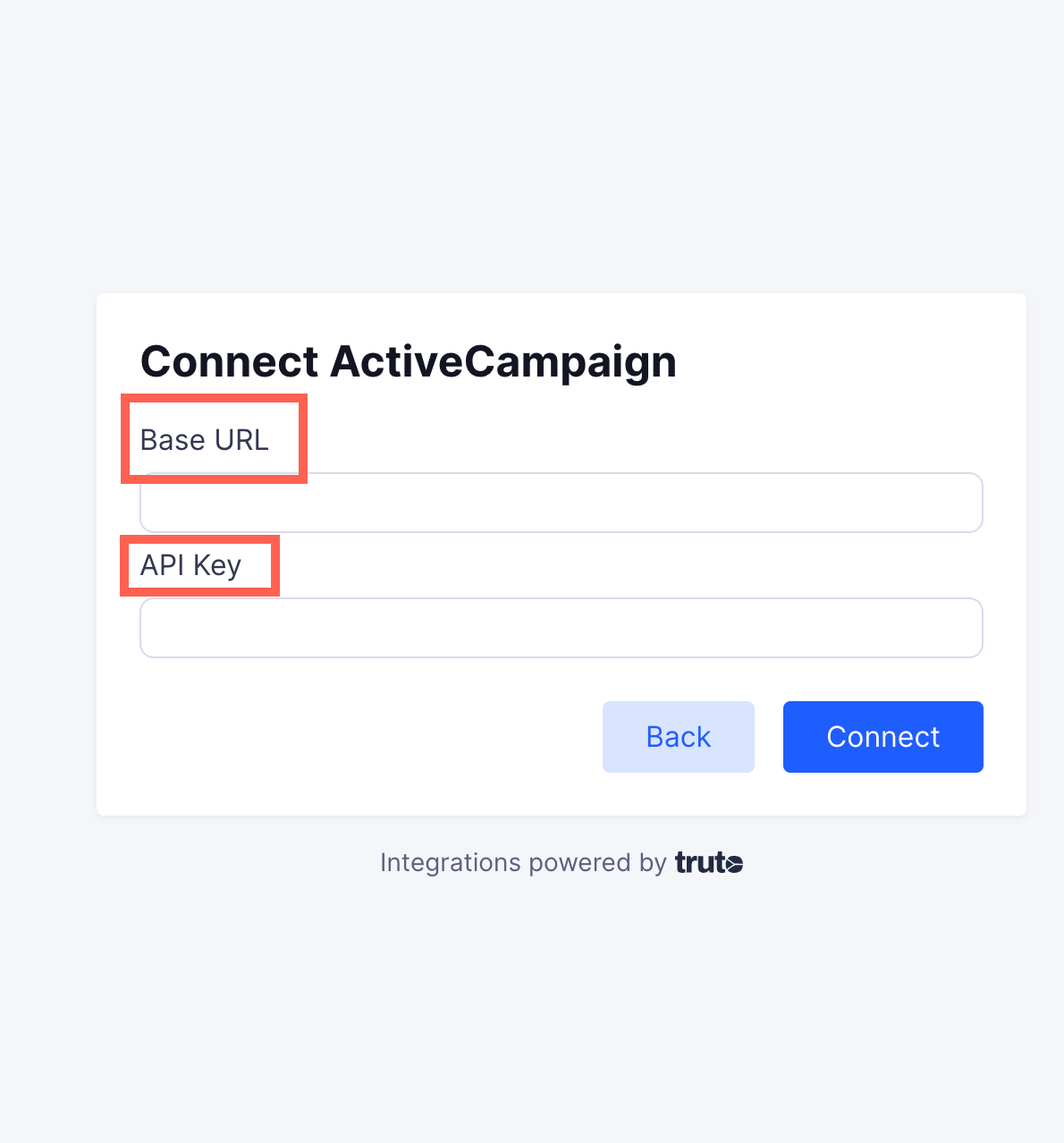
- Enter the API Url as Base URL and the key as API Key, and click Connect.
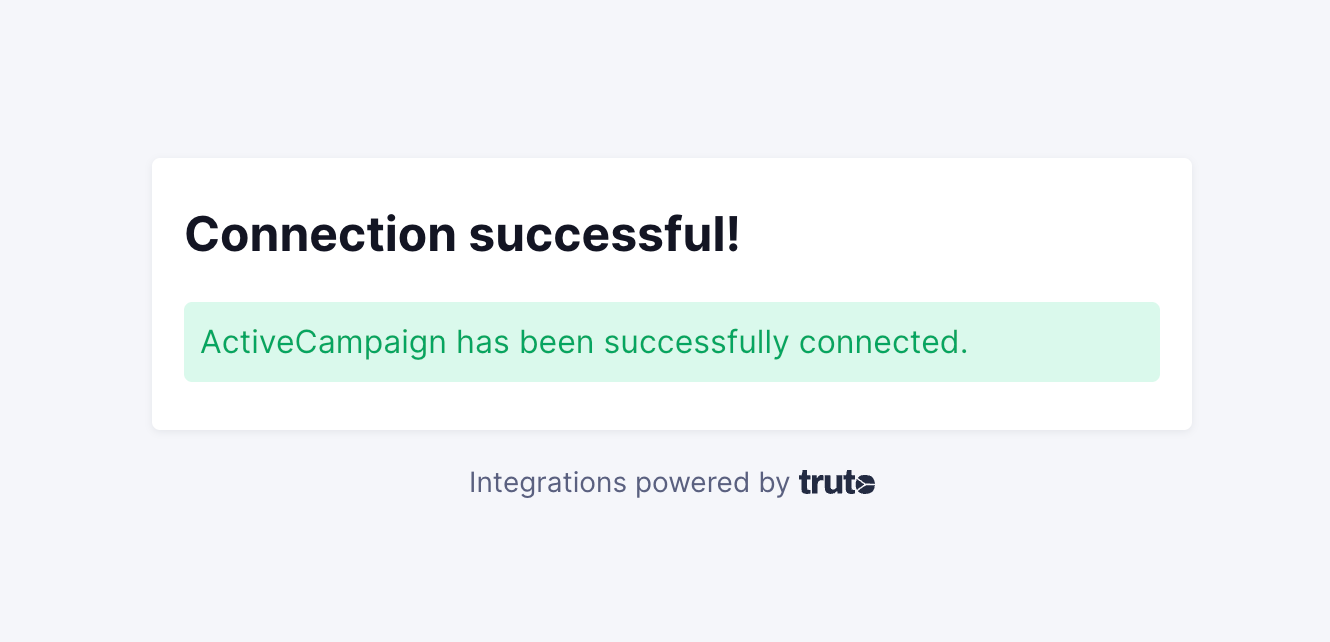
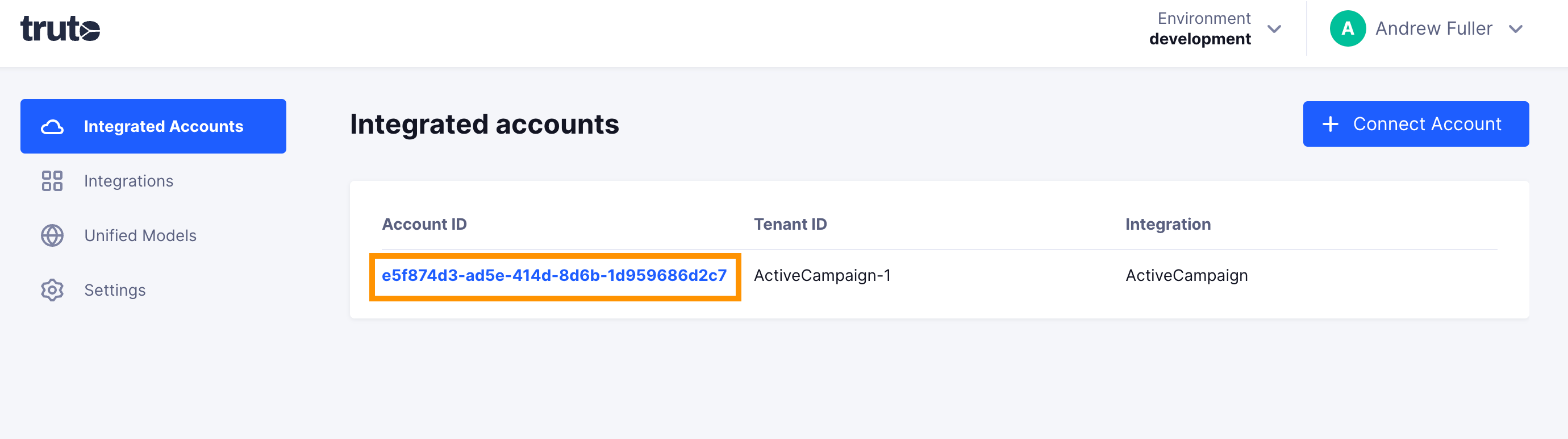
- Close the tab when you see Connection successful. The new account appears under Integrated Accounts. Click its Account ID to see its details and make API calls.
Uninstall the ActiveCampaign integration
To remove ActiveCampaign, see Uninstalling an integration. Uninstalling deletes every ActiveCampaign integrated account in that environment.