Lever
Lever connects with OAuth 2.0 through a Lever app you request from Lever.
Install the Lever integration
Install Lever from Available integrations in each environment you connect accounts from.
Set up your Lever OAuth app
Lever connects only through OAuth, and Truto doesn't ship a Lever OAuth app of its own. Before your end users can connect, bring yours:
- Request an OAuth app from Lever. Mention that you use Truto as your integration provider in the partnership interest form. Add
https://api.truto.one/connect/lever/callbackas its redirect URL. If you use a redirect URL on your own domain, add that URL instead. - Enter the app's Client ID and Client Secret on the installed Lever integration. See Overriding OAuth credentials. Truto already has Lever's authorization and token URLs and scopes, so you don't need to change anything else.
When you click Install, the second step shows the Redirect URL to add to your app and asks for its Client ID and Client Secret. If you skip it, add them later on the Configuration tab.
By default, Truto asks Lever for these scopes. The Connect UI lists them under Permissions required, and you can change them when you override the OAuth credentials.
applications:read:adminarchive_reasons:read:admincontact:write:adminfeedback:write:adminfeedback_templates:write:adminfiles:write:adminforms:write:admininterviews:write:adminnotes:write:adminopportunities:write:adminpostings:write:adminrequisition_fields:write:adminrequisitions:write:adminresumes:read:adminsources:read:adminstages:read:admintags:read:admintasks:read:adminusers:write:adminoffline_access
Enable the same scopes on your app. If your app allows fewer, change the list under Use your own OAuth settings → Scopes on the installed integration's Configuration tab to match.
Until you add them, Lever is left out of the Connect UI. See Until the app is configured.
Connect a Lever account
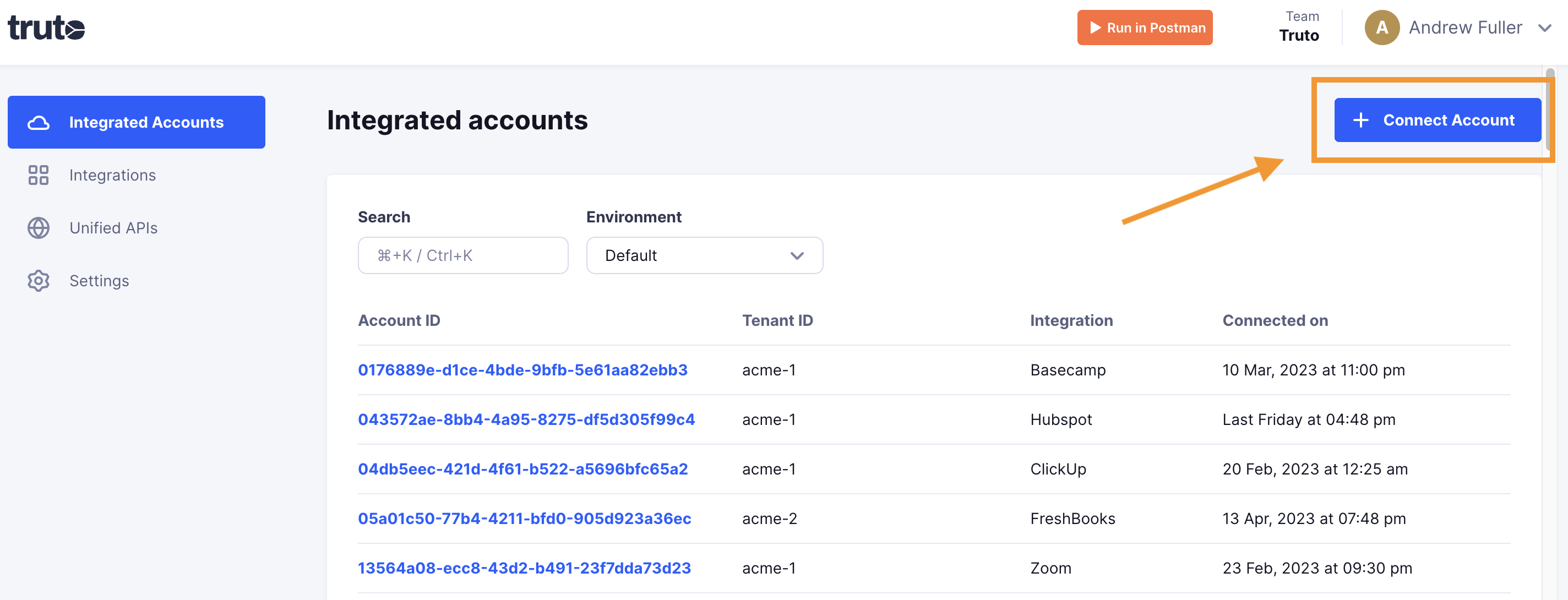
- In Integrated Accounts, click Connect Account.
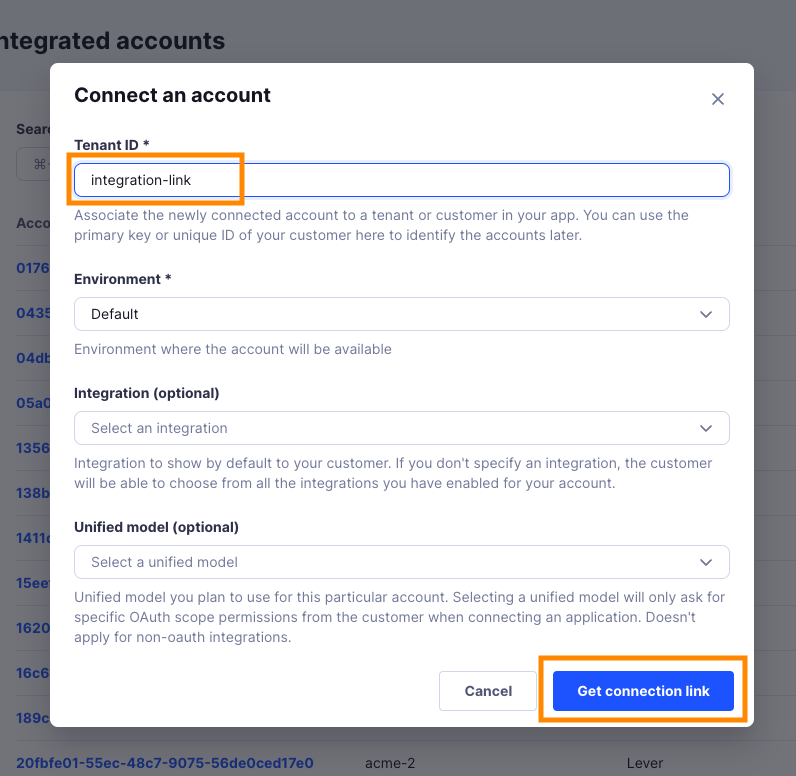
- Enter a Tenant ID (your customer's ID; Truto creates the tenant if it is new), or pick one under Existing tenant (optional). Check the Environment and the Region (where Truto places the account; Western North America by default). To open the link straight on Lever, pick it under Advanced settings → Integration (optional). Click Get connection link.
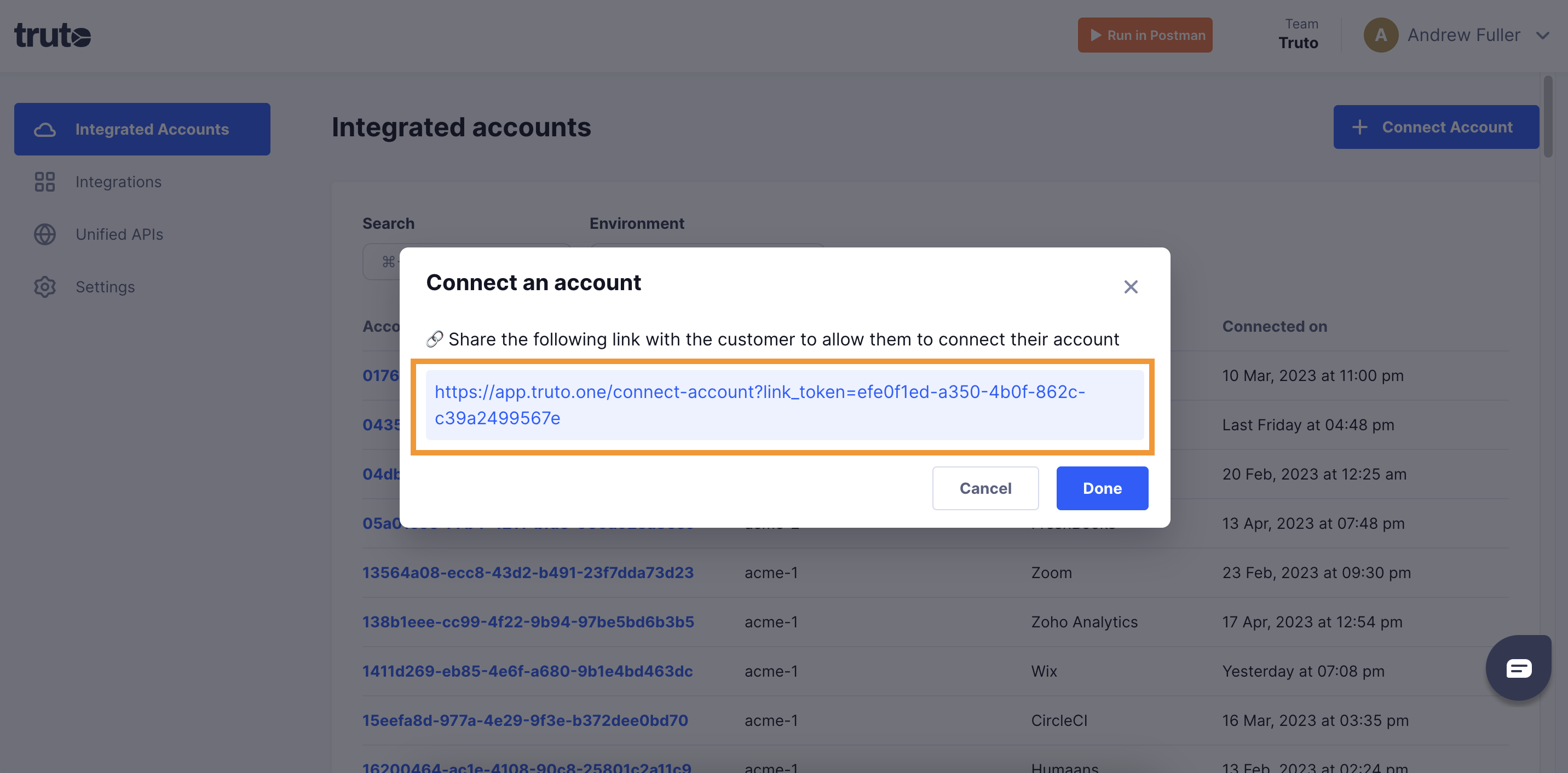
- Click the open-in-new-tab button, or click Copy and send the link to your customer so they connect their own Lever account. The link works for 7 days, until an account is connected with it.
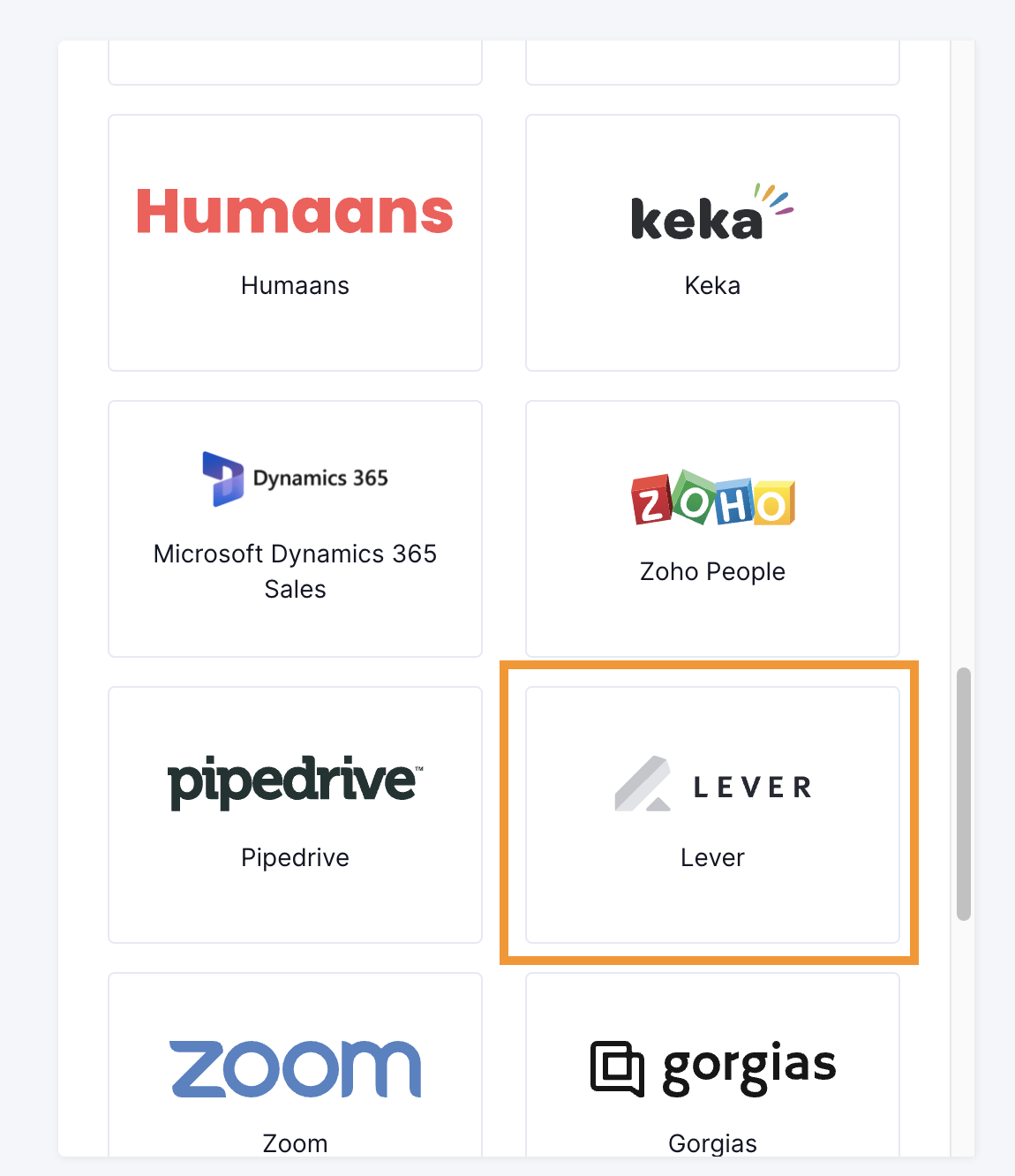
- Click Get Started if it shows, then select Lever.
- Log in to your Lever account and allow access to Truto.
- Close the tab when you see Connection successful. The new account appears under Integrated Accounts. Click its Account ID to see its details and make API calls.