HubSpot
HubSpot connects with OAuth 2.0 through Truto's HubSpot app or your own.
Install the HubSpot integration
Install HubSpot from Available integrations in each environment you connect accounts from.
Use your own HubSpot OAuth app
Truto connects HubSpot accounts through its own OAuth app, so this step is optional. To show your own app on the consent screen instead:
- Create an OAuth app in HubSpot and add
https://api.truto.one/connect/hubspot/callbackas its redirect URL. If you use a redirect URL on your own domain, add that URL instead. - Enter the app's Client ID and Client Secret on the installed HubSpot integration. See Overriding OAuth credentials.
By default, Truto asks HubSpot for these scopes. The Connect UI lists them under Permissions required, and you can change them when you override the OAuth credentials.
crm.lists.readoauthcrm.objects.contacts.readcrm.objects.companies.read
Truto also asks for these optional scopes:
account-info.security.read
accounting
content
conversations.read
conversations.write
crm.dealsplits.read_write
crm.export
crm.import
crm.lists.write
crm.objects.appointments.read
crm.objects.appointments.write
crm.objects.carts.read
crm.objects.carts.write
crm.objects.commercepayments.read
crm.objects.companies.write
crm.objects.contacts.write
crm.objects.courses.read
crm.objects.courses.write
crm.objects.custom.read
crm.objects.custom.write
crm.objects.deals.read
crm.objects.deals.write
crm.objects.feedback_submissions.read
crm.objects.goals.read
crm.objects.invoices.read
crm.objects.leads.read
crm.objects.leads.write
crm.objects.line_items.read
crm.objects.line_items.write
crm.objects.listings.read
crm.objects.listings.write
crm.objects.marketing_events.read
crm.objects.marketing_events.write
crm.objects.orders.read
crm.objects.orders.write
crm.objects.owners.read
crm.objects.partner-clients.read
crm.objects.partner-clients.write
crm.objects.quotes.read
crm.objects.quotes.write
crm.objects.services.read
crm.objects.services.write
crm.objects.subscriptions.read
crm.objects.users.read
crm.objects.users.write
crm.pipelines.orders.read
crm.pipelines.orders.write
crm.schemas.carts.read
crm.schemas.carts.write
crm.schemas.commercepayments.read
crm.schemas.companies.read
crm.schemas.companies.write
crm.schemas.contacts.read
crm.schemas.contacts.write
crm.schemas.custom.read
crm.schemas.deals.read
crm.schemas.deals.write
crm.schemas.invoices.read
crm.schemas.line_items.read
crm.schemas.orders.read
crm.schemas.orders.write
crm.schemas.quotes.read
crm.schemas.subscriptions.read
files
marketing.campaigns.read
marketing.campaigns.revenue.read
marketing.campaigns.write
sales-email-read
settings.users.read
settings.users.teams.read
settings.users.write
tickets
e-commerce
crm.objects.products.read
crm.extensions_calling_transcripts.read
crm.extensions_calling_transcripts.write
crm.object_tags.read
crm.object_tags.write
crm.auto.associations.settings.public.api.write
crm.auto.associations.settings.public.api.read
Enable the same scopes on your app: crm.lists.read, oauth, crm.objects.contacts.read and crm.objects.companies.read as required scopes, the rest as optional scopes. If your app allows fewer, change the list under Use your own OAuth settings → Scopes on the installed integration's Configuration tab to match.
Connect a HubSpot account
The person who connects must be a HubSpot Super Admin, or have App Marketplace access, to install the app.
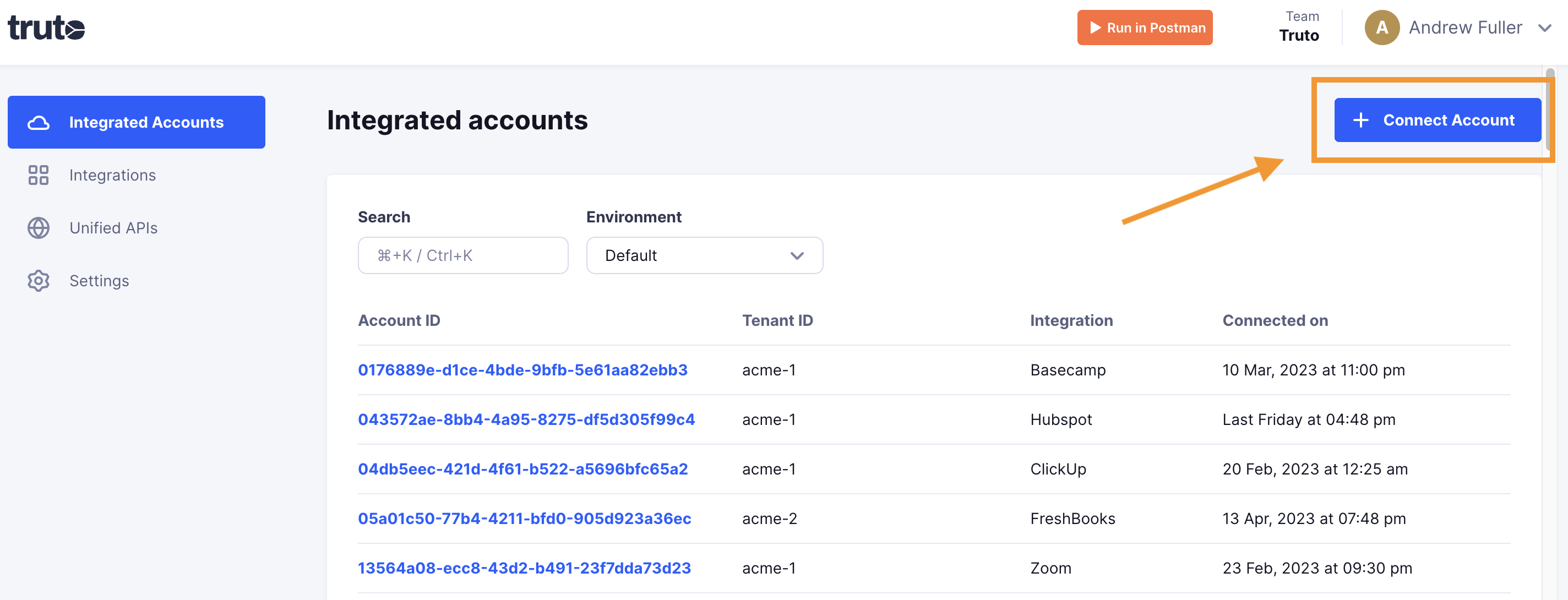
- In Integrated Accounts, click Connect Account.
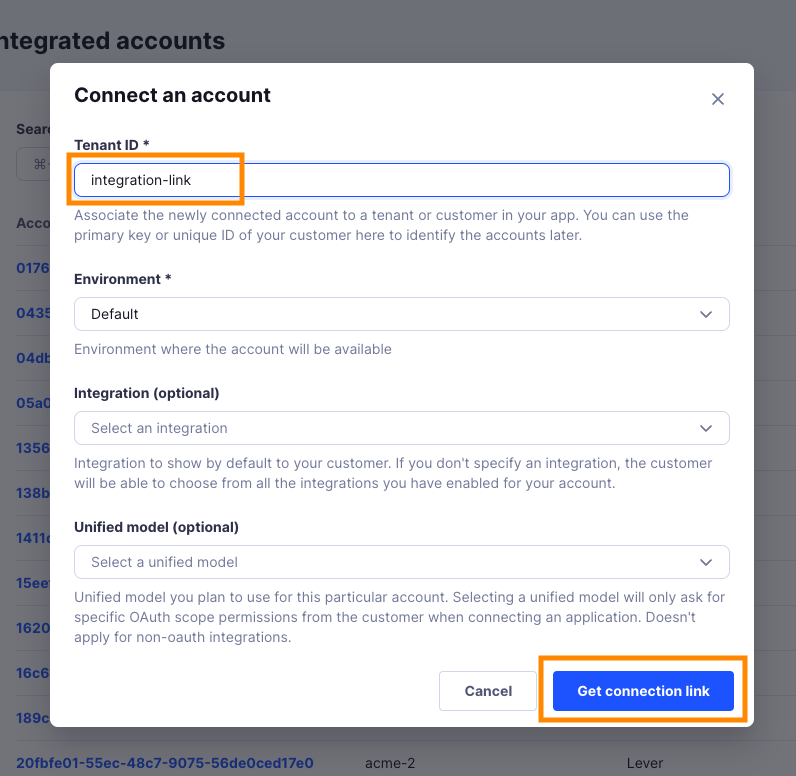
- Enter a Tenant ID (your customer's ID; Truto creates the tenant if it is new), or pick one under Existing tenant (optional). Check the Environment and the Region (where Truto places the account; Western North America by default). To open the link straight on HubSpot, pick it under Advanced settings → Integration (optional). Click Get connection link.
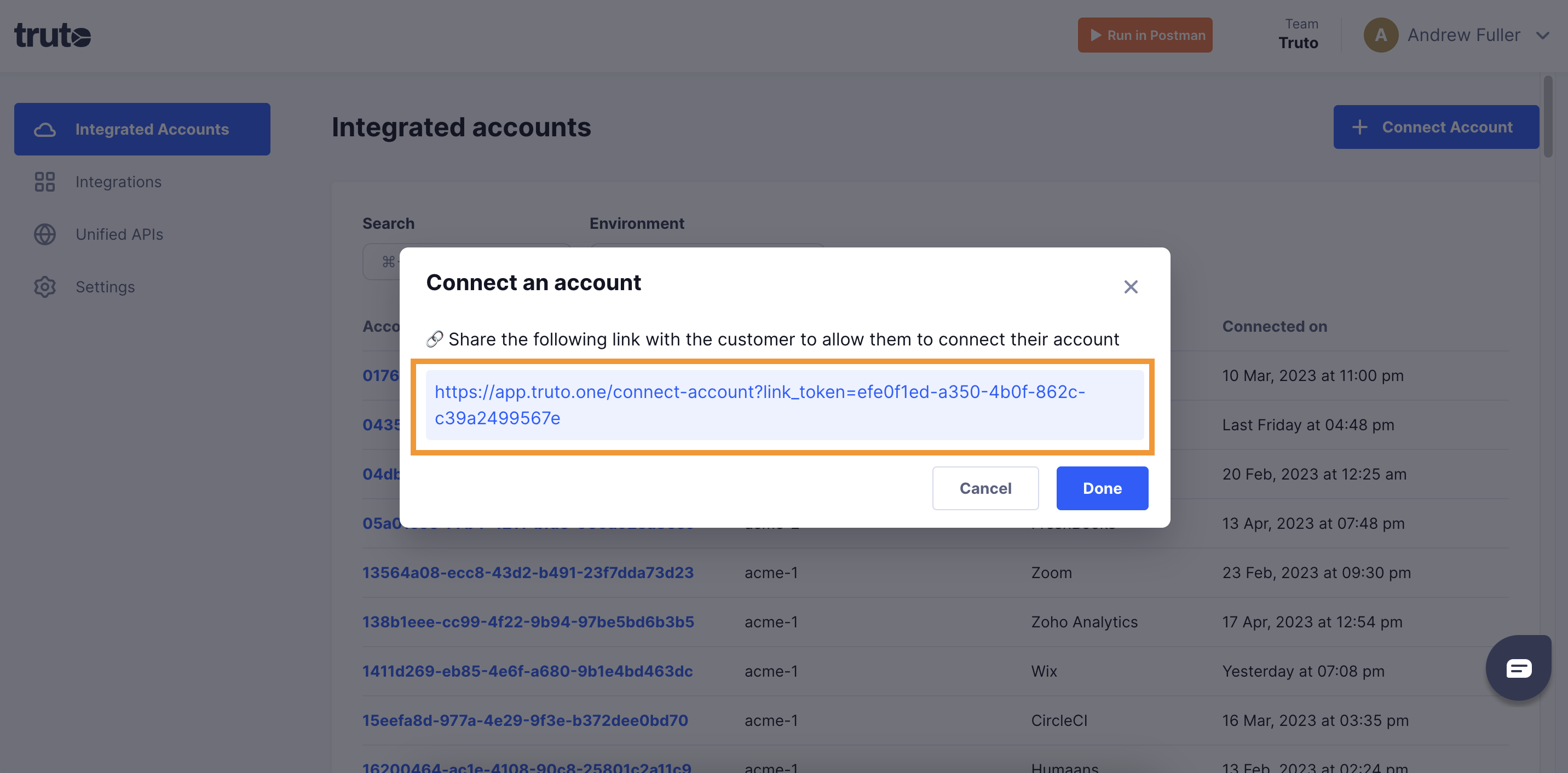
- Click the open-in-new-tab button, or click Copy and send the link to your customer so they connect their own HubSpot account. The link works for 7 days, until an account is connected with it.
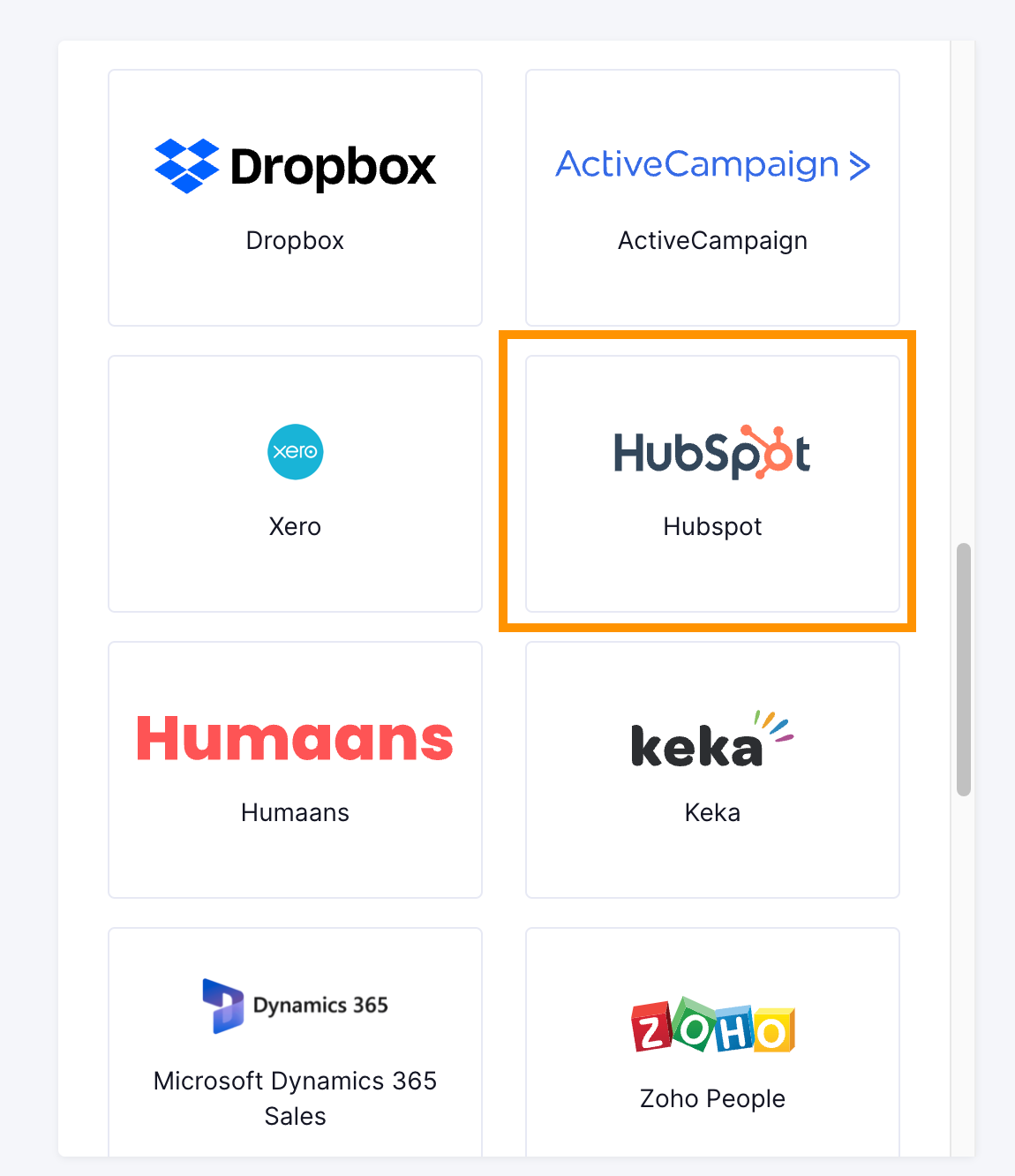
- Click Get Started if it shows, then select HubSpot.
- Log in to your HubSpot account and allow access to Truto.
- Close the tab when you see Connection successful. The new account appears under Integrated Accounts. Click its Account ID to see its details and make API calls.
Set up unified webhooks for HubSpot
Do this once per environment.
Set up Truto
- Install the CRM Unified API in the environment (Unified APIs → find CRM → Install). Truto turns HubSpot events into
record:*events only through an installed Unified API; without it, events are dropped. See Receiving vendor webhooks. - Create a Truto webhook for your endpoint. See Creating a webhook. Subscribe it to
record:created,record:updatedandrecord:deleted(orall), and store the secret it shows once: you need it to verifyX-Truto-Signature.
Connect HubSpot webhooks to Truto
HubSpot webhooks only work with your own HubSpot app. Set its Client ID and Client Secret on the installed HubSpot integration first — see Overriding OAuth credentials — and have your customers connect through it.
HubSpot signs each webhook with the Client Secret of the app that sends it, and Truto checks that signature against the Client Secret your environment uses for HubSpot. HubSpot also sends events only for accounts that installed the app the subscription lives in. If your environment uses Truto's default HubSpot app, the secrets don't match and the events are rejected.
- Go to your HubSpot developer account and open the app you want to set up unified webhooks for.
- Click the Webhooks tab under the Features section.
- Enter the target URL in exactly this format, including
https://— the signature covers the full URL:https://api.truto.one/environment-integration-webhook/<your_environment_integration_id>. To find the ID, open Integrations in the dashboard, click HubSpot, and copy ID on the Overview tab.
- Once the target URL is added, click Create Subscription.
- Select the object types to receive. Truto turns Contact, Company and Lead events into
record:*events (crm/contacts,crm/accounts,crm/leads). A contact's association change to a company arrives as arecord:updatedfor the contact. Truto ignores Deal and other object events. - Select the events for which you would like to receive webhooks.
- If HubSpot warns about missing scopes, click Add these required scopes, select the scopes and click Update.

- Once the required scopes are added, come back to the Webhooks section, select the object types and events again and click Subscribe.
- You should now see the webhook subscription created successfully.
- Select all the event subscriptions and click Activate.

- Truto now sends the unified webhook events to your endpoint.