ZoomInfo SCIM
ZoomInfo SCIM connects with the API token and base URL from ZoomInfo's auto provisioning settings.
- You need to be a ZoomInfo admin.
Install the ZoomInfo SCIM integration
Install ZoomInfo SCIM from Available integrations in each environment you connect accounts from.
Generate an API token
- Sign in to the ZoomInfo Admin Portal and go to Company Settings → Auto Provisioning.

- Click Generate API Token, then copy the token and the base URL.
Connect a ZoomInfo SCIM account
-
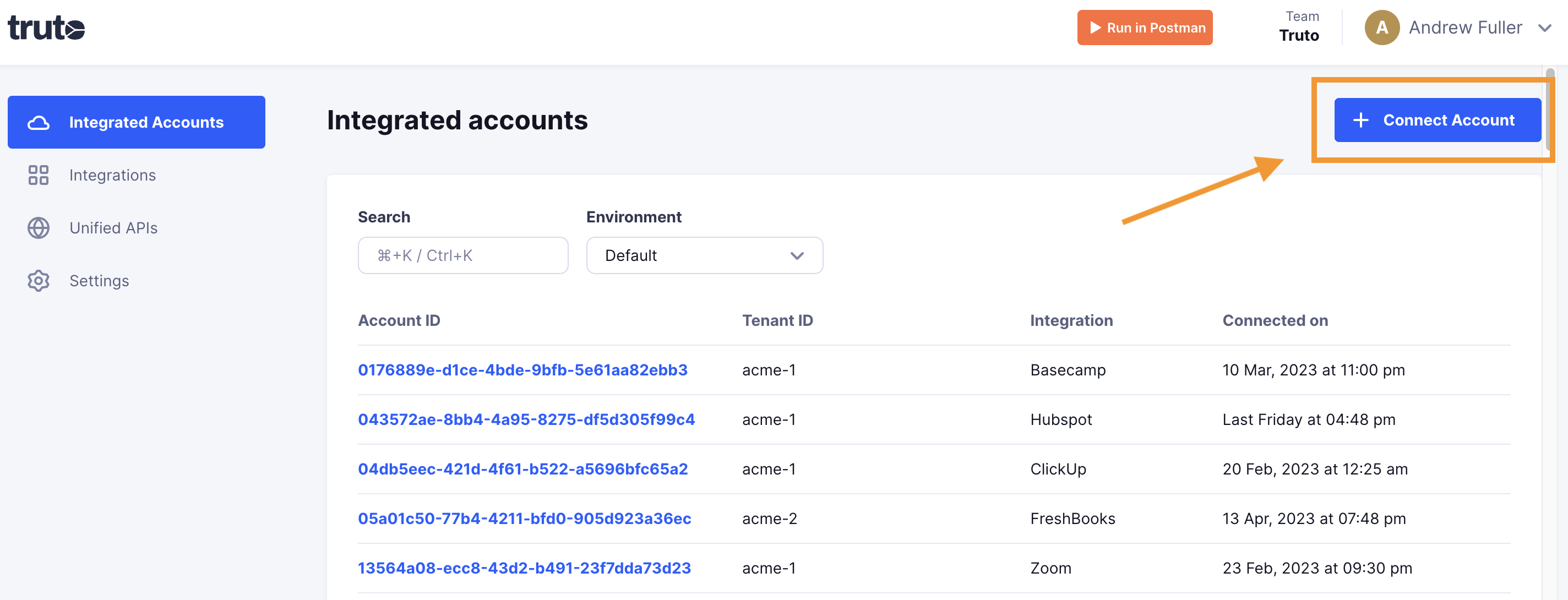
In Integrated Accounts, click Connect Account.
-
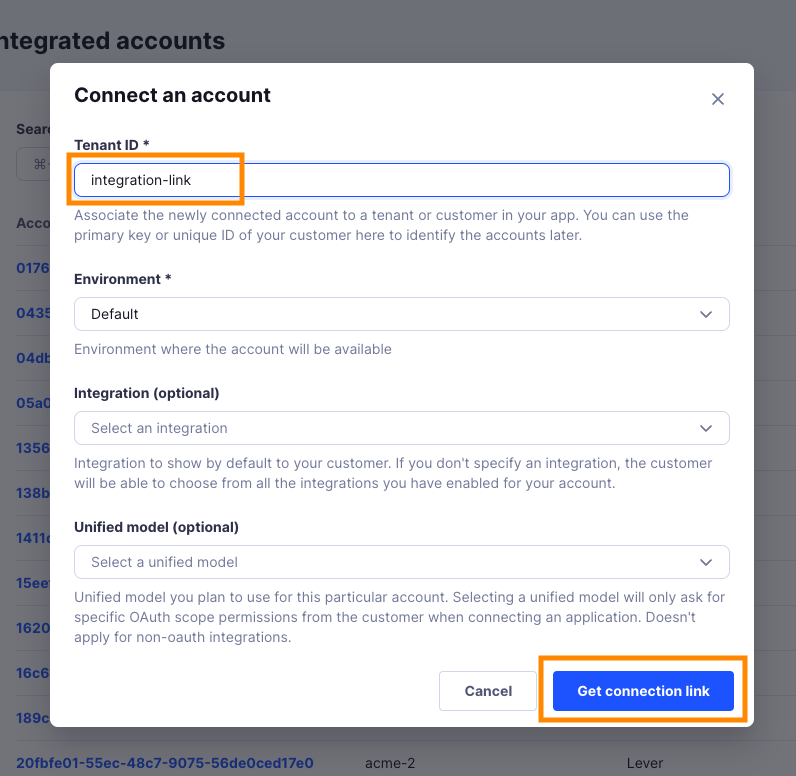
Enter a Tenant ID (your customer's ID; Truto creates the tenant if it is new), or pick one under Existing tenant (optional). Check the Environment and the Region (where Truto places the account; Western North America by default). To open the link straight on ZoomInfo SCIM, pick it under Advanced settings → Integration (optional). Click Get connection link.
-
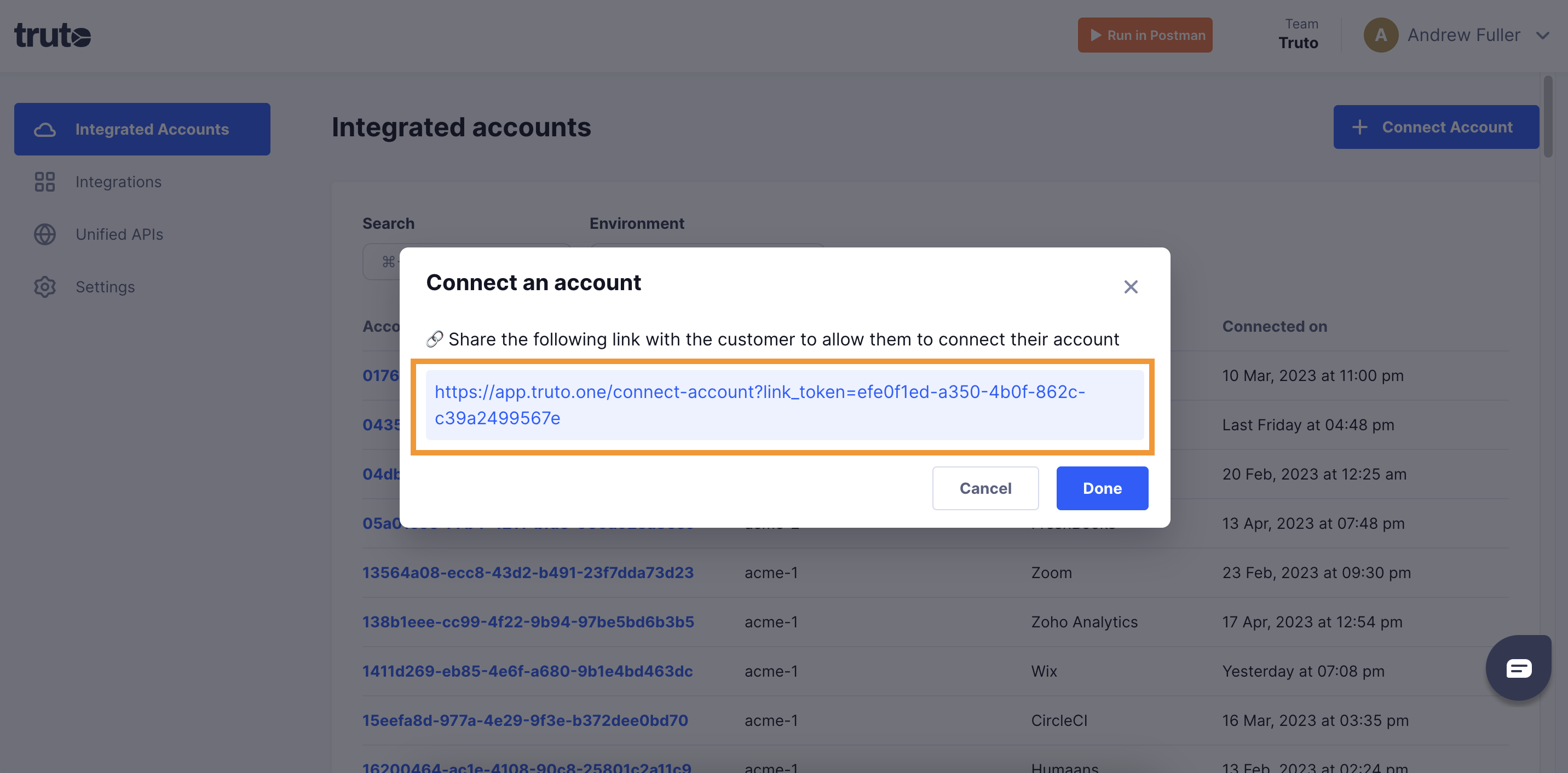
Click the open-in-new-tab button, or click Copy and send the link to your customer so they connect their own ZoomInfo SCIM account. The link works for 7 days, until an account is connected with it.
-
Click Get Started if it shows, then select ZoomInfo SCIM.
-
Fill in the form and click Connect:
Field Required What to enter API Key Yes The token from Generate API Token. Base URL Yes The base URL ZoomInfo shows with the token. -
Close the tab when you see Connection successful. The new account appears under Integrated Accounts. Click its Account ID to see its details and make API calls.